Quantcast
Channel: Visual Studio Blog
Viewing all 1144 articles
Browse latest View live

Unlock Free Access to Cloud Academy: A New Benefit for Visual Studio Subscribers

$
0
0

I’m very excited to share some great news with you! Starting today, if you’re a Visual Studio Professional or Enterprise subscriber, you can get free access to Cloud Academy from QA—no trial, and no credit card required. This exclusive benefit is included with your Visual Studio subscription and provides 12 months of free access to Cloud Academy. Act fast—this is a limited-time offer. Just log in to the Visual Studio subscriptions portal at my.visualstudio.com and activate your free plan.

Image cloud academy qa logo

What is Cloud Academy?

Cloud Academy, now part of QA, is a premier learning platform that helps developers and IT pros master cloud technologies. QA acquired Cloud Academy to expand its robust training offerings, bringing even more hands-on, outcome-based learning experiences to users worldwide.

Master Azure with Hands-on Learning

I know how important hands-on experience is when it comes to mastering cloud skills, and this benefit is packed with practical learning opportunities:

  • 221 Hands-on Labs
  • 330 Lessons
  • 111 Exams
  • 23 Certification Exam Prep Courses

Learn Your Way

One of my favorite features of this platform is how flexible the learning options are. You can choose the style that fits you best:

  • Guided Labs: Follow step-by-step instructions to complete tasks in a live Azure environment.
  • Challenge Labs: If you’re confident in your skills, jump right into a challenge without instructions and validate your work by submitting your code.
  • Cloud Sandboxes: Want to experiment? Practice freely in a safe, pre-configured Azure environment—no need to worry about using up your own Azure credits!

Smarter Learning with AI-Powered Smart Assessments & Ela: Your Expert Learning Assistant

Another standout feature is Ela, your Expert Learning Assistant, and Smart Assessments—and I think you’re going to love it. Instead of working through lessons you’ve already mastered, these AI-driven assessments baseline your knowledge and adjust your learning path accordingly. That means less time reviewing what you already know and more time building new skills that matter.

Meet Ela: Your AI-Powered Learning Assistant

I’m really excited about this—Cloud Academy now includes Ela, an AI-driven learning assistant designed to enhance your self-paced learning experience. Ela is trained exclusively on QA-authored content, making it a trusted source for guidance whenever you need it.

What makes Ela special? Unlike basic AI chatbots, Ela is built with real-world expertise to provide tutor-style support. Whether you’re looking for quick revision, knowledge checks, explanations of complex topics, or even lab-specific assistance, Ela is available 24/7 to help you along the way.

Here are just a few of Ela’s standout capabilities:

  • Summarize: Quickly review key takeaways from course content for faster learning.
  • Test: Reinforce your understanding with knowledge checks before moving forward.
  • Explain: Get clear, practical explanations that connect theory to application.

Ela isn’t just limited to courses—she also provides hands-on lab support, helping you troubleshoot code, find bugs, and clarify lab tasks.

This is a game-changer for learners who want real-time, expert-level support while mastering Azure.

Get Ready for Certification

If you’ve been thinking about getting Azure certified, this benefit will help you get there faster. With 23 certification prep courses, you’ll go beyond just memorization and apply what you learn through a mix of lessons, hands-on labs, quizzes, and exams.

Image my visualstudio com banner

Activate Your Free Access Today

I can’t wait for you to try this out! Redeem your free Cloud Academy access now by logging into my.visualstudio.com and activating your license. Remember, this is limited time offer so act now before it’s gone.

At Microsoft, we’re passionate about helping developers grow their skills and advance their careers. Everyone learns differently, and we know that access to the right tools and resources makes all the difference. Cloud Academy is another opportunity to expand your Azure expertise and bring valuable cloud solutions to your company—whether that’s improving efficiency, driving innovation, or scaling your applications to meet the demands of the future.

Check out the new Visual Studio Hub

Stay connected with everything Visual Studio in one place! Visit the Visual Studio Hub for the latest release notes, YouTube videos, social updates, and community discussions.

Let me know your thoughts about our VS subscriber benefits—you can reach me on LinkedIn!

The post Unlock Free Access to Cloud Academy: A New Benefit for Visual Studio Subscribers appeared first on Visual Studio Blog.


GPT-4o Copilot code completion model available now in Visual Studio public preview

$
0
0

GitHub Copilot, GPT-4o Copilot

We are excited to announce that the new GPT-4o Copilot code completion model is now available for GitHub Copilot users in Visual Studio starting in 17.14 Preview 2! This new model, based on GPT-4o mini, has undergone additional training on over 275,000 high-quality public repositories across more than 30 popular programming languages. As a result, developers can expect more accurate suggestions and better performance.

Try it out now!

For Visual Studio users who have yet to use GitHub Copilot, get started today! There’s even a free plan that includes 2,000 completions and 50 chats per month. You can sign up directly in Visual Studio (version 17.8 or higher) or explore plans here.

Once you have enabled GitHub Copilot, try out the new model by going to Tools -> Options -> GitHub -> Copilot -> Copilot Completions and selecting “GPT-4o Copilot” in the dropdown. You can also access the settings by clicking the GitHub Copilot badge on the top right corner and go to Settings -> Options. Note that there might be a delay on retrieving the latest model list for the first time, please try restarting Visual Studio if you don’t see the new GPT-4o model in the dropdown.

image highlighting how to customize models in the GitHub Copilot settings; GitHub -> Copilot -> Copilot Completions and selecting "GPT-4o Copilot" in the dropdown menu under Copilot Completions Model

GPT-4o Copilot Access Notes

  • Copilot Pro users: The new model is available for you now in 17.14 Preview 2 and later.
  • Copilot Business or Enterprise users: Your administrator needs to enable this model for your organization first by opting in to Editor preview features in the Copilot policy settings on github.com.
  • Copilot Free users: using this model will count toward your 2,000 free monthly completions.

We believe this model could further enhance your productivity in Visual Studio with higher quality code completions. We encourage you to give it a try and share your experience with us. Please share any feedback on Developer Community to help us deliver better experiences for all Visual Studio GitHub Copilot users. We are committed to improving developer productivity and joy with GitHub Copilot in Visual Studio and thank you for being part of this journey!

We appreciate the time you’ve spent reporting issues/suggestions and hope you continue to give us feedback when using Visual Studio on what you like and what we can improve. Your feedback is critical to help us make Visual Studio the best tool it can be! You can share feedback with us via Developer Community: report any bugs or issues via report a problem and share your suggestions for new features or improvements to existing ones.

Stay connected with the Visual Studio team by following us on YouTube, Twitter, LinkedIn, Twitch and on Microsoft Learn.

The post GPT-4o Copilot code completion model available now in Visual Studio public preview appeared first on Visual Studio Blog.

Make more sense of multithreaded debugging

$
0
0

Debugging complex programs often feels like navigating a labyrinth of threads and stack traces. The challenge of understanding thread behaviors and tracing issues can be daunting, leading to longer development times and increased frustration. But now, there’s a solution that simplifies this process—introducing AI-powered thread summaries in Parallel Stacks Window with Visual Studio.

To address these challenges, Visual Studio introduces two AI-powered features that make debugging more intuitive: thread summaries and app summarization. These enhancements bring clarity to your debugging workflow by providing concise explanations of thread activity and interactive AI-driven assistance.

AI-generated thread summaries

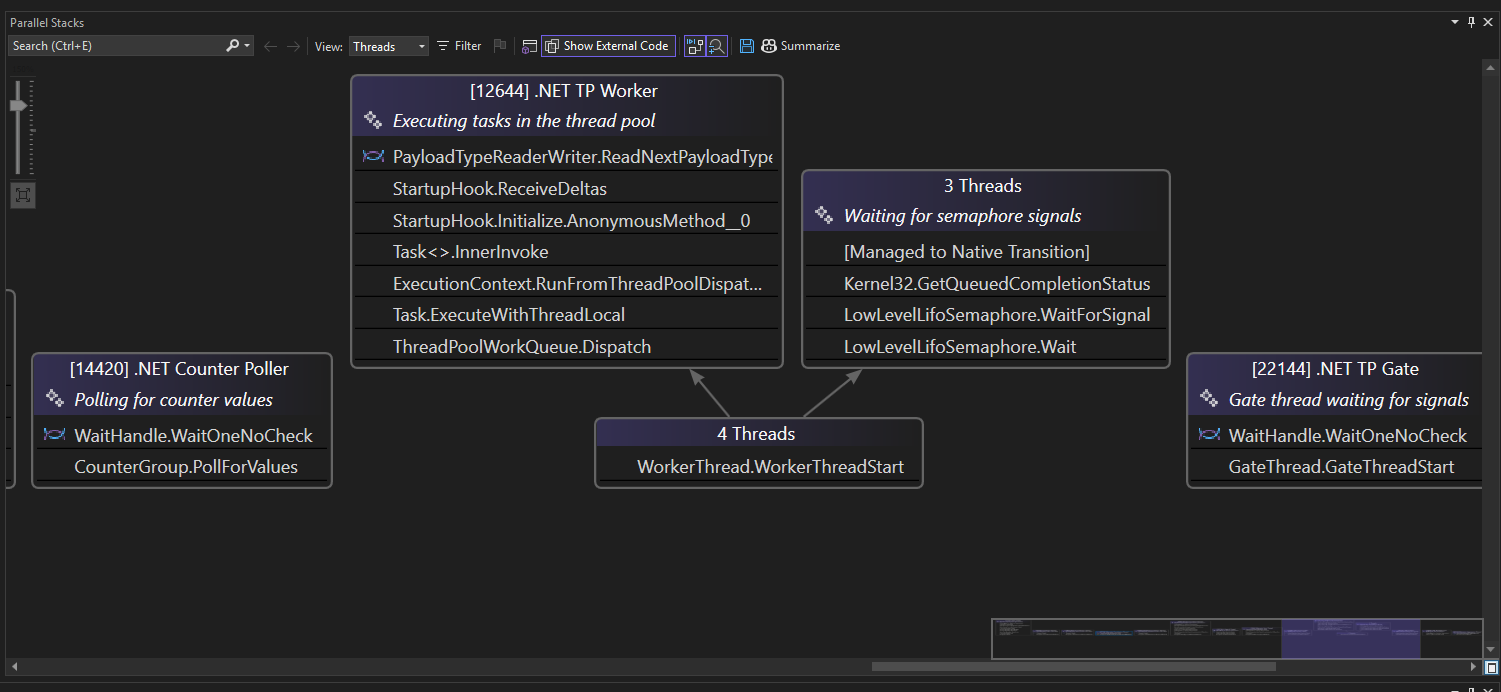
Understanding what each thread is doing at any given moment is crucial when working with parallel execution. The auto summaries feature in Parallel Stacks Window helps developers quickly gain context by generating AI-powered summaries for each thread. Instead of manually analyzing individual stack frames, you can now get a high-level overview at a glance.

When you open the Parallel Stacks Window, these summaries appear at the top of each thread. These summaries provide a high-level overview of each thread’s current activity, helping you quickly grasp their purpose and status.

AI Summarization of Threads

App Summarization with Copilot

Taking AI assistance a step further, the app summarization feature in Parallel Stacks Window enables developers to interactively explore and resolve debugging challenges with Copilot Chat. This feature doesn’t just summarize— it allows you to ask questions, get explanations, and receive AI-powered suggestions tailored to the debugging context.

Instead of just presenting raw call stacks, this integration provides clear overviews of each thread’s actions, potential issues, and fixes. This results in a more intuitive approach to multi-threaded debugging, significantly reducing the time needed to understand and resolve complex thread interactions.

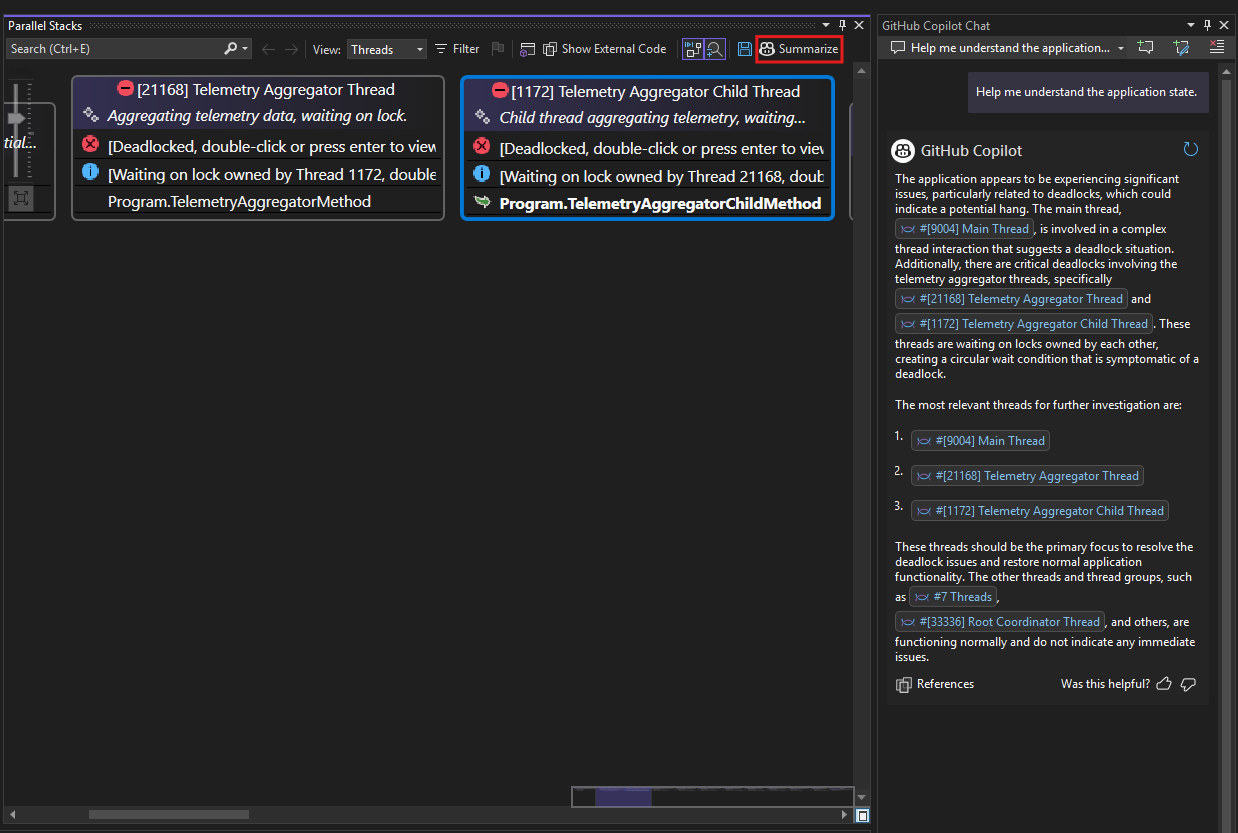
Copilot Chat Integration In Parallel Stack Deadlock example

To use this feature, simply click the “summarize” button at the top of the Parallel Stacks Window. This will open the Copilot Chat on the side, preloaded with relevant thread context. You can then engage in an interactive, AI-powered conversation to resolve common threading issues such as deadlocks and race conditions while optimizing your threading model for better efficiency and reliability.Bottom of Form

By seamlessly combining parallel stack insights with Copilot Chat’s app summaries, Visual Studio streamlines your debugging workflow, empowering you to diagnose, understand, and address threading issues with greater confidence and speed.

Try It Out

Both AI-generated thread summaries and app summarization aim to reduce debugging time and improve developer productivity. Whether you need a high-level overview or an in-depth analysis of a thread, these features provide the clarity and intelligence required to navigate complex debugging scenarios.

Please try it out and give us some feedback. Your insights and suggestions are invaluable as we strive to make Visual Studio the best development environment for you.

Thank you for helping us make Visual Studio better every day.

The post Make more sense of multithreaded debugging appeared first on Visual Studio Blog.

New, Simpler Solution File Format

$
0
0

For years, you’ve worked with Visual Studio’s solution file (*.SLN) format, and while it’s a core part of your project organization, we know the experience hasn’t always been smooth. Whether you’ve been modifying, maintaining, or trying to resolve merge conflicts, it’s often felt more like a hassle than it should be. We understand your frustrations, and we’re here to talk about why it’s time for a change and how a new solution file format can make your life easier.

The Challenges

Despite being a critical element of the Visual Studio ecosystem, the existing solution file format has its share of drawbacks:

  • Manual Edits Are Tedious: Editing solution files manually is error-prone due to its tool-centric format. Small mistakes often lead to misconfigurations, disrupting your workflow.
  • Merge Conflicts Are a Constant Issue: In team environments, merge conflicts in solution files can cause lost work, corrupted files, and delays, making it harder to focus on building software.
  • Verbosity and Redundancy: Solution files start with over 200 characters, and as you add projects, they quickly become bloated with duplicate GUIDs and metadata, cluttering your work.
  • No Real Benefit from Duplication: Redundant references to project names and solution items provide little value and only add confusion, taking up space without improving your workflow.
  • Non-Standard File Format: The .SLN file format is specific to Visual Studio and not a widely recognized standard, which limits its compatibility with external tools and automation.

To help you visualize these challenges, here’s an example of a traditional Visual Studio solution file:

Microsoft Visual Studio Solution File, Format Version 12.00
# Visual Studio Version 17
VisualStudioVersion = 17.9.34511.98
MinimumVisualStudioVersion = 10.0.40219.1
Project("{FAE04EC0-301F-11D3-BF4B-00C04F79EFBC}") = "DotNetMonitorWebApp", "DotNetMonitorWebApp\DotNetMonitorWebApp.csproj", "{1385B389-B20C-4D19-8FE0-85629BC41343}"
EndProject
Global
GlobalSection(SolutionConfigurationPlatforms) = preSolution
Debug|Any CPU = Debug|Any CPU
Release|Any CPU = Release|Any CPU
EndGlobalSection
GlobalSection(ProjectConfigurationPlatforms) = postSolution
{1385B389-B20C-4D19-8FE0-85629BC41343}.Debug|Any CPU.ActiveCfg = Debug|Any CPU
{1385B389-B20C-4D19-8FE0-85629BC41343}.Debug|Any CPU.Build.0 = Debug|Any CPU
{1385B389-B20C-4D19-8FE0-85629BC41343}.Release|Any CPU.ActiveCfg = Release|Any CPU
{1385B389-B20C-4D19-8FE0-85629BC41343}.Release|Any CPU.Build.0 = Release|Any CPU
EndGlobalSection
GlobalSection(SolutionProperties) = preSolution
HideSolutionNode = FALSE
EndGlobalSection
GlobalSection(ExtensibilityGlobals) = postSolution
SolutionGuid = {C12E911E-FAA3-4ACE-B6BF-C3605E866483}
EndGlobalSection
EndGlobal

Simplifying the Solution File

We’ve made several improvements with the new solution file format to enhance your experience. These changes include a more readable and editable structure, the use of a XML format, and the preservation of whitespace and comments for better organization. The new format is minimalistic, optimizing performance for faster load times, and reduces merge conflicts in version control. It also ensures compatibility with older Visual Studio versions and aligns with certain MSBuild conventions for smoother integration with other tools.

Here’s a detailed look at these enhancements:

  • Human-Readable and Editable: The new solution file format is designed with clarity in mind, making it easy for developers to read and modify project configurations. This eliminates much of the confusion and errors that arose from manually editing complex files.
  • Standardized XML Format: We’ve moved away from a proprietary format and adopted XML for the solution file structure. XML is widely understood, offering flexibility and standardization for greater ease of use.
  • Whitespace and Comment Preservation: We now preserve whitespace and comments within solution files when saving them, ensuring your formatting stays intact and helping to maintain an organized file.
  • Minimalistic Footprint: The new format adopts sensible defaults, keeping the solution file minimal and optimizing performance. This leads to efficient use of resources, even for large solutions.
  • Reduced Merge Conflicts: By simplifying the file structure, we’ve reduced the likelihood of merge conflicts in version control systems. This means fewer headaches when collaborating with teammates and easier management of changes.
  • Compatibility with Older Visual Studio Versions: We’ve ensured compatibility with Visual Studio Dev 17.14, allowing a smooth transition between the old and new file formats without disrupting your workflow.
  • Alignment with MSBuild: The new format aligns with certain MSBuild conventions, which enhances its integration with other tools and platforms, ensuring smoother interoperability.

To give you a glimpse into the simplicity of the new .SLNX format, here’s an example:

<Solution>
<Project Path="DotNetMonitorWebApp\DotNetMonitorWebApp.csproj" />
</Solution>

To save a solution in the new file format, select the solution node in Solution Explorer, then go to File -> Save Solution As… and choose the “XML Solution File (*.SLNX)” format. The solution will then be saved as a .SLNX file.

Saving a XML file in the new format

To open a .SLNX file, use the File -> Open command and select the .SLNX file. Note that Visual Studio is not registered as the default handler for .SLNX files, so they won’t open in Visual Studio by default.

Frequently Asked Questions (FAQ)

If you have questions about or are curious to learn more about the format and our plans, have a read of the FAQ section below.

What is a solution file?

A Visual Studio solution file (.SLN extension) is essential for organizing and managing multiple projects within Visual Studio. It acts as a container that maintains references between projects, build configurations, and other settings, defining how the solution is structured, and which projects are involved.

What support is available for the .SLNX format across different tools and environments?

We are currently working on providing support for the. SLNX format across various tools and environments. Here’s what you can expect:

  • MSBuild Support: MSBuild now fully supports the .SLNX format, enabling seamless integration with the .NET and C++ build systems. This support allows for efficient building, adding, and removing projects within .SLNX files using MSBuild commands.
  • .NET CLI Support: The .NET CLI has been updated to handle .SLNX files, providing consistent experience for managing solutions directly from the command line.
  • C# Dev Kit Support: The C# Dev Kit for VS Code now fully supports the .SLNX format, making it easier to work with solution files within the VS Code environment.

What about third-party tool support?

The .SLNX file format is designed for wide adoption, but we recommend waiting until it’s more finalized before fully adopting it.

If you’re using tools that rely on either the .SLN or .SLNX file formats, we have developed an open source serializer that supports both formats: vs-solutionpersistence.

Can I edit .SLNX files without unloading?

Like .SLN files, .SLNX files must be unloaded to be edited in Visual Studio. However, we don’t anticipate many cases where manual editing will be necessary. If you’d like to see support for editing without unloading, we encourage you to upvote the community request.

What about solution filters?

Solution filters (.SLNf files), which help improve load and run times, will continue to work with the new .SLNX format — but keep in mind that filter files are tied to a specific solution file. If you migrate your solution from .SLN to .SLNX, you’ll need to update the filter file to reference the new .SLNX file, otherwise it will still try to open the old .SLN file.

Will extensions continue to support. SLNX?

We designed the .SLNX file format to be transparent to extensions. Existing Visual Studio APIs that work with .SLN files should continue to work without requiring changes. However, if your extension directly edits solution files, it will need to support both .SLN and .SLNX formats. To learn more about working with solution files in extensions, we recommend checking out the vs-solutionpersistence library, which provides useful APIs for solution file manipulation

How do I migrate from the old .SLN format to .SLNX?

Migrating from the traditional .SLN format to the new .SLNX format is simple, and there are two ways to do it:

  • Using the .NET CLI (for .NET projects)

For .NET developers, you can migrate your solution using the following command:

dotnet SLN <YourSolutionFile.SLN> migrate

Replace <YourSolutionFile.SLN> with the actual name of your solution file. This command will generate a .SLNX file from your existing .SLN file.

  • Using Visual Studio (recommended for all languages)

Once the .SLNX feature is enabled, you can save your solution in the new format directly from Visual Studio — this method works for all supported project types, including C++, Python, JS/TS, and others.

To save in the new format:

    1. Right-click the solution node in Solution Explorer.
    2. Select File -> Save Solution As….
    3. In the file type dropdown, choose Xml Solution File (*.SLNX).
    4. Click Save.

Can I have both .SLN and .SLNX files in the same repo? What’s the best practice for teams where some clients still use .SLN and others want to move to .SLNX?

We strongly recommend not having both .SLN and .SLNX files in the same repository. This can cause issues such as:

  • Commands like dotnet SLN will not automatically detect the correct solution file.
  • Keeping both files manually in sync can be error-prone and lead to confusion across teams.

If you absolutely need to maintain both for compatibility reasons (e.g., during a phased migration), consider using a sync tool like this one: dotnet-SLN-sync, which helps automatically keep .SLN and .SLNX files aligned.

However, the recommended best practice is to coordinate the transition with all clients and move fully to .SLNX once the entire team or organization is ready.

Disclaimer: The dotnet-sln-sync tool is a community-developed project and is not maintained or supported by Microsoft. Please use it at your discretion.

Will file globbing be supported?

The current solution design lists all projects and their locations directly in the solution file. This approach allows Visual Studio to begin loading projects almost immediately.

Supporting globbing, would require scanning the file system and evaluating potentially complex patterns to identify matching projects. Especially for larger repositories, this additional step can significantly slow down the loading process which is why globbing is not currently supported.

For those unfamiliar, globbing refers to pattern matching used to dynamically resolve file paths, commonly seen in many build systems and tools. You can read more about this concept here.

Why did you choose XML for .SLNX?

We selected XML because it’s a widely used format, and it’s the same format used by project files. XML in project files supports powerful evaluation and execution capabilities, but we want to keep .SLNX simple for now. We’re focused on maintaining the basic functionality like .SLN while keeping things straightforward.

What are the minimum supported tooling versions for building with >SLNX format, and what scenarios are currently unsupported?

To build with the .SLNX format:

  • If you’re building with .NET, ensure the project’s global.json is set to a minimum of .NET 9.0.200 SDK.
  • If you’re building with MSBuild, make sure your build tools are using Visual Studio or Build Tools for Visual Studio version 17.13 or later.

Looking Ahead: Your Feedback Is Key

Your feedback shapes the future of Visual Studio, and we truly appreciate the time you take to share it. Whether it’s a bug report or a new feature idea, your insights help us build a better experience for you.

📢 Got feedback? Let us know!

  • Report a Problem – If something isn’t working as expected, tell us on Developer Community.
  • Suggest a Feature – Have an idea to make Visual Studio even better? We’re listening!

To stay in the loop on the latest updates, tips, and discussions from the Visual Studio team connect with the us on the Visual Studio Hub .

The post New, Simpler Solution File Format appeared first on Visual Studio Blog.

Introducing automatic documentation comment generation in Visual Studio

$
0
0

We are excited to announce that Copilot is now automatically integrated into Visual Studio’s editor to help you generate doc comments for functions. This new feature aims to streamline your documentation process and enhance your coding experience.

To access these updates, you will need a GitHub Copilot subscription. If you don’t already have GitHub Copilot, you can sign up for free here.

AI doc comment generation

If you have automatic doc comment generation enabled via your settings, you can simply type what would trigger your doc comment format (such as ///) and Copilot suggestions will automatically fill out the function description based on the contents of the function, including a summary and any parameters and return types (if available). You can then accept these suggestions using a single tab, just like regular Copilot code completions.

Gif showcasing copilot generating a summary in the comments

How to enable doc comments

To access this feature, you will need to have automatically generating doc comments enabled.

For C++ projects, you can configure the generated documentation comment styles using the following setting in Tools > Options. Both XML and Doxygen style comments are supported by this feature.

Tools > Option, Coding Style, General to enable for C++

For C#, you would need to enable the following setting in your Tools > Options

Tools > Option, C#, Advanced, Comments for C#

Share your feedback

This feature is available for Visual Studio 17.14 Preview 2 for both C# and C++ project files. We encourage you to explore this feature and see how GitHub Copilot can transform and simplify your coding experience.

We deeply appreciate the continuous feedback from our users, which drives us to improve and innovate. Your input is invaluable in making Visual Studio better with each update. Happy coding!

The post Introducing automatic documentation comment generation in Visual Studio appeared first on Visual Studio Blog.

Boost your GitHub productivity with our new multi-account support!

$
0
0

Managing your GitHub identity in Visual Studio 2022 just got easier! Our latest update overhauls the GitHub account management experience and improves how you work with multiple accounts, especially for GitHub Copilot and version control scenarios. In this post, we’ll detail how these changes will make your GitHub workflow smoother, from the moment you start using Visual Studio to your everyday coding.

Onboarding Improvements

The latest Visual Studio 2022 update streamlines your GitHub experience right from the very start. You can now Sign in with your GitHub account during the first launch experience:

Image firstlaunchwithgithub

If you would rather configure your account at a later stage, you can also sign in with GitHub accounts directly from the Visual Studio shell, regardless of whether a Microsoft account is present.

Image signinfromshell

Please note that roaming settings are not currently available for GitHub accounts. You’ll need to add a Microsoft account if you want to roam your Visual Studio settings across devices.

Multiple GitHub Accounts

We’re happy to announce that you can now add and manage multiple GitHub accounts! Multi-account support was a top request from you, and the latest update enables it for all Visual Studio 2022 users.

You can add multiple public GitHub accounts effortlessly from all the same identity controls you normally interact with. For instance, you can open the profile card, click on “Add another account,” sign in to your GitHub account, and repeat as needed!

Image addaccountanimation

Seamless Switching Between Accounts

Once you successfully add your first GitHub account, Visual Studio will automatically If you have multiple accounts, switching the active accounts is effortless; just open the profile card, access the account options and select the “Set as active account” button.

Image copilotbecomesactive 2

GitHub Copilot Integration

The active GitHub account drives the activation of GitHub Copilot. If your active account is subscribed to GitHub Copilot Free, GitHub Copilot for Individuals or GitHub Copilot for Business, the Copilot feature will activate automatically.

You can check the GitHub Copilot badge to quickly assess if your active account has valid entitlements, as its status will indicate whether GitHub Copilot is active.

Image copilotbecomesactive

Version Control Integration

Managing multiple accounts also impacts version control-related scenarios. If you are working on GitHub pull requests or issues, Visual Studio prompt you to set a GitHub account and will remember your preference for each repository.

Image vc dialog

That means that you won’t need to worry about switching accounts for regular Git operations like push, pull, and fetch. between it and the repository preferences,

Conclusion

We’ve been working hard to make your GitHub experience in Visual Studio 2022 even better, and we think you’ll love these updates!  From easier onboarding and managing multiple GitHub accounts to automatic GitHub Copilot activation and smart Git handling, this update has you covered.

Thank you for your continuous feedback, which helps us make Visual Studio better with every release.  Please remember that you can keep sharing your thoughts and suggestions by visiting our developer community portal.

The post Boost your GitHub productivity with our new multi-account support! appeared first on Visual Studio Blog.

Find the IDE features you need with GitHub Copilot and Search

$
0
0

Ever find yourself needing to locate a specific menu item, command, or option in Visual Studio, but you don’t know its name or location? Do you often struggle to find detailed instructions on using certain features effectively?

Now, there’s a solution to get you the information you need right in the IDE.

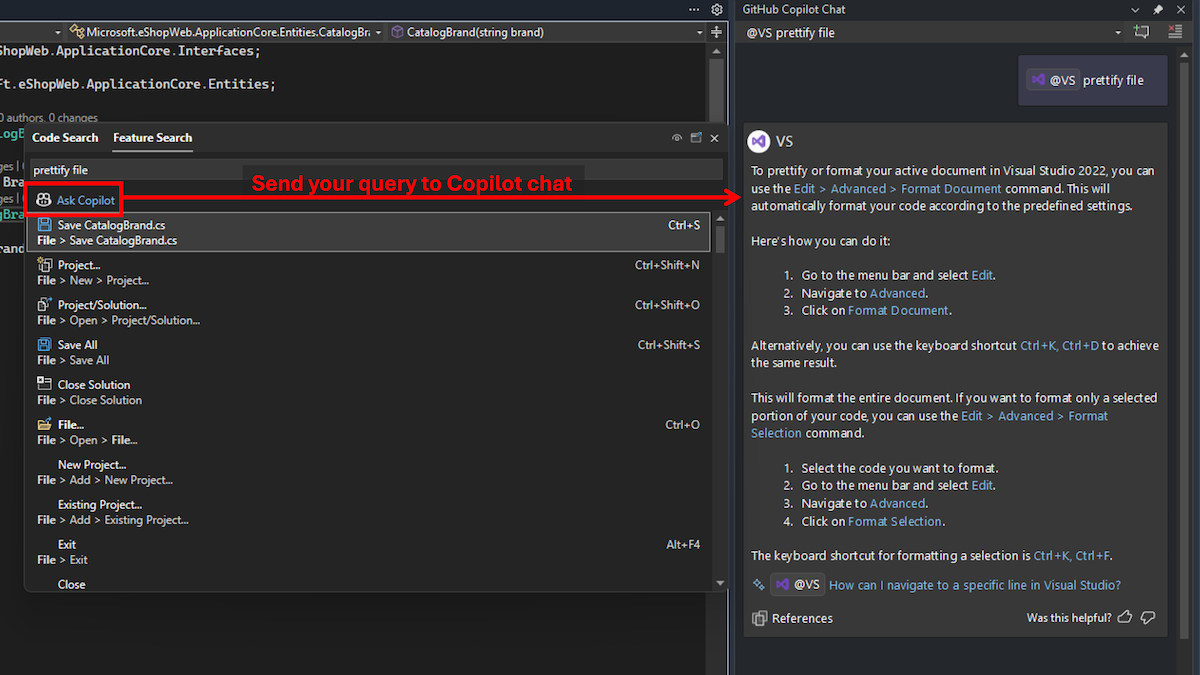
image highlighting ask copilot in feature search

Visual Studio now makes it easy to access GitHub Copilot Chat from Feature Search (Ctrl+Q). Clicking “Ask Copilot” will send your query to GitHub Copilot Chat and get detailed responses, without leaving Visual Studio and search for docs online.

This tool interprets the semantic meaning of your query, considers your Visual Studio version, and provides accurate answers. This means no more guessing the correct terminology or navigating through multiple menus.

For instance, typing ‘prettify file’ in the traditional search might not bring up the ‘format document’ option. However, GitHub Copilot Chat understands the intent behind your query and can guide you to the correct setting with all the information you need to use it.

How it works

Notice the @vs label in the sent chat message? When your search query gets sent over to the GitHub Copilot chat, the @vs agent is called. This @vs agent has in-depth knowledge about the workings of Visual Studio, with strong context on the features available in the current version you’re using and how those work.

The @vs agent works in the Visual Studio GitHub Copilot Chat even if you’re not starting from Feature Search. You can invoke the agent on your own by adding @vs to your chat message.

Appreciation for your feedback

Your insights help us improve Visual Studio, making it an even more powerful tool for developers. We are immensely grateful for your contributions and look forward to your continued support.

Your feedback is invaluable in shaping Visual Studio’s future. By sharing your thoughts, ideas, and any issues you encounter through Developer Community, you help us improve and shape the future of Visual Studio.

The post Find the IDE features you need with GitHub Copilot and Search appeared first on Visual Studio Blog.

Enhance Pull Request Reviews with In-Depth Feedback

$
0
0

Visual Studio 2022 has taken the pull request experience to the next level by making reviews interactive. We previously enabled viewing your pull request comments inline in your working files. Now, the latest update empowers you to add comments directly within the IDE, streamlining the review process. Now, pull request reviewers can conduct deep reviews with the navigational power of the IDE and stay in their focused environment.

We heard from your feedback that the web experience for reviewing pull requests can only go so far. When you need to really understand your colleagues’ proposed changes, it’s best to checkout their branch and use the navigation and build tools in VS. Once you’re on their branch and you’ve identified some feedback, you can add the comment directly without having to map it back to the code in the web. This extends previous functionality where you could view and reply to only existing comments.

Enabling this feature

To start using the new commenting feature, first ensure you have enabled the feature flags:

  • Tools > Options > Preview Features > Pull Request Comments
  • Tools > Options > Pull Request Add Comment.

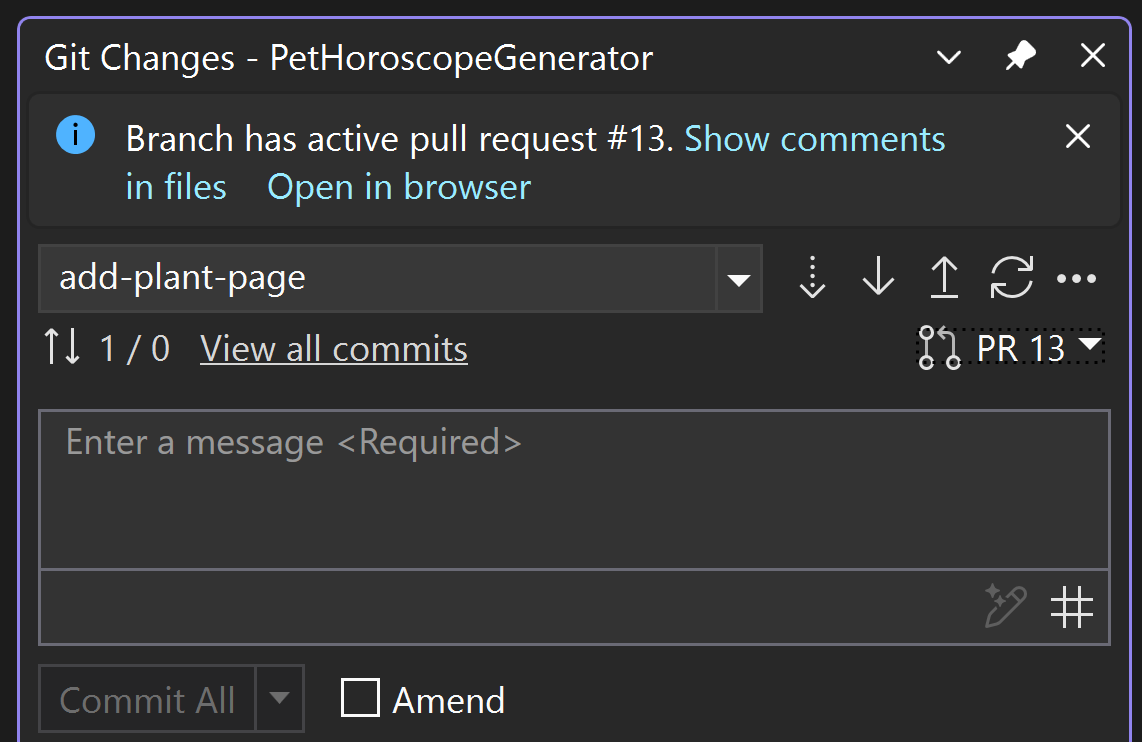
Once these are activated, checkout any branch with an active pull request and click on Show comments in files in the InfoBar to activate the pull request comments experience in the editor. Alternatively, you can enable comments by using the top level menu Git > ADO/GitHub > Show Comments in Files or from the PR dropdown menu next to the view all commits link in the Git Changes window.

Git Changes window showing Branch has an active pull request. Show comments in files. Open in browser

Adding comments to pull request files

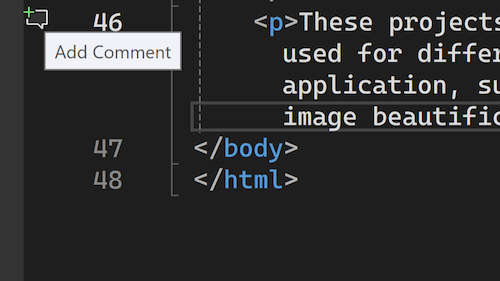
Simply click on the Add Comment icon in the margin, or right-click the line you’d like to comment on and select Git > Add Comment from the context menu.

image hovering the add comment button

The comment icon will only appear in files that are part of the pull request. For GitHub pull requests, comments can only be added to lines surrounding and including the changes.

We appreciate your feedback!

This is another step in our journey to deliver a powerful and integrated pull request experience. We started with supporting the create a pull request workflow, enabled viewing pull request comments on your checked out branches, and now, you can add new review comments, as well!

We won’t stop there. Your continuous suggestions and insights play a crucial role in shaping the tools we build. We’re thrilled to bring you this enhancement and are eager to hear how it improves your workflow.

The post Enhance Pull Request Reviews with In-Depth Feedback appeared first on Visual Studio Blog.

Introducing Visual Studio Hub

$
0
0

The Visual Studio Hub is here!

Visual Studio Hub Hero Tiles

Keeping up with the latest Visual Studio updates, features, and resources can feel like a full-time job. We’ve heard it time and time again—you want a simpler way to stay informed without digging through scattered blog posts, release notes, and social media updates.

That’s why we created Visual Studio Hub—a single destination to help you quickly find what matters most. Whether you’re looking for the newest features, GitHub Copilot resources, upcoming events, or expert insights from our product teams, the Hub makes it easy to stay connected with everything happening in the Visual Studio ecosystem.

What can you expect from Visual Studio Hub?

Discover What’s New

Stay up to date with the latest features in the new releases of Visual Studio 2022. This section allows users to select which category and features are most relevant to their work. This will update with each new release, so check back often!

An image of the what's new dropdown section on the new Visual Studio Hub webpage.

GitHub Copilot Resources

This area provides you with information on how to get started with GitHub Copilot in the Visual Studio IDE. There are tutorials on code completion, AI chat, and prompt tips.

Visual Studio Hub Copilot Section

Key Resources

Don’t overlook the key resource section as they will point you to even more opportunities to learn, connect with developers in your community, and give feedback to the engineering teams working to improve the Visual Studio IDE experience.

While our Microsoft Learn sites are some of the most popular and you can find the link there, two other gems are nestled in this section. To network with other developers on-line, in person, or through user groups, visit our community site.

In addition, if you are someone with great ideas you would love to see implemented in the Visual Studio IDE or have ideas for improvement, our feedback site should interest you. If you ever forget how to find them, the Visual Studio Hub will show you the way back.

A screenshot of the Visual Studio hub swim lane that shows how to access Microsoft Learn, the developer community connection website and a developer community feedback site.

Developer Blogs

Our product teams often publish content on the latest trends, product developments, and best practices. Through the blogs section, you can stay ahead of the curve since the four most recent blogs posted on the Visual Studio Blog will show up in this section.

Visual Studio Hub Blog Section

Community Engagement

We know everyone who uses social media has preferences, and we want to help you find our official accounts. Come join the conversation, see the most recent posts, and connect with our engineering teams.

Visual studio hub social media section

The Visual Studio Hub is here to stay as your go-to resource for everything related to Visual Studio. Still, this is just the beginning! We plan to bring even more relevant content as you continue to share what matters most to you.

☕We hope you’ll spend your next coffee break with us!

The post Introducing Visual Studio Hub appeared first on Visual Studio Blog.
Debugging with the AI-powered IEnumerable visualizer

$
0
0

Are you tired of wrestling with complex LINQ queries during debugging? Visual Studio 2022 has introduced powerful new improvement, powered by AI, to simplify your workflow with its editable expression feature in the IEnumerable Visualizer. These added functionalities aim to make debugging more intuitive and efficient, helping you write and refine LINQ queries with ease.

Say goodbye to frustration and hello to efficiency with the new enhancement!

The Challenge: Crafting Complex and Desired LINQ Expressions

Generating and troubleshooting LINQ queries can be a tedious and intricate process, often demanding precise syntax knowledge and countless iterations. Developers could have spent excessive time refining queries, slowing down the debugging process. To solve this, Visual Studio introduces three major enhancements: Syntax Highlighting for editable expressions, Inline Chat for quick refinement, and GitHub Copilot Chat Integration for advanced assistance. These features streamline LINQ query writing, helping you debug your project dealing with large dataset with greater speed and accuracy.

Syntax Highlighting for Editable Expressions

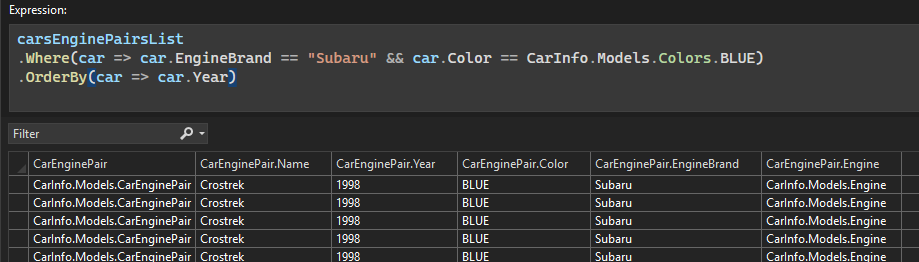
To make queries more readable and easier to debug, Visual Studio 2022 now includes Syntax Highlighting in the IEnumerable Visualizer’s editable expression. Different elements of the query, such as keywords, classes, enums, and structures, are color-coded, making it easier to identify and understand their roles within the expression. This enhancement allows developers to quickly scan and pinpoint potential issues at a glance.

Syntax Highlighted Editable Expression For IEnumerable Visualizer

Customize syntax highlighting

Visual Studio allows you to customize the color scheme to suit your preferences. To personalize your colors:

  1. Go to Tools > Options > Environment > Fonts and Colors.
  2. Select Text Editor from the Show settings for dropdown.
  3. Adjust each User Types item’s color to match your coding style.

Editable Expression Inline Copilot Chat

In addition to syntax highlighting, the IEnumerable Visualizer now features Inline Chat, allowing users to leverage AI directly within the visualizer to refine LINQ queries. With this feature, writing and modifying queries becomes more intuitive.

To bring up the Inline Chat, simply click the GitHub Copilot sparkle button Github Copilot Icon located in the bottom-right corner of the editable expression text box. This will open a text box above the original editable expression, with a prompt that says, “Describe how you want to refine your current expression.”

Editable Expression Inline Chat Example

GitHub Copilot will generate a LINQ query based on your input and automatically execute it by default. For immediate confirmation, look for the green checkmark status checkmark icon , which indicates that the LINQ query generated by GitHub Copilot has been fully executed and applied. You can reuse the input field to describe how you’d like to modify your current expression using natural language. After entering your request, clicking the sent arrow on the right prompts Copilot to generate an optimized LINQ query.

Copilot Chat Integration for Deeper Debugging

Editable Expression Inline Chat Continue to Chat

For those who need further refinement beyond inline edits, the Copilot Chat integration provides a more advanced debugging experience. Once the Inline Chat generates a LINQ query, a “Continue in Chat” option appears, allowing developers to engage in a deeper, interactive conversation about their query. Clicking this button opens the GitHub Copilot Chat Window, where users can refine the expression further, ask follow-up questions, or explore alternative approaches. This feature ensures that even the most complex queries can be fine-tuned with the power of AI while keeping developers in full control of their code.

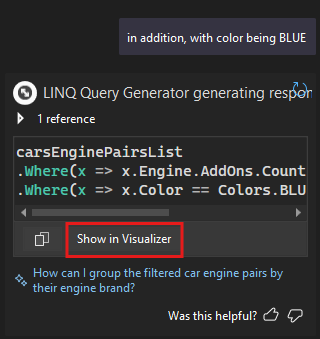
Editable Expression Copilot Chat Integration Show in Visualizer

This feature not only assists in generating LINQ queries but also provides immediate feedback and guidance, making it easier to create complex filters and transformations with confidence. When satisfied with the refinements, developers can seamlessly transition back to the visualizer using the “Show in Visualizer” button, which applies the optimized query directly within the debugging environment. The Inline Chat is perfect for quick adjustments, while the full Copilot Chat Integration supports deeper iterations, ensuring a smooth and efficient debugging workflow.

Thank you for your feedback

Many of these ideas stem from your feedback through customer interviews and Developer Community suggestions. Our goal is to reduce debugging time and enhance developer productivity. Whether you’re making minor syntax tweaks or optimizing complex queries, these improvements bring greater clarity and efficiency to debugging codebase working with large datasets.

Your continuous feedback is what drives us to improve Visual Studio. We are excited to see how the enhanced editable expression feature with AI assistance will transform your debugging experience. Keep sharing your insights and suggestions to help us make Visual Studio even better.

The post Debugging with the AI-powered IEnumerable visualizer appeared first on Visual Studio Blog.

View and manage git tags

$
0
0

Are you tired of switching between your IDE and command-line tools to manage Git tags? We’ve got the perfect solution for you!

With the latest update, Visual Studio empowers you to seamlessly view and manage Git tags directly within the Git Repository window. This streamlined workflow ensures you remain within the familiar environment of the IDE, enhancing your productivity and efficiency when working with Git tags.

Image of lots of tags in the branch manager in Visual Studio

Effortless navigation and action

Visual Studio now allows you to handle Git tags without ever leaving the IDE. Gone are the days of interrupting your workflow to open a separate Git tool. The integration of Git tag management within Visual Studio means you can now:

  • View all your tags effortlessly in the Git Repository window.
  • Quickly navigate to the specific commit associated with a tag and view it in the git history graph.
  • Perform a variety of actions on tags, including creating, pushing, and deleting, through an intuitive context menu that appears when you right-click on a tag.

Continuous improvement with user feedback

We are continuously improving Visual Studio based on your feedback. Your insights help us create a better, more efficient development environment, and we are excited to see how this new Git tag management feature enhances your workflow. For example, a lot of the efforts such as the ability to delete tags were suggested via feedback tickets like the ability to delete tags.

Thank you for being a part of our journey and for helping us make Visual Studio the best IDE for developers.

The post View and manage git tags appeared first on Visual Studio Blog.

Your Pluralsight Benefit Just Got Better

$
0
0


Image 1200 215 400 8211 Skill up and stand out with Pluralsight

As I talk with Visual Studio developers about the learning and skilling benefits included in their subscription, one thing I hear often is:

“I wish I had more time to actually use Pluralsight.”

Starting today, I’m pleased to share that we’re doing something about that.

We’ve extended access to Pluralsight for all Visual Studio subscribers—12 months for Enterprise and 6 months for Professional—giving you more time to build skills, prepare for certifications, and stay ahead in a fast-moving industry.

Why this matters

We know developers are juggling a lot—projects, meetings, and ever-evolving tech. That’s why we’ve worked to extend the window of opportunity. Pluralsight is a powerful platform with thousands of expert-led courses, hands-on labs, and certification prep tools designed for real-world development.

Our internal data shows that Visual Studio learners typically spend 6 to 8 hours per course, and popular topics like C# and Angular align directly with enterprise needs. The extended access means you now have time to go deeper, revisit skills, or explore something entirely new—on your schedule.

Get hands-on with Skills Labs

Beyond courses, Pluralsight’s Skills labs give you a chance to learn by doing. These labs offer fully provisioned environments where you can try things out without risk—spin up virtual machines, configure Azure services, work with Git, or explore Power BI.

It’s the kind of practice that builds confidence—and makes the learning stick.

Here’s what’s included

With your extended access, here’s just a sample of what you can tap into:

  • Generative AI: 150+ courses, including 20+ focused on GitHub Copilot to help you boost productivity with AI-assisted coding.
  • Azure Deep Dives: 489+ courses, from cloud fundamentals to advanced Azure architecture.
  • C# Learning Paths: Nearly 100 courses to sharpen your skills in one of the most widely used enterprise languages.
  • Labs for Microsoft Azure: Over 500 hands-on labs, including 61 new ones added in the past year.
  • Certification Prep: Courses and resources supporting 30+ Microsoft and Azure certifications to help validate your skills.

Your growth is our commitment

At Visual Studio, we’re invested in helping you succeed—not just with tools, but with the resources to support your career. This expanded Pluralsight benefit is just one part of that commitment. Whether you’re diving into cloud tech, prepping for a cert, or just trying to sharpen your day-to-day workflow—we’ve got your back.

Eligibility: Who Gets Extended Access

This benefit is available to Visual Studio Professional and Enterprise subscribers with a standard Visual Studio subscription. If you’re unsure about your subscription type or want more details, check out the Visual Studio + Pluralsight documentation on Microsoft Learn.

How to get started

If you’re a Visual Studio Enterprise or Professional subscriber, head to my.visualstudio.com and activate your extended Pluralsight access. It’s already waiting for you.

You’ve got more time. Now’s the moment to make the most of it.

Thanks for being part of the Visual Studio community. We can’t wait to see where your learning journey takes you next.

Check out the new Visual Studio Hub

Stay connected with everything Visual Studio in one place! Visit the Visual Studio Hub for the latest release notes, YouTube videos, social updates, and community discussions.

Appreciation for your feedback

Your insights help us improve Visual Studio, making it an even more powerful tool for developers. We are immensely grateful for your contributions and look forward to your continued support.

Your feedback is invaluable in shaping Visual Studio’s future. By sharing your thoughts, ideas, and any issues you encounter through Developer Community, you help us improve and shape the future of Visual Studio.

The post Your Pluralsight Benefit Just Got Better appeared first on Visual Studio Blog.

Multi-Process CPU Usage Analysis in Visual Studio

$
0
0

Streamlined Performance Insights Across Processes

The Visual Studio Profiler’s CPU Usage tool and Instrumentation tool now supports multi-process analysis, providing a unified view of CPU activity across multiple processes. With performance graphs featuring distinct, color-coded stacked swim lanes for each process, diagnosing and optimizing CPU usage is now more efficient than ever.

CPU performance graph

Tackling Multi-Process Complexity

Analyzing CPU usage for applications across multiple processes has traditionally been challenging. Identifying performance bottlenecks with multiple processes requires manual correlation of data across separate views and slowing down optimization efforts. With this improvement, Visual Studio directly addresses these challenges.

The CPU Usage and Instrumentation tool now offers:

  • CPU usage by Process: Stacked area charts with clear, color-coded swim lanes make it easy to see CPU usage across processes.
  • Multiple processes representation in the detail’s views like caller/callee, Call Tree, Functions, Modules and Flame Graph.
  • Clear Process Identification: Instantly identify which processes are consuming the most resources.
  • Process filter: Filtering option to filter out the graphs and details view to focus on specific processes relevant to your profiling session. The filter option is located on the top left corner of the summary page.
  • Enhanced Diagnosis Efficiency: Spot cross-process issues faster with a unified, streamlined view.

Gif selecting and unselecting certain CPU processes

Try it and let us know what you think!

We hope you enjoy using multi-process CPU analysis, it is designed to help you make smarter, data-driven decisions, optimize your resource usage, and deliver even better-performing products. We’d love your feedback and suggestions for improvements. Please leave a comment below or use the Send Feedback button in Visual Studio. Stay connected with the Visual Studio team by following us on Twitter @VS_Debugger, Twitter @VisualStudio, Twitter @VisualC, YouTube, and LinkedIn.

The post Multi-Process CPU Usage Analysis in Visual Studio appeared first on Visual Studio Blog.

.NET Aspire and Azure Functions integration preview

$
0
0

Have you ever struggled with integrating serverless technology into your existing .NET projects? The new update in Visual Studio has got you covered. Say hello to the powerful integration of .NET Aspire with Azure Functions, making your development process smoother than ever before.

With this release of Visual Studio, Azure Functions developers can enlist in .NET Aspire orchestration when creating a new Azure Functions project. This simple addition transforms your workflow by including an App Host and a Service Defaults project in your solution right from the get-go. Check out this video by James Montemagno showing you how to integrate .NET Aspire with Azure Functions today.

Gone are the days of tedious configurations. Now, setting up a new isolated Azure Functions project with .NET Aspire integration is as easy as checking a box. Upon creation, you’ll find an App Host and Service Defaults project seamlessly included in your solution, streamlining your development process and reducing setup time.

Effortless integration with existing projects

But what if you have an existing Azure Functions project that you want to enhance with .NET Aspire? Visual Studio 2022 has you covered. Just like with ASP.NET Core apps, you can now add .NET Aspire support to your existing Azure Functions projects effortlessly. This ensures that you can leverage the power of .NET Aspire orchestration without having to start from scratch.

Right click solution to show a .NET Aspire Orchestrator Support option

Real-time monitoring and debugging

The integration doesn’t just stop at setup. Running or debugging an Azure Functions project with .NET Aspire support will launch the .NET Aspire dashboard in your browser. This powerful tool allows you to monitor the execution of your Azure Functions in real-time. You’ll see exactly how the .NET Aspire orchestrator is managing your functions, and you’ll have the ability to pause and resume execution directly from the dashboard.

.NET Aspire dashboard

We’re incredibly excited to bring this feature to you and can’t wait to see the innovative ways you’ll use Azure Functions within your .NET Aspire projects. Your continuous feedback has been instrumental in making Visual Studio better, and we look forward to your thoughts on this new integration.

The post .NET Aspire and Azure Functions integration preview appeared first on Visual Studio Blog.

GitHub Copilot Highlights in Visual Studio 17.14 Preview 3 (Available Now)

$
0
0

Visual Studio 17.14 Preview 3 is now available!

The GitHub Copilot experience in Visual Studio is continuously updated to provide the latest advancements in AI-assisted development. The following features and improvements have been recently released in Visual Studio version 17.14 Preview 3. (Remember, preview versions of Visual Studio can be run side by side with the main releases)

A guided Walkthrough for getting started

If you’re new to GitHub Copilot in Visual Studio and are looking for a quick, guided way to get started, this feature is for you. Head to the GitHub Copilot badge dropdown and select GitHub Copilot Walkthrough. This will launch the walkthrough as a new tab in your workspace.

This five-step walkthrough will show you how to get Copilot for free, introduce you to AI-powered code completions, Copilot Chat, show you how to provide Copilot with specific context about your solution, and introduce you to the multi-file editing power of Copilot Edits. Once you complete these steps, you should be ready to start using and experimenting with Copilot.

Improved model access and Code Mapping

It’s also now easier than ever to access the latest models like Claude 3.7 from within Visual Studio. Instead of needing to adjust your settings, you can now enable any of the available models from github.com directly through Visual Studio. When you select your model within Copilot Chat, you will be prompted to enable your chosen model.

How and where Copilot inserts its code suggestions into your code in the right place has also gotten an upgrade in this release with improvements to what we call “Code Mapping”.

Copilot can suggest the next edit and fix pasted code automatically

We also have some exciting updates coming to the Code Completion experience that will allow Copilot to better understand your intention as you’re writing code and enhance its ability to assist you with editing your code. The feature is called Next Edit Suggestions, which helps developers by providing contextual suggestions for code edits based on previous changes.

Another feature to watch out for is adaptive paste which automatically adjusts code you paste into Visual Studio to fit the context of your existing code, minimizing the need for manual modifications. This feature also supports scenarios such as minor error fixes, code styling, formatting, human and code language translation, and fill-in-the-blank or continue-the-pattern tasks.

Learn more about these features in the preview 3 release notes: Visual Studio 2022 Preview Release Notes | Microsoft Learn

Try the latest Preview

If you’d like to see any of these features in action and stay up to date with the latest Copilot updates, try out the preview version of Visual Studio.

Check out the new Visual Studio Hub

Stay connected with everything Visual Studio in one place! Visit the Visual Studio Hub for the latest release notes, YouTube videos, social updates, and community discussions.

Appreciation for your feedback

Your feedback helps us improve Visual Studio, making it an even more powerful tool for developers. We are immensely grateful for your contributions and look forward to your continued support. By sharing your thoughts, ideas, and any issues you encounter through Developer Community, you help us improve and shape the future of Visual Studio.

The post GitHub Copilot Highlights in Visual Studio 17.14 Preview 3 (Available Now) appeared first on Visual Studio Blog.


Toolbox Support for Explicit Assembly References in Windows Forms Out-of-Process Designer

$
0
0

Visual Studio 17.14 Preview 3 introduces a new feature that enhances the Windows Forms out-of-process designer experience for .NET Framework projects. This release brings Toolbox support for Explicit Assembly References, addressing a long-standing need in legacy application development and migration workflows.

Extension icon

What Are Explicit Assembly References?

Explicit Assembly References are stand-alone assemblies directly referenced in your project. They are not pulled in through NuGet packages, project references, or the Global Assembly Cache (GAC). These assemblies often represent legacy .NET Framework components, especially those compiled for 32-bit, which are not easily upgraded to modern .NET and may exist outside of package management.

Until now, the Toolbox in the Windows Forms designer only displayed controls sourced from NuGet packages or project references. This created a limitation for developers working with long-standing legacy codebases. Explicit Assembly References were invisible to the Toolbox, leading to a fragmented experience and reduced productivity, particularly during modernization efforts.

Why This Matters

Developers relying on legacy Windows Forms controls often face challenges due to this limitation. The traditional approach of using the “Choose Items…” dialog in the Toolbox for in-process designer fails entirely for 32-bit assemblies as those assemblies cannot be loaded in 64-bit Visual Studio.

In response, we have extended Toolbox support to automatically fetch controls’ information from Explicit Assembly References. This allows developers to use their legacy controls within the modern out-of-process designer, removing a key blocker in migration and maintenance workflows.

How It Works

When you launch the Windows Forms out-of-process designer for a .NET Framework project, the designer now automatically scans all references in the solution. It identifies Explicit Assembly References without loading them into Visual Studio itself. Leveraging the Roslyn APIs, the designer analyzes metadata to extract Toolbox item information from these assemblies.

This approach ensures that eligible controls appear in the Toolbox—ready for drag-and-drop just like those from NuGet or project references.

Important Caveats

The out-of-process designer uses a new extensibility model, which clearly separates design time and runtime assemblies. This separation is crucial for enabling advanced design time scenarios like custom CodeDomSerializer usage, specialized UITypeEditor implementations, and custom TypeConverter behaviors.

Explicit Assembly References do not support this separation. As a result, all such assemblies are treated as runtime only, which limits their design time functionality. While basic Toolbox and control instantiation scenarios will work, advanced behaviors may not function as expected.

For the best experience, especially when working with custom design-time features, we strongly recommend using NuGet packages that follow the specified layout for runtime and design-time separation.

Configuring the Feature

This feature is enabled by default starting with Visual Studio 17.14 Preview 3 for .NET Framework projects. If needed, you can toggle this functionality via Visual Studio → Tools → Options → Preview Features

Image of the Tools->Options->Preview Features dialog with the "Windows Forms Designer Direct Assembly Reference Toolbox Support (requires restart) options selected.

We’re currently rolling out this feature exclusively for .NET Framework projects, but we plan to extend this support to .NET projects in future Visual Studio releases.

Looking Ahead

Toolbox support for Explicit Assembly References simplifies working with legacy controls and helps pave the way for smoother migration to .NET. Once this feature expands to .NET projects, it will serve as a powerful bridge during modernization efforts.

While we are happy to offer this capability, we continue to emphasize that for the richest and most predictable design-time experience, the recommended path remains through well-structured NuGet packages aligned with the new extensibility model.

Ready to try it out? Download Visual Studio 17.14 Preview 3 and open your Windows Forms .NET Framework project in the out-of-process designer. Your legacy controls will now appear in the Toolbox, ready for use!

Check out the new Visual Studio Hub

Stay connected with everything Visual Studio in one place! Visit the Visual Studio Hub for the latest release notes, YouTube videos, social updates, and community discussions.

Appreciation for your feedback

Your feedback helps us improve Visual Studio, making it an even more powerful tool for developers. We are immensely grateful for your contributions and look forward to your continued support. By sharing your thoughts, ideas, and any issues you encounter through Developer Community, you help us improve and shape the future of Visual Studio.

The post Toolbox Support for Explicit Assembly References in Windows Forms Out-of-Process Designer appeared first on Visual Studio Blog.

Effortless adjustments with an adaptive paste

$
0
0

Find yourself needing to adjust pasted code to actually work in your project? Visual Studio 2022 introduces the capability to adapt your pasted code with Copilot to reduce the time you spend on making tedious changes.

Streamline manual code modifications with adaptive paste

When you’re copying and pasting code, the process often comes with extra steps. Adjusting parameters, correcting styling, or fixing even the most minor errors can slow down your workflow. These small, repetitive tasks add up and disrupt your focus. Addressing these challenges, Visual Studio introduces a new Copilot-powered capability that adapts pasted code seamlessly, saving you time and effort.

This feature intelligently adapts pasted code to your solution’s context, incorporating the new code into your existing project by:

  • Aligning syntax and styling with the document
  • Inferring parameter adjustments
  • Fixing minor errors
  • Supporting language translation, human and code-based
  • Completing patterns or filling in blanks

Example: Implementing interface members

Imagine you’re working with a `Math` class that implements the `IMath` interface. You copy and paste the implementation for the `Ceiling` method into the same file. Adapting the pasted code will adjust the code to implement the missing `Floor` method, completing the interface for you.

Adaptive paste example gif

How to use it

The adaptive paste springs into action the moment you perform a regular paste using `Ctrl+V`, assuming the pasted code has at least three lines. When the “Tab to adapt” suggestion action appears, you can press the `TAB` key to request a suggestion. You’ll then see a diff that compares the original pasted code with the adjusted version, so you can preview changes before they’re applied.

Try adaptive paste in Version 17.14 Preview 3

Starting in Visual Studio 2022 version 17.14 Preview 3, you can try adaptive paste by turning on the option:

Tools > Options > GitHub > Copilot > Editor > Enable Adaptive Paste.

Once activated, adaptive paste becomes a helpful tool in your workflow. Whether you’re integrating new snippets, fixing small errors, or streamlining patterns, it supports you in coding more efficiently.

Check out the new Visual Studio Hub

Stay connected with everything Visual Studio in one place! Visit the Visual Studio Hub for the latest release notes, YouTube videos, social updates, and community discussions.

Appreciation for your feedback

Your feedback helps us improve Visual Studio, making it an even more powerful tool for developers. We are immensely grateful for your contributions and look forward to your continued support. By sharing your thoughts, ideas, and any issues you encounter through Developer Community, you help us improve and shape the future of Visual Studio.

The post Effortless adjustments with an adaptive paste appeared first on Visual Studio Blog.

Set the default file encoding

$
0
0

Have you ever encountered unexpected issues due to file encoding when working in cross-platform environments? These frustrating problems can disrupt your workflow and consume valuable time. Visual Studio addresses these concerns with a new feature – the Default File Encoding option.

You can now specify the encoding Visual Studio should use when saving files. This ensures that files are saved with the correct encoding, minimizing potential issues.

Developers often work on projects across different platforms, each requiring specific file encodings. Incorrectly managed encodings can lead to various issues, from corrupted files to unreadable text. The Default File Encoding feature helps mitigate this issue by allowing you to set a default encoding, ensuring consistency and reducing the risk of character display issues or data corruption.

Setting the default file encoding

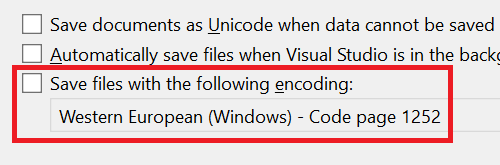
To configure the default file encoding, navigate to Tools > Options > Environment > Documents. You’ll find an option labeled Save files with the following encoding. If this option is checked, Visual Studio will attempt to save files using the encoding specified in the adjacent combo box. If unchecked, Visual Studio will revert to its default behavior for managing file encodings.

Save files with the following encoding check box highlighting Western European - Code page 1252

This feature is useful for maintaining consistency across projects and minimizing encoding-related issues. It’s a straightforward tool that enhances productivity and preserves file integrity.

Handling encoding conflicts

In cases where Visual Studio cannot save a file with the specified encoding, such as attempting to save a file with Unicode characters in ASCII format, a dialog will notify you of the issue. This proactive notification helps prevent data loss or file corruption, allowing you to address problems promptly.

As always, we appreciate your continuous feedback, which drives us to make Visual Studio better with each release. Happy coding!

The post Set the default file encoding appeared first on Visual Studio Blog.

🎉 Visual Studio 2022 v17.14 is now generally available!

$
0
0

We’re thrilled to announce the general availability of Visual Studio 2022 version 17.14! This release continues our mission to empower developers with faster, smarter, and more productive tools across all workloads.

There is so much for developers to love in this release, so be sure to check out the release notes for the full list. This is only the beginning, going forward, we’ll be bringing new features to you even faster with a new monthly release cadence for stable releases of Visual Studio! Here are some of the highlights you can look forward to when you update to 17.14 today!

AI Assisted Development with GitHub Copilot

GitHub Copilot in Visual Studio continues to evolve and add powerful productivity features for developers. In this release, we’re introducing agent mode (preview) to supercharge the AI assisted development experience. With agent mode, simply chat with Visual Studio using natural language and through that conversation, get it to complete multi-step, complex coding tasks for you. The agent understands your entire codebase and can recognize and fix errors automatically, suggest and execute terminal commands, and analyze run-time errors until your task is complete. Check it out:

Agent mode is in public preview and can be enabled in the preview settings today! In addition to the new agent mode (preview) in this release you will find even more great new features and enhancements:

  • MCP Support (preview): Model Context Protocol (MCP) support provides the Copilot agent structured access to tools, data, and resources. It’s like a universal adaptor for AI applications that lets you connect to other data and tools without needing to build custom connections to each data source. MCP Support is in public preview and can be enabled in the preview settings today.
  • AI doc comment generation: Automatically generate doc comments for C++ and C# functions. simply type what would trigger your doc comment format (such as ///) and Copilot suggestions will automatically fill out the function description based on the contents of the function. Read the blog post to learn more.
  • Next Edit Suggestion (NES): NES leverages the previous edits made and predicts the next edit to come, whether it’s an insertion, deletion, or mix of both. Unlike code completions, which are limited to generating suggestions at your caret location, NES can support you anywhere in your file, where the next edit is most likely to occur. NES can be enabled in the settings.

Debugging & diagnostics

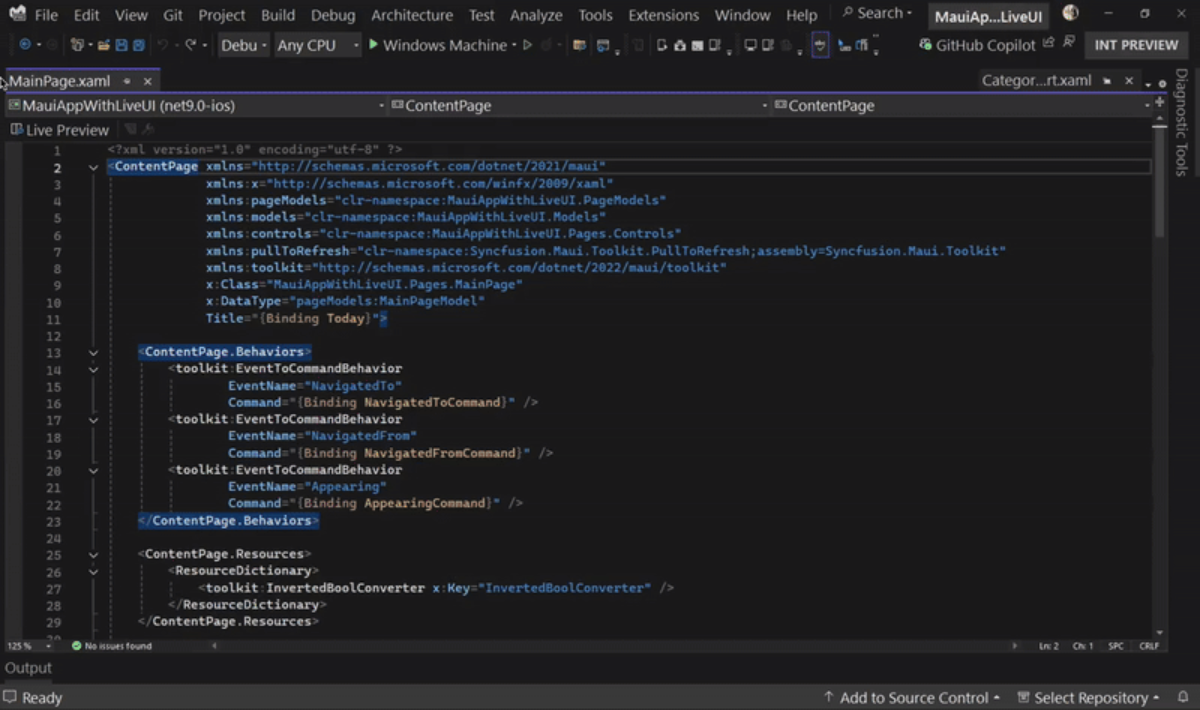
  • Update your UI, live at design time: Live Preview is now available at design time, allowing you to see changes in your app UI in real-time. You can also use Hot Reload and other live UI tools in this way, ensuring a seamless workflow with .NET MAUI and WPF apps.

Live design time debugging

  • New debugger for .NET MAUI apps: New Mono debug engine for .NET MAUI integrated into the Visual Studio Core debugger.
  • Show datatips for LINQ Expressions: Enhanced LINQ expression debugging experience with clause hovering datatip.
  • Zero-Length Array Allocation Insights: The .NET Allocation Tool now identifies zero-length array allocations, helping optimize memory usage and performance.

C++

  • C++ Dynamic Debugging (in preview) brings full debuggability for your optimized C++ code without compromising on performance.

  • C++23 improvements include support for new lambda attributes, if consteval, and static operators, enhancing both code efficiency and safety
  • C++ productivity boosts with features like automatic template argument population and improved IntelliSense for CMake modules

For a detailed overview of these C++ updates and more, check out the full post What’s New for C++ Developers in Visual Studio 2022 17.14 – C++ Team Blog

Git tooling

  • View Outgoing / Incoming Commits: The Git Repository window now provides a filter at its toolbar to show only outgoing / incoming commits.Highlighted icon showing incoming/outgoing git commits
  • Restore the Git repository window: Keep the Git Repository window open between restarts with this new setting.
  • Default branch name: Allow users to customize the initial default branch when a new git repository is created.

Visual Studio 17.14 Release Party – Watch Live or On Demand

To celebrate the 17.14 release, we’re hosting a special live Visual Studio Release Party on YouTube! Join us on May 14th at 1PM PT to see some of the newest features in action, straight from the PMs and engineers who built them. From Copilot Agent Mode to C++ debugging and Git improvements, you’ll get live demos, behind-the-scenes insights, and a chance to hear what’s coming next.

Can’t make it live? No problem—the event will be available on demand afterward so you can catch up anytime.

Delivering new features in Visual Studio even faster!

We’re picking up the pace. Starting now, we’re shifting to a monthly release cadence for Visual Studio 2022, focused on AI-powered Copilot enhancements, deeper integration, and rapid iteration based on your feedback. Update today to 17.14 to enjoy the latest features and look for it to evolve every month with meaningful improvements you can count on! Look for our next feature update in June!

Lastly, we’ve started work on the next major version of Visual Studio, planned for release later this year. We’ll be sharing more details here soon—follow the blog to stay up to date with the latest Visual Studio news.

The post 🎉 Visual Studio 2022 v17.14 is now generally available! appeared first on Visual Studio Blog.

Agent mode has arrived in preview for Visual Studio

$
0
0

Plan, build, test, and fix — all from one prompt.

Agent mode is now available in public preview for all users in Visual Studio 17.14. Agent mode in Visual Studio allows you to define tasks using natural language, with Copilot autonomously planning, editing your codebase, invoking tools, and iterating to resolve issues. Unlike Copilot Chat or Edits, agent mode doesn’t stop at one suggestion or file edit but works iteratively until the task is complete.

What can agent mode do?

Agent mode doesn’t just help you write code — it helps you finish the job. All of this is done iteratively, meaning that Copilot will continue to examine and perform your task on its own output and the result of that output until it completes your prompt. This means agent mode can:

  • 💡Autonomously determine the relevant context and files to edit.
  • 💻 Suggest terminal commands for you to approve and run.
  • 🔁 Iterate until the task is complete — checking for errors, and running builds/tests to validate results.
  • 📡 Invoke trusted tools via MCP servers — including linters, test runners, and static analyzers in your dev environment.
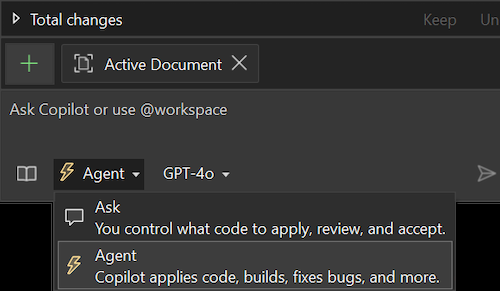
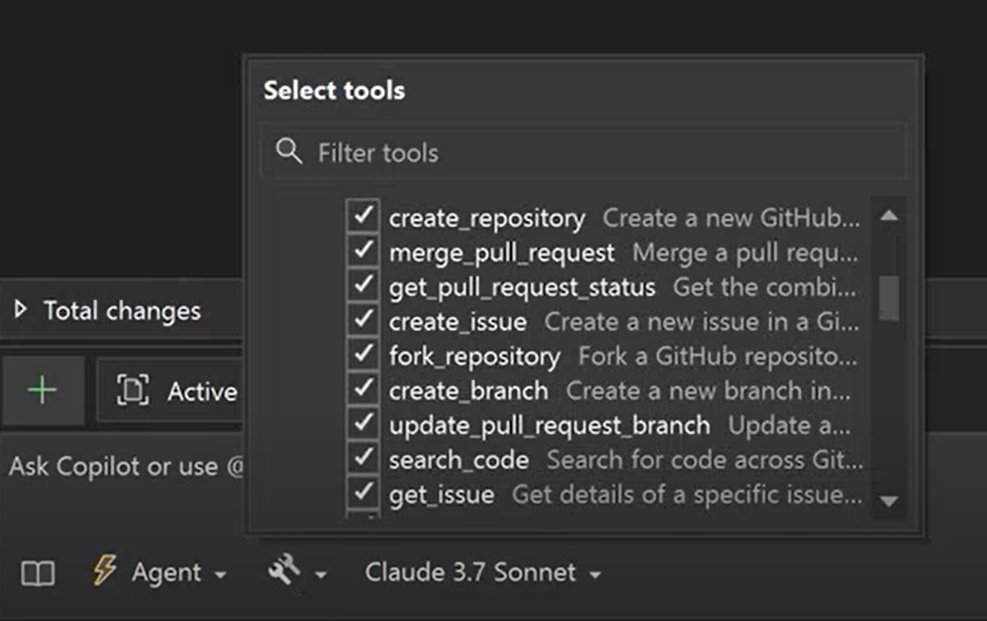
We’re also simplifying the Copilot experience by making agent mode the new default way to apply code changes. You can think of agent mode as the next evolution of Edits which developers have come to love in GitHub Copilot chat with even more power!

Agent mode turned on in VS

How to enable it

Agent mode is off by default in this preview phase. To turn it on:

  1. Use Visual Studio Code 17.14 GA or later
  2. Go to Feature Search (Ctrl + Q)
  3. Search: copilot-chat.agent
  4. Enable: Copilot Chat: Agent Enabled
  5. In the Copilot Chat window switch to “Agent” and try a high-level prompt. You can access the Copilot Chat window from the Copilot badge in the upper right of the IDE.

Using agent mode

Agent mode is a powerful tool that can be applied in many scenarios. It can create apps from scratch, refactor code across multiple files, write and run tests, generate documentation, integrate new libraries, implement terminal-heavy tasks, and answer questions about complex codebases. It enhances productivity by orchestrating your development flow while keeping you in control. When determining if agent mode is the right tool for the job, consider the following.

  • Edit scope: Agent mode takes the reins, autonomously searching your codebase and determining the relevant context and files to edit.
  • Task complexity: For intricate tasks that go beyond simple code edits, agent mode shines. It handles tool invocations and terminal commands, making it ideal for complex projects.
  • Duration: Agent mode is thorough, involving multiple steps to process a request. It might take longer to get a response as it determines the context, plans the action, and more.
  • Self-iteration: One of the standout features of agent mode is its ability to evaluate the outcome of generated edits and iterate multiple times to resolve intermediate issues.
  • Multiple requests: Depending on the complexity of the task, agent mode might result in multiple requests to the backend from a single prompt.

Once you’ve determined that agent mode is the right tool for the job, you just need to give it a good prompt. Here are some example prompts to give you an idea of what you can ask the agent to do: 

  • “Add error handling to this API” 
  • “Convert this project to use environment variables” 
  • “Write tests for this class and fix anything that fails” 
  •  “Add structured logging with Serilog” 
  • “Replace HttpClient with IHttpClientFactory”

A key to better, more accurate responses from Copilot is providing it with sufficient context about your preferred coding standards, team preferences, libraries, and more. You can provide this context with custom instructions. The custom instructions feature enables you to automatically add pre-specified contextual details to your chat questions. To configure custom instructions, follow the documentation instructions.

Boost agent mode with MCP servers

This release further extends the power of agent mode by supporting Model Context Protocol (MCP) servers. MCP servers provide additional context to the Copilot agent and give it access to tools, data, and resources. The MCP website describes MCP as a universal adaptor for AI applications. In the same way that a universal adaptor lets you connect your physical devices to accessories, MCP lets you connect AI applications to other data and tools without needing to build a custom connection to each data source. For example, you can connect directly to your database and analyze schemes, pull in information for GitHub repos such as issues and pull requests, automate end-to-end testing with Playwright, or you can even build your own with several SDKs including C#! Here are a few other examples of what you can do with MCP servers: 

Interact with your cloud environment: For example, the official Azure MCP server gives access to list, query, and interact with services and tools like Azure Storage, Cosmos DB, the Azure CLI, and more. 

Query and manage database: Execute queries against Cosmos DB containers, get Azure Storage container properties and metadata, and manage blob containers and blobs. 

Search and manage version control platform: For example, the GitHub API allows batch creation of issues or batch updates of files, can search for code and issues across GitHub repositories, and more. 

Filter tools options for agent mode

More updates with new monthly release schedule for Copilot

We’re constantly evolving to get Copilot features out so that you, the developer, are never behind. As such, we’re excited to announce that Visual Studio is moving to a monthly release schedule for Copilot updates. You can access the latest Copilot updates by continuing to update Visual Studio to the latest version.

Check out the new Visual Studio Hub

Stay connected with everything Visual Studio in one place! Visit the Visual Studio Hub for the latest release notes, YouTube videos, social updates, and community discussions.

Appreciation for your feedback

Your feedback helps us improve Visual Studio, making it an even more powerful tool for developers. We are immensely grateful for your contributions and look forward to your continued support. By sharing your thoughts, ideas, and any issues you encounter through Developer Community, you help us improve and shape the future of Visual Studio.

The post Agent mode has arrived in preview for Visual Studio appeared first on Visual Studio Blog.

Viewing all 1144 articles
Browse latest View live


<script src="https://jsc.adskeeper.com/r/s/rssing.com.1596347.js" async> </script>