Quantcast
Channel: Visual Studio Blog
Viewing all 1144 articles
Browse latest View live

How to Watch Microsoft Build 2025 Online

$
0
0

Microsoft Build 2025 Is Almost Here — Here’s How to Make the Most of It Virtually

It’s that time again—Microsoft Build is just around the corner! Microsoft Build 2025 kicks off next week (May 19–22)—and now’s the perfect time to get your plan in place. The best part? You don’t have to be in Seattle to experience it.

This year, Build is more accessible than ever. Every keynote, breakout session, demo theater, and even our hands-on labs are available to stream—live or on-demand—completely free. No travel. No ticket. Just you, your browser, and some of the best developer content of the year.

I’ve had the privilege of working alongside our Product Managers and Engineering teams to help bring these new experiences to life. And I can confidently say—this year’s lineup is comprehensive, with something for every Visual Studio user. From deep dives into .NET and GitHub Copilot in Visual Studio, to lightning-fast demo theaters and hands-on labs powered by the Microsoft Skillable platform, there’s truly something for everyone.

Step 1: Customize Your Schedule

If you do just one thing today, head over to build.microsoft.com and use the free Schedule Builder. It’s the easiest way to:

  • Add Must Watch sessions from Satya Nadella, Kevin Scott, Amanda Silver, and Scott Guthrie and friends.
  • Pick breakouts tailored to your interests—Visual Studio, AI agents, .NET 9, GitHub Copilot, Azure, and more.
  • Queue up on-demand sessions you can catch later, even after the event ends.

💡 And this year, keep an eye out for “AI Agents” and “Agentic” —a new way to think about how AI works with you, not just for you. Visual Studio is evolving, and the sessions hinting at this shift are worth flagging.

Step 2: Prioritize Live Viewing (and Must-Watch Sessions)

Many sessions—especially keynotes—feature live Q&A and real-time demos you won’t want to miss. And with 133 sessions focused on Developer Tools and .NET, there’s truly something for everyone.

I encourage you to use the schedule builder and find the topics you’re interested in. Here are just a few I’ll be attending in person to help get you started:

Must Watch!

More to add to your watch list:

  • Top GitHub Copilot Features You Missed in Visual Studio 2022Visual Studio now delivers its most AI-powered experience yet—with GitHub Copilot deeply integrated into your daily workflow. In this session, we’ll walk through the latest Copilot features lighting up in Visual Studio, including Agent Mode (Preview), which brings goal-driven, multi-step assistance right into the IDE.
  • The Future of .NET App Modernization Streamlined with AIGitHub Copilot and Agents are transforming how developers modernize their applications and get them cloud ready. Come see how GitHub Copilot Upgrade for .NET helps you upgrade your .NET applications directly from Visual Studio. From project and dependency analysis, plan execution, automatic self-healing, detailed reporting, and more. Hear from industry experts who are transforming their .NET app modernization with GitHub Copilot.
  • Yet “Another Highly Technical Talk” with Hanselman and ToubFollowing from their “Highly Technical Talk” at Build 2024, join Scott Hanselman and partner software engineer Stephen Toub for another talk that is 100% LIVE demo. Zero slides, just code. In this “highly technical talk” on the internals of .NET, they’ll look for performance issues and fix them live on stage. In this talk, you’ll learn debugging, performance, and optimization skills. If you are super advanced, level up, and let’s see how deep you can go!
  • Unleash Developer Potential with AI and Dev BoxMicrosoft Dev Box is reimagining the developer environment. See how this customizable, project-focused platform supports AI development with flexible compute, seamless integration with Visual Studio and VS Code, and team-specific setups that go beyond traditional VDI. Learn how Dev Box is enabling the next generation of productivity.

Demo Theaters and Labs:

Demo Theaters and Labs give you two great ways to explore what’s new. Demos are quick, 15-minute lightning sessions—perfect for discovering new features and getting inspired fast. Labs go deeper with guided, hands-on experiences you can follow step-by-step, right in your browser. Whether you join live or watch later, both formats are available online and designed to fit your pace.

  • Lab: Hands-on with GitHub Copilot in Visual StudioWant to go from curious to confident with Copilot in Visual Studio? This lab walks you through real scenarios that show just how integrated and helpful Copilot has become. Get guided, interactive practice using AI inside the IDE.
  • Demo: Build, Deploy & Use Your First Model Context Protocol (MCP) ServerCurious about what MCP really is? This lightning-fast session will walk you through building your very first Model Context Protocol server from scratch. You’ll create it in VS Code, test it live, and deploy it—learning why this matters for agent-based development along the way.

Can’t catch them all live? No worries—everything is available on-demand after Build so you can watch at your own pace.

Step 3: Stay Connected

Follow the conversation on #MSBuild, #VisualStudio and #dotNET on X. Ask questions, share what you’re learning, and connect with other developers from around the world. You’ll find inspiration in the comments—and maybe even a new collaborator.

Use the Schedule Builder today. Start building your watchlist now at build.microsoft.com, and I’ll see you—virtually—next week.

Let’s code the future together.

….Jim


Check out the new Visual Studio Hub

Stay connected with everything Visual Studio in one place! Visit the Visual Studio Hub for the latest release notes, YouTube videos, social updates, and community discussions.

Appreciation for your feedback

Your feedback helps us improve Visual Studio, making it an even more powerful tool for developers. We are immensely grateful for your contributions and look forward to your continued support. By sharing your thoughts, ideas, and any issues you encounter through Developer Community, you help us improve and shape the future of Visual Studio.

The post How to Watch Microsoft Build 2025 Online appeared first on Visual Studio Blog.


Faster .NET Upgrades Powered by GitHub Copilot

$
0
0

Introducing GitHub Copilot app modernization – Upgrade for .NET

You probably don’t look forward to the process of modernizing your applications. It can be time consuming, risky, and full of manual toil. Today we’re changing that.

We’re thrilled to introduce the public preview of GitHub Copilot app modernization – Upgrade for .NET, an AI-powered experience that helps you bring your .NET applications to the latest version quicker and more confidently than ever before. Powered by GitHub Copilot and Agent Mode, it serves as an intelligent upgrade companion that understands your code, determines the right upgrade path, and applies changes step by step with minimal manual effort.

Read more about the public preview on our .NET blog.

Get Started with Faster .NET Upgrades Today!

Getting started with GitHub Copilot app modernization – Upgrade for .NET is easy.

Step 1: Install the Extension Head to the Visual Studio Marketplace and download the GitHub Copilot app modernization – Upgrade for .NET extension. Once installed, you’re ready!

Step 2: Use Copilot Agent Mode To unlock the full power of AI-assisted upgrades, install the latest version of Visual Studio 17.14 and sign-in to a GitHub account with an active Copilot subscription.

  1. Ensure you have agent mode enabled: In Visual Studio, go to Tools > Options > GitHub > Copilot > Copilot Chat and select “Enable agent mode in the chat pane.”
  2. Turn on Agent Mode: To get started, open the GitHub Copilot Chat window, click the “Ask” button, then click “Agent”. This turns on Copilot Agent Mode, which gives you a smarter, more natural way to do the upgrades.
  3. Select the Upgrade Tool: Once in Copilot Agent Mode, be sure to select the “Upgrade” tool from the Copilot Chat Tool Selector. Otherwise, Agent Mode won’t be able to use the specialized upgrade tools.

A GIF of a user selecting the correct tool in Agent Mode in Copilot Chat

For more information on Agent Mode, check out our blog on the topic.

How to Run the Upgrade

You’ve got two options:

Right-click your project or solution in Solution Explorer and select “Upgrade with GitHub Copilot”

solution explorer invocation 1 image

Or, just tell Copilot what you want to do in the chat: 👉 “Upgrade my solution to .NET 8”

help me upgrade my solution 1 image

That’s it. GitHub Copilot gets to work analyzing your code, preparing the upgrade, and guiding you through code changes.

What’s Included?

🛠 Automated code transformations: Copilot automatically makes the changes required to get your applications running on modern .NET.

⚙ Customizable workflows: You can tailor which projects to upgrade, whether to address packages with security vulnerabilities in your upgrade, and more.

🧠 Learning from your manual changes: When manual intervention is required, GitHub Copilot can learn from your manual changes and apply those learnings if it encounters a similar situation later on in your upgrade.

A GIF showingCopilot acknowledging it's recording user changes and learning from manual interventions

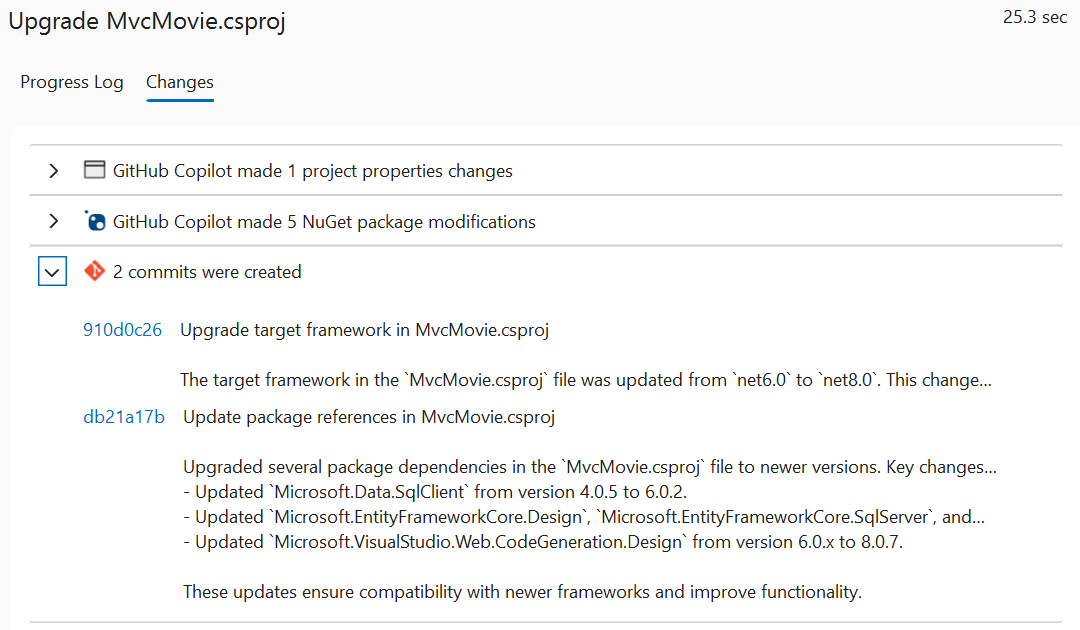
🔀 Git Integration: Git commits are automatically created on your behalf so that you can adopt and test changes incrementally.

A screenshot of the commits generated by the tool

✅ Automatic test validation: It automatically runs your application’s unit tests to ensure correct behavior post-upgrade.

🤖 Agent Mode functionality: Take advantage of Copilot Agent Mode with the latest preview version of Visual Studio installed.

Please Share Your Feedback

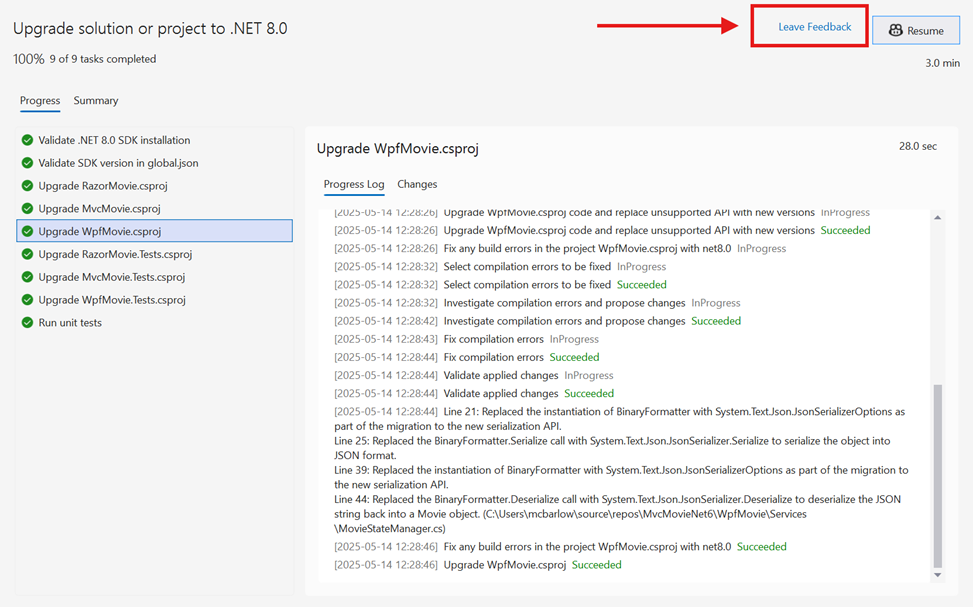
Start your upgrade journey today with GitHub Copilot app modernization – Upgrade for .NET! Your feedback is crucial to us as we aim to improve the product during this public preview. To share feedback with the team, please utilize the “Leave Feedback” button in the upper right corner of the Upgrade Manager UX in Visual Studio.

A screenshot of the Upgrade Monitor UX showing where to find the Leave Feedback button

We also welcome feedback via email to ghcpuacusteng@microsoft.com, as well as direct responses to our feedback survey.

Check out the new Visual Studio Hub

Stay connected with everything Visual Studio in one place! Visit the Visual Studio Hub for the latest release notes, YouTube videos, social updates, and community discussions.

The post Faster .NET Upgrades Powered by GitHub Copilot appeared first on Visual Studio Blog.

Connecting to Private NuGet Feeds Just Got Easier

$
0
0

The Visual Studio 2022 17.14 update is here, and it brings great quality-of-life improvements—especially around NuGet authentication. From context about the authentication needs of private NuGet feeds to a simplified account selection workflow, this update helps you stay focused on your code! If you haven’t already, download the latest Visual Studio update to take advantage of this and the rest of the improvements.

Streamlining the NuGet authentication experience

Over the past year, we’ve made significant strides to improve the identity and authentication experiences across Visual Studio 2022. For instance, we introduced Web Account Manager (WAM) support to unify and simplify the sign-in experience of Entra ID accounts & we recently followed that up by adding multi-account support for GitHub, making it easier than ever to manage your GitHub identities inside Visual Studio.

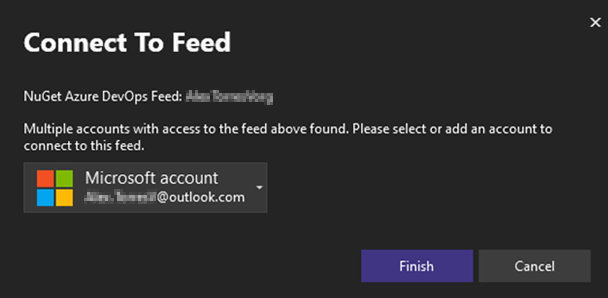
Today, we’re excited to share the next step in that journey: a more intuitive and reliable NuGet authentication experience. With the latest update, Visual Studio now proactively detects when authentication is needed during package restore and presents a new dialog that provides helpful context—such as which feed you’re attempting to access—and makes it easy to select the account best suited for the job. This small but impactful change simplifies the sign-in process, reduces authentication prompts, and helps you stay focused on your coding needs.

Here’s what you can expect:

  • Clearer sign-in guidance showing you the specific NuGet feed you are accessing.
  • Improved support for multi-factor authentication (MFA) allows you to efficiently manage accounts needed for NuGet restore operations, whether adding new accounts, selecting from existing ones, or re-entering credentials directly within the dialog.
  • A more predictable sign in experience, with fewer repeated prompts and less authentication guesswork.

Improved Nuget image

Try It Out and Keep the Feedback Coming

We’ll continue investing in making the Visual Studio’s identity and authentication experiences more seamless, secure, and intuitive so please, keep the feedback coming— Every suggestion, upvote, and report helps us prioritize the areas that matter most to you. And while we’ve made great progress, we’re far from done!

The post Connecting to Private NuGet Feeds Just Got Easier appeared first on Visual Studio Blog.

VisualStudio.Extensibility: Editor classification and updates to user prompt

$
0
0

We continue to invest in the VisualStudio.Extensibility SDK to allow users like you to create extensions that run faster and smoother than ever before! VisualStudio.Extensibility helps you build extensions that run outside the main Visual Studio IDE process for improved performance, reliability, and installation without restarting Visual Studio. Additional benefits include a sleek and intuitive .NET 8-based API and comprehensive, well-maintained documentation to help you develop amazing extensions faster than ever before.

For the latest up-to-date docs and installation instructions, visit https://aka.ms/VisualStudio.Extensibility. We encourage you to report bugs and suggest features via the issue tracker on our GitHub repo, where you can also find extension samples to help you get started. We have also launched a new video series on Visual Studio Toolbox to provide a more detailed tour of our samples. Check out the series here!

What’s new for VisualStudio.Extensibility for 17.14?

Our 17.14 release of VisualStudio.Extensibility includes the following features:

  • Text classification support
  • Updates to the ShowPromptAsync API

This release also includes a previously mentioned change regarding .NET runtime management requirements. VisualStudio.Extensibility extensions are executed on a separate .NET runtime host, unlike VSSDK extensions which run in the same process as devenv.exe, using the .NET Framework runtime. Since VisualStudio.Extensibility extensions operate on .NET, we must adhere to the runtime servicing lifetime of .NET. Consequently, the VisualStudio.Extensibility platform will be regularly updated to advance to newer versions of .NET LTS. For more information on how this affects you as an extension developer or consumer, please refer to our documentation here.

Color text in files with classification support

In Visual Studio 17.13, we added support for taggers in the editor, allowing advanced functionalities such as custom code lens providers. This enhancement laid the groundwork for the text classification feature we are introducing in 17.14. Text classification facilitates custom text coloring within an opened file, commonly referred to as semantic and syntactic colorization. The following snippet demonstrates the creation of classification tags, which are fundamental to implementing editor classification. Please note that the example provided is a very simplistic approach and should not be used without further refinement. For a more comprehensive guide on writing a classification extension, please refer to our documentation and sample materials.

private async Task CreateTagsAsync(ITextDocumentSnapshot document)
{
   List<TaggedTrackingTextRange<ClassificationTag>> tags = new();
   foreach (var line in document.Lines)
   {
      var match = LineRegex.Match(line.Text.CopyToString());

      if (match.Success)
      {
         foreach (Capture capture in match.Groups[FieldTextMatchName].Captures)
         {
            tags.Add(new(
new(document, line.Text.Start + capture.Index, capture.Length, TextRangeTrackingMode.ExtendNone),
new(ClassificationType.KnownValues.String)));
         }
      }
   }

   await this.UpdateTagsAsync(
      updatedRanges: [new(document, 0, document.Length)],
      tags,
      CancellationToken.None);
}

Display icons and prompt for input with an enhanced ShowPromptAsync API

We routinely assess suggestion tickets that track requests for new APIs to be integrated into VisualStudio.Extensibility. Numerous factors influence our decision on which features to prioritize, including the complexity and cost of implementation. In version 17.14, we are pleased to announce that we have addressed a community-requested feature by introducing icon support in our ShowPromptAsync API. Furthermore, we have added the capability to provide user-input prompt. Below is a code snippet demonstrating how to configure a user prompt with custom icons, titles, messages, and options. For more detailed information, please refer to our documentation.

// Show a prompt that accepts string input from the user, with a default value, custom title and custom icon.

string? feedback = await shell.ShowPromptAsync(
   $"Thank you for configuring {projectName}. Do you have any feedback?",
   new InputPromptOptions
   {
      DefaultText = feedbackPrompt,
      Icon = ImageMoniker.KnownValues.Feedback,
      Title = Title,
   },
   cancellationToken);

this.logger.TraceInformation($"Feedback received: {feedback}");

We want to hear from you!

We appreciate the time you’ve spent reporting issues/suggestions and hope you continue to give us feedback when using Visual Studio on what you like and what we can improve. Your feedback is critical to help us make Visual Studio the best tool it can be! You can share feedback with us via Developer Community: report any bugs or issues via report a problem and share your suggestions for new features or improvements to existing ones.

Stay connected with the Visual Studio team by following us on YouTube, Twitter, LinkedIn, Twitch and on Microsoft Learn.

The post VisualStudio.Extensibility: Editor classification and updates to user prompt appeared first on Visual Studio Blog.

Improve the commands in your extensions

$
0
0

As Visual Studio extension authors, our goal is to create tools that empower developers across diverse environments. A key part of this mission involves ensuring that your extension commands remain accessible and consistent across all Visual Studio locales. In your VSSDK extensions, by adding the CanonicalName property to your commands in the .vsct file, you can achieve greater resilience and user satisfaction for your extension.

And with a few simple tricks, you can make your command names a lot prettier as well.

Why add the CanonicalName property?

When a Visual Studio extension supports multiple locales, the names of commands can vary based on localized resources. While this improves usability in specific languages, it can sometimes lead to inconsistencies or challenges in maintaining a stable reference to commands programmatically. For example, if a command’s name changes between locales, automation scripts, or even third-party integrations referencing that command may break.

The CanonicalName property solves this issue by providing a stable, locale-independent identifier for your commands. With this property:

  • Commands are more predictable: Developers referencing your extension programmatically can rely on a fixed name across all locales.
  • Better integration: Tools and integrations can seamlessly reference commands without needing locale-specific handling.
  • Enhanced user experience: End users benefit from consistent behavior and fewer issues caused by localization mismatches.

Step-by-step guide to adding CanonicalName

Here’s how you can add the CanonicalName property to your commands in the .vsct file of your Visual Studio extension:

1. Locate Your .vsct File

The .vsct (Visual Studio Command Table) file defines the commands for your extension. It’s usually found in the root folder of your Visual Studio extension project.

2. Add the CanonicalName Attribute to Commands

Within the .vsct file, commands are defined using the <Button>, <Combo> or <Menu> elements. To add the CanonicalName property, include it as a child inside the <Strings> element. Here’s an example:

<Button guid="guidMyExtensionCmdSet" id="cmdidMyCommand" priority="0x0100" type="Button">
  <Parent guid="guidMyExtensionCmdSet" id="MyMenuGroup" />
  <Icon guid="guidImages" id="bmpPic1" />
  <Strings>
    <ButtonText>My Command</ButtonText>
    <CanonicalName>.MyExtension.MyCommandName</CanonicalName>
  </Strings>
</Button>

3. Ensure uniqueness of CanonicalName

The value you assign to CanonicalName must be unique across all commands in your extension. Use meaningful and descriptive identifiers that reflect the command’s purpose.

Best practices for using CanonicalName

  • Use PascalCase: Follow consistent naming conventions like PascalCase for the CanonicalName values.
  • Keep it descriptive: Make the names meaningful to help developers understand the purpose of the command without additional context.
  • Avoid localization: The CanonicalName should always remain in English and free from localization to ensure consistency.
  • Start with a period: This ensures that nothing is added in front of the command name. This is to avoid command names that look like OtherContextMenus.MyExtension.MyCommandName. The leading period is stripped automatically by VS, so it won’t show up.
  • Lead with the extension name: This is to make it very clear that this command is provided by your extension. It also makes it easy for users to search for all commands provided by your extension.

We’ve updated the XML Schema file

To reflect this best practice of providing the CanonicalName property with all commands, we’ve updated the schema file to provide in-editor warnings when it is missing. It’s just a warning and it doesn’t affect the VSCT Compiler which will continue to compile the command table as it always has. This is simply a change to make it easier for you to remember to add the property. It will be included in a future update to Visual Studio.

Conclusion

Adding the CanonicalName property to your commands in the .vsct file is a small but impactful change that enhances the resilience and usability of your Visual Studio extensions. By ensuring consistent references across all locales, you’ll provide a smoother experience for developers and maintain a higher-quality extension.

Take a moment to review your extension’s .vsct file and implement this property where necessary. It’s a straightforward step toward making your tools even more powerful and user-friendly.

Happy coding!

The post Improve the commands in your extensions appeared first on Visual Studio Blog.

Extension Manager updates in Visual Studio

$
0
0

The latest updates in Visual Studio 2022 introduced features specifically designed to improve how you manage extensions. These updates offer tools that help you automate processes, provide detailed controls for configuration, and enhance the user interface to streamline your development workflows.

Seamless auto updates

Visual Studio now automatically triggers updates whenever you open the Extension Manager window. This ensures you are consistently working with the latest features and fixes without needing to manually initiate updates.

Infobar notifying that an update is available for an extension

Infobar notifications for applied updates

An Infobar will now appear when updates are applied, reminding you to restart Visual Studio. This ensures the updates take effect without requiring additional steps on your part.

Auto update settings on the extension page

Settings for auto updates have been integrated directly into the extension page, making it easier to access and configure them. You can quickly adjust preferences without navigating through multiple menus.

Ability to que "update extensions automatically"

Filter by pending changes

A new “Pending” category has been added to highlight pending updates or modifications. This feature helps developers like you stay informed about changes that require attention..

Filtering by category > Pending (for pending changes)

Additional auto update settings in Tools > Options

For better accessibility, auto update settings are also available under **Tools > Options**. This provides an alternative way to manage your preferences in a centralized location.

Showing tools > options additional settings

Simplified settings interface

The user interface for managing settings has been redesigned to reduce complexity. With fewer clicks and clearer options, configuring your environment is now more intuitive.

Excluded extensions list

An excluded extensions list is now available, automatically populating with extensions you choose to exclude from automatic updates. This feature is especially useful for extensions critical to your workflow, where manual update control is preferred.

Conclusion

These enhancements in Visual Studio 2022 aim to make extension management more user-friendly and efficient. By automating frequent tasks and providing more granular control, these updates contribute to a streamlined development experience that increase your productivity!

We appreciate the feedback from our developer community, which plays a vital role in shaping these updates. Please continue to share your insights to help us improve Visual Studio with every release.

The post Extension Manager updates in Visual Studio appeared first on Visual Studio Blog.

Cloud Academy: Unlock Your Azure Skills and Accelerate Your Career

$
0
0

When we launched the Cloud Academy benefit for Visual Studio Professional and Enterprise subscribers back in March 2025, our goal was simple: give you the hands-on, practical learning experience you need to confidently master Azure and cloud technologies — without spending a dime beyond your subscription.

Why? Because in today’s fast-changing tech world, knowing theory isn’t enough. You need to do — to experiment, build, troubleshoot, and grow your skills in a real environment. That’s exactly what Cloud Academy delivers.

Level up your skills with Cloud Academy 800 215 300 image

From Frustration to Confidence: Learning That Fits Your Style

If you’re like many developers I’ve talked to, finding time to build new skills feels like a constant struggle. Between deadlines, meetings, and firefighting production issues, carving out space to learn something new is tough.

Cloud Academy understands that. Whether you’re the type who likes step-by-step guided labs, jumping straight into hands-on challenges, or tinkering freely in a safe sandbox, this platform adapts to how you learn best.

The result? Visual Studio subscribers are completing labs at a rate 10% higher than other learners on Cloud Academy. That means you’re not just skimming content — you’re gaining meaningful, practical skills that stick.

What’s New? Fresh Content Tailored for Today’s Cloud Challenges

Cloud technology evolves rapidly, and staying ahead means keeping your skills sharp. We’ve added new lessons and labs to make sure you’re ready to tackle the latest Azure capabilities and security challenges, including:

  • Automate document processing with Azure AI Document Intelligence Studio — no coding needed, just real impact.
  • Strengthen endpoint security with Microsoft Entra ID’s automated password management — because security can’t be an afterthought.
  • Streamline device management with Intune device naming templates — save time and reduce errors.
  • Dive into Azure OpenAI Service’s prompt engineering — build AI apps that behave reliably.
  • …and much more that matches what companies are demanding now.

Hands-On Labs: Where Real Learning Happens

Reading about cloud services is one thing. Building and deploying containerized apps, automating workflows, or managing state in Azure Container Apps — that’s where the real transformation happens.

Cloud Academy’s labs let you roll up your sleeves in real Azure environments, so you:

  • Push container images and manage registries.
  • Automate file processing with Azure Functions.
  • Explore state management with Dapr in container apps.

This kind of hands-on experience turns concepts into capabilities, making you more valuable to your team and your company.

Certification Prep That Works

Many subscribers are also using Cloud Academy to prep for Microsoft certifications, which are a powerful way to validate your skills and open doors in your career. The top courses are aligned to:

  • AZ-900: Azure Fundamentals — perfect for getting started.
  • AZ-204: Developing Azure Solutions — for building real cloud apps.
  • AI-900 and AI-102 — tapping into the future of AI on Azure.
  • AZ-400: Azure DevOps Solutions — mastering modern cloud development workflows.

With lessons, labs, quizzes, and exams, Cloud Academy makes certification prep practical and effective — no more cramming or rote memorization.

Meet Ela: Your Personal AI-Powered Learning Coach

Learning alone can be challenging. That’s why Cloud Academy includes Ela, an AI-powered Expert Learning Assistant who’s like having a tutor at your side 24/7.

Ela helps you by:

  • Summarizing complex lessons into bite-sized insights.
  • Testing your knowledge so you focus on what matters.
  • Explaining tricky concepts clearly.
  • Guiding you during hands-on labs to troubleshoot and stay on track.

With Ela’s support, you can accelerate your learning, overcome roadblocks, and gain confidence faster than ever before.

How to Activate Your Cloud Academy Access Today

Getting started is fast and easy:

  1. Log in to visualstudio.com with your Visual Studio subscription.
  2. Navigate to the Benefits section.
  3. Activate your Cloud Academy access — no credit card, no trials, just instant access.
  4. This exclusive benefit is available at no extra cost with select Visual Studio subscription levels.

To see if you’re Professional or Enterprise subscription is eligible, check out this document on MS Learn.

Your Next Step Toward Cloud Mastery

At Microsoft, we’re committed to empowering you with tools, training, and resources that truly move the needle. Based on the incredible feedback we’ve received, Cloud Academy is proving to be more than just another training platform — it’s a catalyst for career growth, innovation, and real-world impact.

Whether you want to build apps that scale, improve your security posture, or prepare for certification, Cloud Academy is here to help you every step of the way. Take advantage of this special benefit today and watch how your Azure skills—and your confidence—soar.

Stay Connected with Visual Studio

Don’t forget to visit the Visual Studio Hub for the latest updates, videos, and community discussions to keep your developer journey vibrant.

Got thoughts on Visual Studio benefits or Cloud Academy? I’d love to hear from you! Connect with me on LinkedIn.


The post Cloud Academy: Unlock Your Azure Skills and Accelerate Your Career appeared first on Visual Studio Blog.

How to filter C++ Build Insights by project

$
0
0

Visual Studio 2022 version 17.14 comes with quality-of-life improvements to its C++ Build Insights integration that will make it easier for you to navigate large multi-project traces and handle long file names for your build inputs and artifacts.

Build insights showcasing all the fles/projects build times and parse counts

What is C++ Build Insights?

C++ Build Insights is a powerful tool that lets you visualize and optimize the build process of your C++ projects. It leverage MSVC’s trace capture technology and uses the Windows ETW framework to collect detailed information about every build event, such as compilation, linking, code analysis, and more. You can then view and analyze this data in many ways, such as a timeline, a flame graph, or a tree map. As of Visual Studio 2022 version 17.7, C++ Build Insights is integrated into Visual Studio.

C++ Build Insights can help you identify and fix bottlenecks, dependencies, and inefficiencies in your build system, resulting in faster and more reliable builds. You can also compare different builds and see how your changes affect the build performance over time. To learn more, read how Activision used Build Insights to cut Call of Duty’s Build Time by 50% on the Microsoft Game Dev Blog.

How to Filter C++ Build Insights by Project

One of the new features in Visual Studio 2022 is the ability to filter your C++ Build Insights results for Visual Studio solutions by project. This can be particularly useful if you have a large solution with multiple projects and you want to focus on one of them. To do this, simply run Build Insights on your solution by selecting Build > Run Build Insights on Solution and then either Build or Rebuild, depending on whether you want to measure the build from scratch. This will generate an ETL (event trace log) trace, which Visual Studio will automatically open to visualize the data collected. Select the project that you want to filter by selecting the funnel next to the Project column and narrowing down the set of projects for which you want to view the data.

How to Filter C++ Build Insights by File Paths

In addition to project filtering, Build Insights now also supports file path filtering, which gives you fine-grained control over which files are included in your analysis. This is especially helpful in large codebases where build data from third-party libraries or generated code can clutter your view. With the File Path Filter, you can use glob patterns to focus on specific directories or file types—helping you isolate and investigate the build performance of just the parts you care about. Whether you’re narrowing your focus during a regression investigation or simply trying to understand the build cost of a particular code change, file path filtering helps you get answers faster.

To do this, simply run Build Insights on your solution by selecting Build > Run Build Insights on Solution and then either Build or Rebuild, depending on whether you want to measure the build from scratch. This will generate an ETL (event trace log) trace, which Visual Studio will automatically open to visualize the data collected. Select the project that you want to filter by selecting the funnel next to the File Path column and typing in the glob pattern you want to focus on or ignore.

How to see the file names and paths of build inputs and artifacts

Another improvement in Visual Studio is the way Build Insights displays the file names and paths of your build inputs and artifacts, such as source files, object files, libraries, and executables. Instead of showing the full path, which can be quite long and hard to read, Build Insights now shows the relative path and the file name, separated by a backslash. This makes it easier to find your build artifacts, especially if you have a complex folder structure.

You can see the file names and paths of your build inputs and artifacts in any view that shows them, such as the Included Files view, which shows the files that are included by each source file during compilation. You can also hover over any build event to see more details, including the file name and path.

We hope you find these quality-of-life improvements useful and that they help you optimize your C++ build process. We are always working on making Visual Studio better for developers, and we appreciate your continuous feedback and suggestions. Please tell us what you think of these features and what else you want in Build Insights.

The post How to filter C++ Build Insights by project appeared first on Visual Studio Blog.


Next edit suggestions available in Visual Studio

$
0
0

GitHub Copilot code completions, or gray text, are specialized in autocompleting unfinished code or providing helpful template code. In reality, coding activities are more diverse than writing new code. What if Copilot could better assist your coding not only with code generation, but your code editing activities as well?

We are excited to announce next edit suggestions, or NES for short, is now available in Visual Studio 2022 17.14 to further improve your coding experience. NES leverages the previous edits made and predicts the next edit to come, whether it’s an insertion, deletion, or mix of both. Unlike Copilot completions which are limited to generating suggestions at your caret location, NES can support you anywhere in your file, where the next edit is most likely to occur.

Example usage scenarios

Next edit suggestions can be helpful in a variety of scenarios, not only making obvious repetitive changes like renaming, but also more logical changes when you are adding/removing variables or changing the intention of a method. Here are some examples:

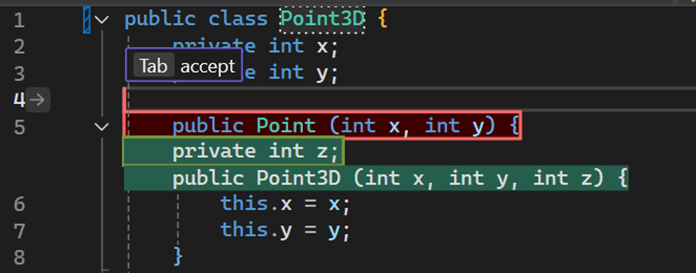
1. Refactoring a 2D Point class to 3D Point:

2. Update the code syntax to modern C++ using STL:

Note that NES is not just making repetitive changes to updating all “printf() “ to “std::cout“, but also updating other syntax such as “fgets()“.

3. Make logical changes in response to a newly added variable:

NES responds quickly to the new variable, which adds the maximum number of guesses a player can make in a game, and Copilot Completions also jumps in to help.

Getting started with next edit suggestions

Enable NES via Tools > Options > GitHub > Copilot > Copilot Completions > Enable Next Edit Suggestions.

Like completions, all you need to do to get NES is to start coding!

When there is an available edit suggestion, it could be presented in a diff view where the red diff indicates the original code you had, and the green indicates the new one suggested by Copilot to clearly shows any replacement or deletion of your original code.

If the edit is on a different line than the one you are on now, it will suggest you Tab to Navigate to the corresponding line first. The arrow in the hint bar indicates where the next edit is located. You won’t need to manually search for related edits anymore; NES will lead the way!

Next edit suggestions pop up with a navigation hint bar that includes Tab and arrow key down, a purple arrow in the gutter space next to the line number, and inline diffs where red indicates the original code and green indicates the new code. The current caret location is on line 1 and the edit is on line 4, thus the navigation hint bar is suggesting the user to hit tab to jump from line 1 to line 4.

After you are on the same line as the edit, you can Tab to Accept the suggestion.

Next edit suggestions, still with inline diffs where red indicates the original code and green indicates the new code. Now the caret location is on line 4, where is the part of the suggestion area, so the gutter arrow changes from purple to grey, and the navigation hint bar changes to say Tab accept.

In addition to the hint bars, an arrow in the gutter also pops up to indicate that there is an edit suggestion available. You can click on the arrow to explore the edit suggestion menu. This menu allows you to interact with NES using a mouse, when you don’t want to press the Tab key.

Next edit suggestions, still with inline diffs where red indicates the original code and green indicates the new code. The view where user clicks on the gutter arrow, and a context menu pops up below the gutter arrow with three options: Navigate to, Accept, Dismiss

See next edit suggestions explained step-by-step:

Please give NES a try today to let it assist you in your logical editing flow! If you have any feedback, our team would love to hear from you through Developer Community to help us keep iterating on and improving NES!

Check out the new Visual Studio Hub

Stay connected with everything Visual Studio in one place! Visit the Visual Studio Hub for the latest release notes, YouTube videos, social updates, and community discussions.

Appreciation for your feedback

Your feedback helps us improve Visual Studio, making it an even more powerful tool for developers. We are immensely grateful for your contributions and look forward to your continued support. By sharing your thoughts, ideas, and any issues you encounter through Developer Community, you help us improve and shape the future of Visual Studio.

The post Next edit suggestions available in Visual Studio appeared first on Visual Studio Blog.

Agent mode is now generally available with MCP support

$
0
0

Copilot agent mode is the next evolution in AI-assisted development—and it’s now generally available in the Visual Studio June update.

Agent mode turns GitHub Copilot into an autonomous pair programmer capable of handling multi-step development tasks from end to end. It builds a plan, executes it, adapts along the way, and loops through tasks until completion.

Agent mode can analyze your codebase, propose and apply edits, run commands, respond to build or lint errors, and self-correct. You can integrate additional tools from MCP servers to expand the agent’s capabilities. Ask Mode, on the other hand works with you in a conversational way – you guide it with prompts, give it context, and steer the direction. Where Ask Mode helps you think through a problem, Agent Mode executes the goal.

To try agent mode out, open Copilot Chat, click the Ask button, and switch to Agent.


From Goals to Working Code

Agent mode is built for real-world scenarios. You can give it high-level tasks like:

  • “Add ‘buy now’ functionality to my product page.”
  • “Add a retry mechanism to this API call with exponential backoff and a unit test.”
  • “Create a new Blazor web app that does X”

Copilot will try to identify the right files, apply changes, run builds, and fix errors—all while keeping you in control with editable previews, undo, and a live action feed. The more context and detail you provide, the better the results. Agent mode works best when it understands your intent clearly. The more precise your instructions and context, the more effective the outcome.

Tool calling

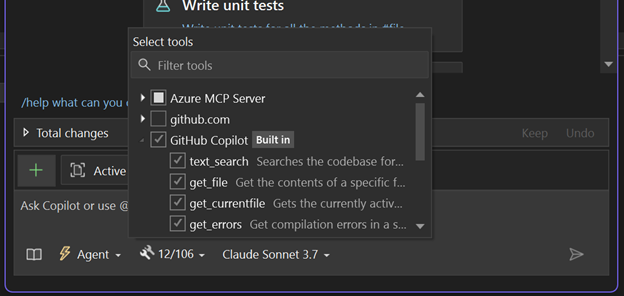
At its core, agent mode uses tool calling to access a growing set of capabilities inside Visual Studio. When given a goal, it selects and executes the right tools step by step. You can explore the available tools via the tool’s dropdown (icon with two wrenches) in the Copilot Chat Window.

mcp tools image

Want it to be more powerful? You can extend the agent by adding tools from an ecosystem of Model Context Protocol (MCP) extenders.

Agent mode + MCP

Model Context Protocol (MCP) is a protocol designed to seamlessly connect AI agents with a variety of external tools and services, similar to how HTTP standardized web communication. The aim is to enable any client to integrate robust tool servers such as databases, code search, and deployment systems, without writing customer connections for each tool. With MCP, the agent can be configured to access rich, real-time context from across your development stack:

  • GitHub repositories
  • CI/CD pipelines
  • Monitoring and telemetry systems
  • And more

MCP is open source and extensible, so you can connect any compatible server. Common integrations include GitHub, Azure, and external providers like Perplexity. Check out the MCP official server repository to learn more.

Visual Studio uses the native mcp.json file for MCP server configuration, and also detects compatible configurations set up by other development environments, such as .vscode/mcp.json. Learn more here.

Once connected, the agent can take smarter actions. For example, if you add tools from the GitHub MCP server, your agent can retrieve and create issues on your behalf, check repo history, search GitHub, etc. A Figma MCP server provides the agent access to your design mockups.

This is what makes agent mode truly extensible: it plugs into your environment and acts with real understanding of your tools, systems, and workflows.

We’re incredibly excited about this new prompt-first experience, and how it empowers developers to move faster while staying in full control. We’re continuously evolving it, and your input plays a big role—please keep the feedback coming here. And make sure to include your logs. It helps us get to the root faster and fix the problem.

Beyond agent mode: more AI updates to try in the June release

But wait, we’re not done! The team included additional features in this release that are intended to improve your experience with Copilot in Visual Studio.

  • Reuse and Share Prompt Files Easily: Create reusable prompt files in your repository, allowing you and your team to share and run custom prompts with ease. A prompt file is a standalone markdown file containing a prompt that you can run directly in chat, reducing the number of requests you need to type.
  • Gemini 2.5 Pro and GPT-4.1 are now available: Developers love working with different models with chat and agent mode to get the desired results they are looking for. Now, Gemini 2.5 Pro and GPT-4.1 are available, offering improved reasoning and generation capabilities for your coding workflows.
  • Reference the Output Window as part of your chat context: Troubleshoot runtime behavior more effectively.
  • Monitor your usage of GitHub Copilot directly from Visual Studio.
  • General availability of the Agents Toolkit 17.14 with improvements for building Microsoft 365 apps and intelligent agents.

The post Agent mode is now generally available with MCP support appeared first on Visual Studio Blog.

Inside Access: Join Us at VS Live! Redmond for a Week of Deep Developer Learning

$
0
0

A long time ago, I stood in a packed room at VS Live! and watched developers erupt in applause after a debugging demo shaved hours off a real-world problem. That was the moment I realized this wasn’t just a conference—it was a place where developers and toolmakers come together to push the craft forward.

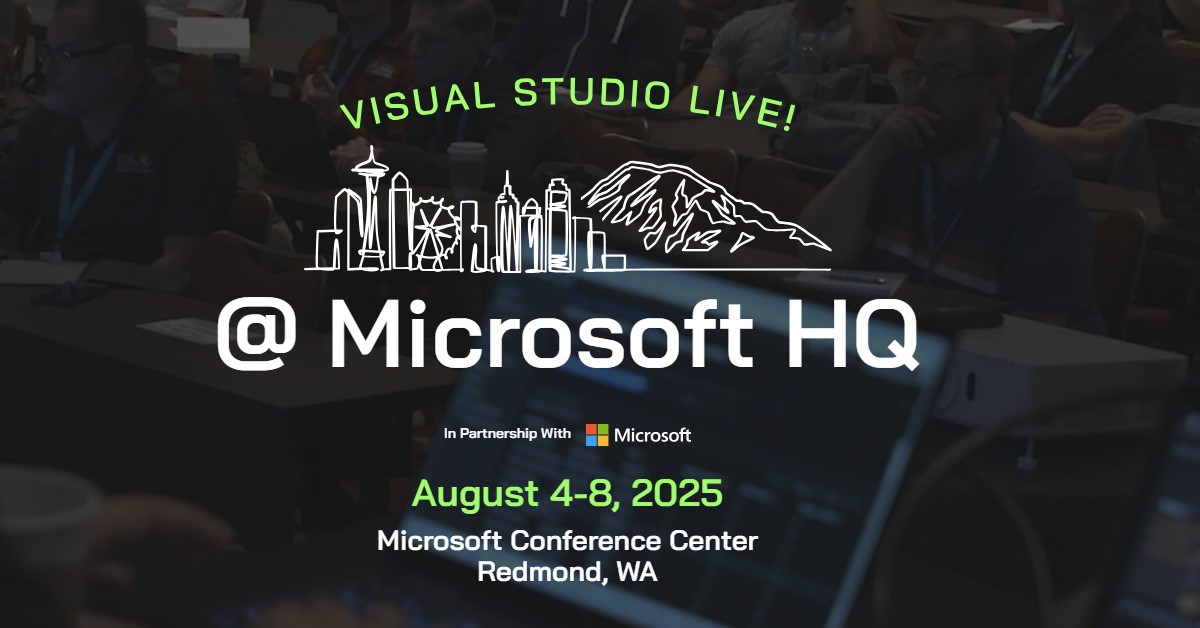
I’m excited to announce that I’ll be keynoting VS Live! Redmond 2025, August 4–8 at the Microsoft Conference Center—and I’d love for you to join us.

This is more than just a developer event. It’s the one time each year when the Visual Studio, GitHub, and Azure engineering teams open our doors, share what we’re working on, and connect directly with the developers we build for. I’ve already started working with the team on a set of demos that will surprise you—and I mean that in the best way.

vslive 8 2025 image

Let me show you why this is the event I never miss.

Top 6 Reasons to Join Us at VS Live! Redmond

  1. Kick Off with My Keynote and Exclusive Visual Studio Demos I’m teaming up with the Visual Studio engineering team to bring you fresh, powerful demos that will reshape how you think about building and debugging software. These are workflows we’ve never shown publicly before—and I can’t wait to share them with you.
  2. Unlock the Power of Copilot Agent Mode + MCP Copilot’s new Agent Mode isn’t just a concept—it’s live, extensible, and deeply integrated into Visual Studio. At VS Live!, we’ll show you how to use it to handle multi-step dev tasks, integrate Model Context Protocol (MCP) tools, and turn GitHub Copilot into an AI teammate that actually gets things done.
  3. Only 400 Spots Left for This Exclusive On-Campus Event VS Live! Redmond is intentionally smaller and more intimate than most developer conferences—and it’s held right here in Building 33 on the Microsoft campus, home to the Visual Studio product team. Fewer than 400 seats remain. If you want in, now’s the time to register.
  4. Meet the Experts: Visual Studio, GitHub, and Azure We’re hosting a special “Meet the Experts” experience where you can talk directly with the PMs and engineers building your tools. No booths. No filters. Just honest, developer-to-developer conversations about what’s working, what’s not, and what’s next.
  5. Help Shape the Future of Visual Studio We’ve carved out time for a dedicated feedback session with the Visual Studio IDE team. Bring your questions, feature ideas, and wish lists—we want to hear them. Your voice will help shape how Visual Studio continues to evolve.
  6. 70+ Sessions. 39 Microsoft Speakers. Hands-On Everything. From .NET and Azure to GitHub Copilot and Microsoft Fabric, you’ll get access to deep technical sessions, hands-on labs, and hallway conversations with folks who build the tech. This isn’t high-level theory—it’s practical, real-world content you can apply the moment you get back to work.

Save Your Seat – And Save Big

Visual Studio subscribers unlock exclusive pricing at https://my.visualstudio.com. Just sign in with your subscriber ID to find your priority code.

Not a subscriber? No problem. Use Priority Code VSLIVEHQ25 at checkout on the VS Live! Redmond event page to save up to $500 on registration.

There are fewer than 400 spots left for this exclusive, smaller event—held right on the Microsoft campus in Building 33, home to the Visual Studio engineering team.

And for a few lucky attendees, we’re planning something special: a backstage pass experience, including private meetups and Redmond campus tours. More details coming soon.

Whether you’re a long-time Visual Studio subscriber or just starting to explore GitHub Copilot and Azure AI, this is your chance to connect with the engineers building the tools you use every day—and the community that makes it all worth it.

P.S. If you see me in the halls or at a session, stop me and say hi—I’d love to hear what you’re building.

The post Inside Access: Join Us at VS Live! Redmond for a Week of Deep Developer Learning appeared first on Visual Studio Blog.

Better Models, Smarter Defaults: Claude Sonnet 4, GPT-4.1, and More Control in Visual Studio

$
0
0

We’re excited to share some major improvements to the Copilot experience in Visual Studio, including smarter default models, more choices, and easier ways to manage your usage.

Smarter default model

Copilot in Visual Studio now uses GPT-4.1 as the default model (previously 4o). In our testing, it delivers significantly better performance—faster responses, higher quality suggestions, and greater efficiency overall.

More models to choose from

Want to try something else? You now have access to an ever-broader range of models:

  • Claude Sonnet 4
  • Claude Opus 4
  • Claude Sonnet 3.5
  • Claude 3.7 (non-thinking and thinking)
  • OpenAI o3 mini
  • Gemini 2.0 Flash
  • Gemini 2.5 Pro

Model selections are now sticky, meaning your chosen model stays selected across threads for a smoother workflow. Not sure which model to use for your task? Check out this documentation to learn about each models’ strengths. Give them a try and let us know what you think! 

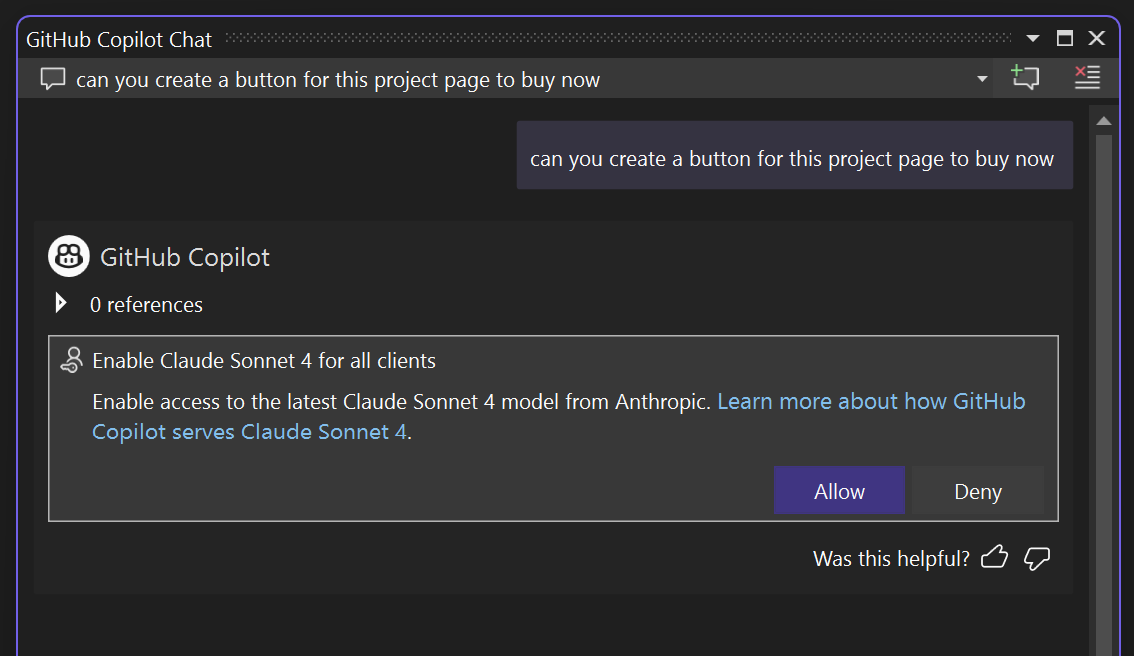
We’ve also made it easier to enable and switch between models. If a model is available under your plan but not yet enabled, you’ll now see a prompt right in the model picker—no need to navigate to GitHub settings.

inline approval image

Usage management and billing updates

With GitHub’s new billing model, we’ve made a few updates in Visual Studio to help you stay in control.

Track Your Usage Easily

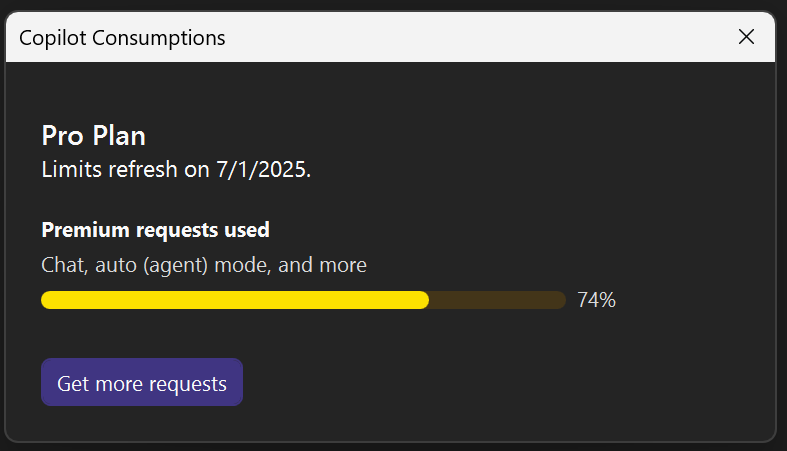
We’ve added a new Copilot Consumptions panel to help you monitor your usage. Just click the Copilot badge in the top-right corner of Visual Studio, then select Copilot Consumptions to see how many premium requests you’ve used across chat, inline suggestions, and more.

usage image

From there, you can also access Manage Plan to update your subscription or adjust settings on GitHub.com.  If you run out of your premium requests, you’ll automatically switch to a standard model, GPT-4.1, at no extra cost.

Note: Some models may count more heavily toward your quota—for example, number of requests consumed vary depending on the model used. You’ll see this clearly indicated in the model picker before you make a selection.

We hope these updates make Copilot in Visual Studio more powerful and transparent for you. Have a favorite model? Tell us how you’re using it—we’d love to hear from you! 😊

Check out the new Visual Studio Hub

Stay connected with everything Visual Studio in one place! Visit the Visual Studio Hub for the latest release notes, YouTube videos, social updates, and community discussions.

We appreciate your feedback

Your feedback helps us improve Visual Studio, making it an even more powerful tool for developers. We are immensely grateful for your contributions and look forward to your continued support. By sharing your thoughts, ideas, and any issues you encounter through Developer Community, you help us improve and shape the future of Visual Studio.

The post Better Models, Smarter Defaults: Claude Sonnet 4, GPT-4.1, and More Control in Visual Studio appeared first on Visual Studio Blog.

Fresh Learning Paths Now Available on Pluralsight for VS Subscribers

$
0
0

We’ve been thrilled to see so many of you jump back into your Pluralsight benefit after our April 3rd announcement about extended access. Your enthusiasm for learning and leveling up with Visual Studio inspires us every day. If you haven’t had a chance to dive in yet—or want to explore what’s new since then—I wanted to share an update on some exciting new courses and paths that we think you’ll find especially valuable.

More Time to Learn, More Ways to Grow

Visual Studio developers on a paid Professional or Enterprise subscription unlock exclusive learning opportunities—Professional subscribers receive 6 months of complimentary Pluralsight access, while Enterprise subscribers get a full 12 months. That’s even more time to immerse yourself in expert-led courses, hands-on labs, and certification prep, all tailored to the latest Microsoft technologies.

Why does this matter? Because we know how busy developers are juggling projects, deadlines, and meetings. Pluralsight offers you the flexibility to learn at your own pace, whenever and wherever it fits your schedule.

What’s New on Pluralsight?

Pluralsight was recently named a Leader in the 2025 Forrester Wave, earning the highest scores in strategy, hands-on learning, skill benchmarking, innovation, and partner ecosystem. This platform is built to help you grow your career with courses designed by industry experts — and the content keeps evolving.

Here are some of the standout new courses you’ll want to check out:

  • VS Code Foundations (Beginner, Published July 2025) Many developers switch between Visual Studio IDE and Visual Studio Code, choosing the right tool for different tasks. This course helps you get comfortable with VS Code’s interface, extensions, command palette, source control, and AI-powered features—so you can make the most of both environments.
  • Secure Development with GitHub Copilot (Beginner, Published May 2025) GitHub Copilot can speed up your coding, but like any powerful tool, security matters. Learn how to configure Copilot to keep your company’s intellectual property safe, find vulnerabilities in your code, and fix them before they become problems. This course is essential for writing secure software with AI-assisted coding.
  • Prompt Engineering (Beginner, Published April 2025) Generative AI is everywhere, but knowing how to ask the right questions is key. This learning path teaches you how to craft effective prompts that produce precise, context-aware outputs with models like GPT-4. Perfect for developers and data scientists eager to unlock AI’s full potential.
  • Generative AI and Copilot in Microsoft Fabric (Intermediate, Updated March 2025) Imagine having a sidekick that helps you create, troubleshoot, and analyze data with AI-driven insights. This course shows you how to leverage Copilot and generative AI across Microsoft Fabric services like data pipelines and Power BI to boost your productivity and creativity.
  • Automating Azure Blob and Archive Storage Operations (Advanced, Updated May 2025) Cloud automation is a must-have skill. Learn how to automate Azure storage workflows, implement infrastructure as code, and integrate securely with your existing systems in this deep dive.
  • Designing Serverless Architectures with Azure Functions (Advanced, Updated May 2025) Build scalable, event-driven cloud applications with Azure Functions. Explore microservice patterns, event integration, monitoring, and security best practices for serverless architectures.

Ready to Unlock Your Extended Pluralsight Access?

If you’re a Visual Studio Professional or Enterprise subscriber, your Pluralsight access is waiting for you. Simply head over to my.visualstudio.com, log in with your Visual Studio credentials, and activate your benefit. If you have additional questions regarding this benefit, check out this article.

Thanks for being part of the Visual Studio community. We can’t wait to see where your learning journey takes you next.

Check out the new Visual Studio Hub

Stay connected with everything Visual Studio in one place! Visit the Visual Studio Hub for the latest release notes, YouTube videos, social updates, and community discussions.

Appreciation for your feedback

Your insights help us improve Visual Studio, making it an even more powerful tool for developers. We are immensely grateful for your contributions and look forward to your continued support.

Your feedback is invaluable in shaping Visual Studio’s future. By sharing your thoughts, ideas, and any issues you encounter through Developer Community, you help us improve and shape the future of Visual Studio.

The post Fresh Learning Paths Now Available on Pluralsight for VS Subscribers appeared first on Visual Studio Blog.

Watch Live: Visual Studio Toolbox at VS LIVE! Redmond 2025

$
0
0

Join Robert Green and Leslie Richardson for a full day of live sessions, demos, and interviews.

Live from Microsoft HQ – Stream Tuesday’s Sessions with Visual Studio Toolbox!

On Tuesday, August 5, join us for a special edition of Visual Studio Toolbox Live—broadcast from VS LIVE! Redmond and hosted by Leslie Richardson and Robert Green. You’ll get a full day of Microsoft-led sessions, live studio commentary, behind-the-scenes interviews, and exclusive insights straight from campus.

👉 Click here to set a YouTube reminder so you don’t miss a moment.

🎤 What You’ll See on Tuesday

We’re streaming five sessions led by Microsoft product teams across Visual Studio, Azure, GitHub Copilot, and .NET. Whether you’re looking to boost your daily productivity or build your next-gen AI app, this day is packed with learning.

🎥 Hosted Live from the Studio

Between each session, we’ll cut to the Visual Studio Toolbox studio with Robert and Leslie, featuring:

  • Live Q&A from the YouTube chat
  • Guest drop-ins from our Microsoft speakers
  • Commentary and context to help you apply what you just saw
  • And maybe a few surprises…

👉 Have a question during the stream? Drop it in the chat—Robert and Leslie might feature it live!

📺 How to Watch

🔴 Watch the Full Livestream on YouTube Catch all five Microsoft-led sessions, plus live studio hosting from Robert Green and Leslie Richardson.

👉 Watch Live on YouTube (Streaming begins Tuesday, August 5 at 8:00 AM PT)

🎥 Get the Backstage Pass with Krezzia & Lydia

Want to see what it’s like behind the scenes at VS LIVE! Redmond? Follow Krezzia Basilio and Lydia Yong, Microsoft FTEs from the Aspire Undergrad Program, as they bring you backstage interviews, speaker walk-and-talks, reaction clips, and stories from the event floor.

This is your unofficial, unscripted, attendee-level view of the action—from greenroom to keynote to closing time.

👉 Follow on TikTok 👉 Follow on LinkedIn

📼 Catch the Sessions On-Demand (After August 11)

Can’t join live? No problem—on-demand recordings of many Microsoft-led sessions will be available a few days after the event.

🔧 Want More Toolbox?

Visual Studio Toolbox is your go-to show for weekly tips, tools, and demos straight from the product team and engineering experts. From debugging hacks to Copilot walkthroughs, it’s where devs stay current without falling behind.

👉 Explore Visual Studio Toolbox Episodes

We’ll See You on August 5

This is more than just a livestream—it’s a chance to learn directly from the people who build the tools you use every day. We hope you’ll tune in, join the chat, and spend a day with us at Microsoft HQ.

—Jim

The post Watch Live: Visual Studio Toolbox at VS LIVE! Redmond 2025 appeared first on Visual Studio Blog.

Smarter AI Edits in Visual Studio Copilot

$
0
0

When we first set out to get smarter AI edits in Visual Studio Copilot, we knew we were tackling a deeply complex problem. It wasn’t just about generating great suggestions—it was about figuring out how to seamlessly apply those suggestions to your code. While the idea seemed simple at first glance, the reality was anything but.   

The Complexity of Implementing AI-Generated Edits 

Let’s rewind to our early attempts. Copilot might give you a fantastic suggestion—a new method, a helpful refactor, or maybe even a corrected logic block. But the real challenge began when we tried to insert those changes into the existing file without breaking anything. Where does the edit go? What happens if the file has been updated since the suggestion was generated? What if the model’s output inadvertently introduces conflicts, overlaps existing code, or even forgets a required bracket? These questions made the process tricky, and the resulting red squiggles made it difficult to trust AI suggestions. 

In the early days, we approached this problem in the most straightforward way possible: brute force. We used heuristics and rule-based techniques like string matching and pattern recognition to identify where edits might belong. It worked… kind of. The results were often inconsistent, especially for complex edits spanning multiple lines. And as Copilot’s capabilities expanded to support more languages and scenarios, maintaining these rules became a moving target—always shifting, always growing harder to manage. Success rates hovered around 50%, which was far from ideal. In hindsight, it became increasingly clear that we couldn’t outpace the ever-evolving models with static rules.   

Better Models Meet Smarter Techniques 

As AI technology advanced, we saw an opportunity to revisit this problem with a fresh perspective. Two major developments in AI made it possible to rethink how we could get smarter edits in Visual Studio Copilot: modern models with larger context windows and a groundbreaking technique called speculative decoding.   

Speculative decoding became a game changer for speeding up AI-assisted edits. It works by pairing a fast model with a more sophisticated one. The fast model generates token predictions for the edit ahead of time, while the smarter model steps in only when needed to refine or verify those predictions. This collaboration improved average token generation speed by 2-3x and made it feasible to implement the generated edits using the model, which significantly enhanced accuracy when integrating changes into your files.   

By using speculative decoding, we adopted the model-based approach to applying edits that was able to fill in the gaps that the previous approach could not reach. Instead of relying on rule sets, we employed an AI model to simulate an “ideal” version of your file with the chosen suggestions seamlessly integrated. A smart diff algorithm then compares this ideal version with your actual file to pinpoint and precisely map the edits. This allowed the entire process to handle edge cases—like overlapping code or missing syntax—more intelligently than ever before.      

Balancing Accuracy and Speed 

While speculative decoding dramatically improved performance, applying AI edits still came with a natural trade-off: using models introduced latency. Previously, all string computation was done locally, meaning edits appeared almost instantly. Now, every edit involved network calls and token generation—a process that unfolds incrementally as a token stream, rather than as a single, instant response.   

To make this experience feel meaningful for users, we implemented a streaming animation in the editor. As edits are detected on the token stream, users see their document updating line by line in real time. This animation serves two purposes: showcasing progress and providing visibility into exactly how the changes are being applied. Although this approach trades the speed we had before for greater accuracy, feedback has shown that users value precision over raw speed—especially when it comes to maintaining code quality and reducing disruption.      

Looking Ahead

This work laid the foundation for Agent Mode in Visual Studio Copilot—a feature that enables the AI to not only suggest improvements but actively assist in executing them. For Agent Mode to function effectively, the edits needed to be precise, seamless, and reliable enough for the agent to build, debug, and test the code. Speculative decoding has already made significant strides in balancing speed and accuracy, but we’re not stopping there.

A faster implementation of our speculative decoding technique is on the horizon. This updated version will leverage advancements in token generation and model pairing to further reduce latency while maintaining accuracy users have come to expect. Early tests show promise of a 2-4x speed boost compared to the original rollout, moving closer to the ideal experience where precision meets near-instant response times. 

The post Smarter AI Edits in Visual Studio Copilot appeared first on Visual Studio Blog.


Visual Studio 2015 Retirement: Support reminder for older versions of Visual Studio

$
0
0

Support for Visual Studio 2015 will end on October 14, 2025. If you’re using an older version of Visual Studio, we want to keep you productive and secure when using Visual Studio, and strongly recommend you upgrade to Visual Studio 2022, which brings the power of Copilot to your development workflow. It also contains key productivity improvements in the editor, built-in support for Git version control and rich integration with GitHub, AI-powered code completions, and tools for .NET 8 and 9, and .NET MAUI.

Support Timeframe Reminders for older versions

If you’re still using an older version of Visual Studio, here’s a reminder of key support lifecycle dates.

  1. Visual Studio 2015 extended support ends October 14, 2025.
  2. Visual Studio 2017 version 15.9 remains in extended support until April 13, 2027. During extended support we provide fixes only for security issues. You must be using version 15.9 to receive security updates and support.
  3. Visual Studio 2019 version 16.11 remains in extended support through April 10, 2029. During extended support we provide fixes only for security issues. You must be using version 16.11 to receive security updates and support.
  4. Visual Studio 2022 version 17.14 is in mainstream support through January 12, 2027, and then transitions to extended support through January 13, 2032. Additionally, version 17.10 LTSC is supported until January 13, 2026, and version 17.12 is supported until July 14, 2026. You must be on one of these versions to receive updates and support.

Visual Studio 2015 Retirement

On October 14, 2025, support will end for all Visual Studio 2015 editions, associated products, runtimes, and components, and they will no longer receive security or any other updates. These include:

  • Visual Studio 2015 Enterprise, Professional, Community, Build Tools, Team Explorer, Test Professional editions, and Visual Studio 2015 Shell (Integrated and Isolated).
  • Visual Studio SDK, Remote Tools, Agents, Feedback Client for Visual Studio Team Foundation Server 2015, Deployment Agent, Release Management, and Azure Tools.
  • The MSVC Tools v140 – Visual Studio 2015. When using Visual Studio 2017 or later, update any project using MSVC v140 to use the latest MSVC toolset.
  • Visual C++ Redistributable for Visual Studio 2015. Update your applications to use the latest release of Visual C++ Redistributable.

Check out the Visual Studio Hub

Stay connected with everything Visual Studio in one place! Visit the Visual Studio Hub for the latest release notes, YouTube videos, social updates, and community discussions.

Appreciation for your feedback

Your feedback helps us improve Visual Studio, making it an even more powerful tool for developers. We are immensely grateful for your contributions and look forward to your continued support. By sharing your thoughts, ideas, and any issues you encounter through Developer Community, you help us improve and shape the future of Visual Studio.

The post Visual Studio 2015 Retirement: Support reminder for older versions of Visual Studio appeared first on Visual Studio Blog.

GPT-5 Now Available in Visual Studio

$
0
0

We’re excited to share that GPT-5, OpenAI’s latest frontier model, is now rolling out in GitHub Copilot for Visual Studio.

GPT-5 offers faster responses and even better performance for writing and understanding code. This release brings a new level of capability to your development workflow, making it easier to move from idea to implementation.

Try it now: Click the Copilot badge in your IDE, open Chat, and select GPT-5 (Preview).

Why GPT-5 Matters to you

GPT-5 is OpenAI’s most advanced model to date. It delivers substantial improvements in:

  • Reasoning and decision-making for complex coding tasks
  • Code quality and maintainability, even for large implementations with minimal prompting
  • Clarity of explanations, giving you a better understanding of the changes it makes

From building end-to-end features to understanding unfamiliar codebases, GPT-5 is designed to help you move faster while staying in control.

Availability

GPT-5 is rolling out to all paid Copilot plans starting today. You can access it in both Agent Mode and Ask Mode. If you do not yet see GPT-5 in your model picker, check back soon as rollout continues. Note: As GPT‑5 becomes more widely available, GitHub has announced the phased deprecation of several older models, see: Upcoming deprecation of o1, GPT-4.5, o3-mini, and GPT-4o – GitHub Changelog

For Copilot Enterprise and Business customers:
Administrators must enable the GPT-5 policy in Copilot settings. Once enabled, users in the organization will be able to select GPT-5 in the model picker in Visual Studio.

The post GPT-5 Now Available in Visual Studio appeared first on Visual Studio Blog.

From Redmond to San Diego: VS Live! Highlights, Session Examples, and What’s Next

$
0
0

There’s something special about hosting developers at Microsoft HQ — and this year’s Visual Studio Live! Redmond reminded me why I love these events. The energy in every room was electric. From the moment the first session kicked off, developers leaned in, asked smart, challenging questions, and took every opportunity to connect with the Product Managers and engineers from Visual Studio, Azure, and GitHub Copilot.

Between sessions, the hallways were buzzing. Right after the Experts Meet & Greet, one speaker shared a story that stuck with me:

“A customer came up to me and said: All those paper cuts that Mads showed that are being fixed with vNext are nothing compared to the complete gamechanger that Copilot is for developing. I’m going back and begging for it at my company.”

Moments like that are exactly why these in-person events matter — they spark conversations that turn into real momentum back at the office.

Watch the Microsoft Sessions On-Demand

If you couldn’t make it to Redmond (or just want to revisit your favorites), we’ve made the Microsoft-led sessions available on YouTube. You’ll find keynotes, deep dives, and practical demos from the teams behind Visual Studio, Azure, and GitHub Copilot.  Please note, the first 10 videos are available today and more will be added in the coming days, so keep checking back for new content or turn on YouTube notifications.

🎥 Watch the playlist here — your front-row seat to Redmond’s best moments.

Session Highlights – Just a Few Examples from a Packed Agenda

With more than 70 sessions led by 39 incredible Microsoft speakers, the week was filled with valuable insights, hands-on learning, and memorable moments. Every session had its own takeaways, but here are just a few examples to give you a taste of what you can expect from VS Live! events — it really was a fantastic lineup of talented, passionate speakers.  Here are just a few available now in the playlist, with more added every day. 

Kicking off bright and early Tuesday morning, Harshada and Jessie energized the audience with demos of the latest productivity boosts, AI-assisted debugging, and smarter Git tooling — showing practical ways to make every day in the IDE more efficient.

Developers loved seeing the little frustrations we’ve all lived with get smoothed away — and how those changes, paired with Copilot, can dramatically speed up the inner loop.

A high-energy solo session that showed how to build cutting-edge, next-generation AI applications using .NET and Azure.

In this demo-heavy session, come along on an end-to-end journey of the latest tools, tips, and Github Copilot tricks VS provides to help make you a more productive .NET developer.

This session highlights powerful AI features from recent updates that streamline everyday workflows, including both automatic agent modes and the seamlessly integrated Copilot experiences inside the editor.

See You in San Diego – And Save Big

Visual Studio subscribers unlock exclusive pricing at https://my.visualstudio.com. Just sign in with your subscriber ID, click on Benefits | Professional Development – then grab the Priority code off the Visual Studio LIVE! Events tile.

Not a subscriber? No problem. Use Priority Code VSLIVE2025 at checkout on the VS Live! San Diego event page to save up to $500 on registration.

San Diego offers a full week of deep technical learning, hands-on sessions, and the chance to connect directly with the engineers behind Visual Studio, Azure, and GitHub Copilot — and you can’t beat the San Diego venue in September.

Whether you’re a long-time Visual Studio subscriber or just starting to explore GitHub Copilot and Azure AI, this is your chance to connect with the people building the tools you use every day — and the community that makes it all worth it.

The post From Redmond to San Diego: VS Live! Highlights, Session Examples, and What’s Next appeared first on Visual Studio Blog.

Improving Codebase Awareness in Visual Studio Chat

$
0
0

Smarter Code Search in Visual Studio: From BM25 to Semantic Search 

In our latest 17.14.11 release, we’ve made a significant leap forward in how we explore your code to retrieve meaningful context. Our new Remote Semantic Search integration helps you find exactly what you need faster and with greater precision than ever before. 

By embedding Remote Semantic Search directly into the Visual Studio Copilot code search experience, we’ve combined the power of traditional keyword search (BM25) with the deep contextual understanding of cutting-edge AI models. This means your searches go beyond just matching words, they grasp the concepts and intent behind your search queries. 

Let’s dive into what’s new, why it’s a game-changer, and how you can start using it today. 

The Legacy: BM25 + Reranking 

Before this update, Visual Studio’s code search relied solely on a BM25-based search engine. BM25 is a well-established ranking algorithm that evaluates how closely each document, such as code files or symbols, matches your query. It does this by analyzing term frequency and document length, balancing how often a term appears within a document against how rare it is across the entire codebase. Simply put, the more a term shows up in a file (to a certain extent) and the less common it is overall, the more relevant that file is considered. 

On top of that, we used reranking logic to fine-tune results. This step gave extra weight to certain matches, like hits in file names or symbols within active projects, so that the most likely relevant results would surface right at the top. 

The limitations: 

  • BM25 is purely keyword-based. It doesn’t understand synonyms, concepts or context by itself. 
  • Searching for “get user authentication token” would only match files containing those exact words (authentication, token, etc), missing matches like RetrieveOAuthCredential or JWT.

The Upgrade: Semantic Search 

Unlike traditional search that focuses on matching exact words, semantic search matches meaning. Powered by advanced vector embeddings, it transforms both your query and every piece of code into points in a high-dimensional space. That’s where their semantic similarity can be measured. 

This means it understands that phrases like “fetch user credentials” and “get authentication token” are closely related, even if they don’t share any exact words. Semantic search captures the purpose of functions, the intent behind variables, and even the context in code comments to deliver results that truly match what you’re looking for. 

Using Semantic Code Search in Visual Studio 

Thanks to our remote indexing, Semantic Code Search is available for solutions hosted in Azure DevOps and GitHub repositories that have been indexed. To learn more about the GitHub integration check out About GitHub Code Search – GitHub Docs.  

To try it out: 

  • Open your Copilot Chat window  
  • Use our #solution feature to ask questions like: 
    • “#solution Where are the API requests?”  
    • “Where is Authentication Handled? #solution”  

Feel free to use natural language, our semantic engine understands full sentences. For example: “Where do we generate the JWT token for API requests?” 

Examples in Action 

Let’s explore how this works using the Roslyn repository. We’ll run search queries in Copilot and compare the results side-by-side. In the table below, you’ll see results returned by the traditional BM25 algorithm on the left, and the new Semantic Search on the right. These examples highlight how much smarter and more relevant your code search can be. 

Comparison table 
BM25 method  Semantic Search 
Copilot chat response using BM25 returning keyword matches  Copilot chat response using semantic search returning semantic matches
With semantic search, the results may be fewer, but they are significantly more accurate. The search engine was able to understand that “deleting not synchronous modifiers” and “removing Async modifiers” convey the same intent, even though the wording is different, demonstrating its deeper understanding of code meaning. 
 Copilot chat response using BM25 returning keyword matches  Copilot chat response using semantic search returning semantic matches
BM25 tends to return files that contain matching terms, even if they are less relevant or potentially unrelated, such as corrupted or test files. For example, with BM25, an extra file named SmartIdenterEnterOnTokenTests was included in the results, which was not directly relevant to the query. 

Wrapping Up 

Remote Semantic Search into Visual Studio Copilot marks a major step forward in how Copilot understands developer’s codebase. By combining the precision of traditional keyword search with the deep, context-aware insights of AI-driven semantic search, finding the right code has never been easier. 

Whether you’re digging into complex legacy projects or exploring unfamiliar repositories, this powerful new search experience helps get straight to the heart of what matters, saving time and reducing frustration. 

Give it a try today and experience a smarter way to search your code. 

Happy coding! 

The post Improving Codebase Awareness in Visual Studio Chat appeared first on Visual Studio Blog.

Model Context Protocol (MCP) is Now Generally Available in Visual Studio 🎉

$
0
0

We’re excited to announce that MCP support is now GA in Visual Studio—unlocking richer, real-time context from your entire development stack and expanding the power of Agent Mode like never before.

Model Context Protocol (MCP) is an open standard that makes it easy for AI agents to connect with external tools and services—think of it like HTTP, but for AI-enabled developer workflows. Instead of building custom integrations for every tool, MCP lets you plug into robust server endpoints for databases, code search, deployment pipelines, and more, all through a consistent, secure protocol.

With GA support in Visual Studio, you’ll find new ways to connect, configure, and control your MCP servers—plus a growing set of features to make setup seamless and enterprise-ready.

Why It Matters

In Visual Studio, MCP unlocks new possibilities for:

  • Custom workflows – Use your custom MCP servers, or choose from the vast ecosystem of existing ones, to automate repetitive tasks, query metrics, interact with databases, or call internal APIs—directly from Copilot Chat.
  • Enterprise integration – Connect AI to your company’s internal tools and systems while keeping sensitive data safe.
  • Smarter conversations – Give Copilot structured access to project-specific knowledge, services, and workflows so it can provide richer, more relevant answers.

What’s new?

Full MCP client integration

In Visual Studio, you can connect to local or remote MCP servers using .mcp.json configuration. See our official documentation for more instructions on how to configure servers.

Picture2 image

With seamless flows to manage server inputs, authentication, and tools, managing MCPs in Visual Studio is truly a first class experience designed with developers in mind.

First-class authentication

Sign in securely to protected endpoints with built-in Visual Studio flows. With support for the full MCP authentication specification, Visual Studio can connect to protected MCP servers regardless of what authentication provider they use.

Picture1 image

Easier ways to connect to new servers

Visual Studio now supports one-click server installation from the web. With this new functionality, adding new MCP servers in VS is as simple as the click of a button. Be on the lookout for “Install in VS” buttons to start appearing in the repos for your favorite MCP servers!

We’ve made it easier than ever to add connections to new MCP servers with our new add flow. Whether it’s a server you found online, or a custom built MCP server for your organization, you no longer need to manually copy, paste, and configure JSON to connect to new servers. To access this flow, simply click the new green plus button icon in the tool picker window in GitHub Copilot Chat.

image image

Enterprise Governance controls

We understand that organizations may have different policies and through a new integration with GitHub policy, enterprises and organizations can now have fine grained control over access to MCP functionality within their organizations. Your IT admin can now simply navigate to your GitHub policy settings, and toggle on or off MCP features for all users.

Give us your feedback!

We’re excited to continue evolving the MCP experience in VS, and your input plays a big role—please give us your feedback here, and let us know what you’d like to see next!

The post Model Context Protocol (MCP) is Now Generally Available in Visual Studio 🎉 appeared first on Visual Studio Blog.

Viewing all 1144 articles
Browse latest View live


<script src="https://jsc.adskeeper.com/r/s/rssing.com.1596347.js" async> </script>