Quantcast
Channel: Visual Studio Blog
Viewing all 1144 articles
Browse latest View live

Bring Your Own Model to Chat in Visual Studio

$
0
0

We’re excited to announce that you can now bring your own language model into Visual Studio Chat.

You can connect API keys from providers (OpenAI, Anthropic, and Google) to access a wider range of models. This makes it easy to test the latest releases, customize workflows, or run on infrastructure you control.

What it unlocks

  • Choice – Access more than just the built-in defaults, and try new models the moment they drop.
  • Customization – Pick models that align with your security, infra, or performance needs.
  • Control – Manage usage, quotas, and billing directly with your provider.
  • Flexibility – Switch seamlessly between Copilot’s built-in models and your own.

Getting started

If you already have an API key from OpenAI, Anthropic, or Google, setup takes just a minute:

  1. Open the Chat Window in Visual Studio.
  2. Select Manage Models from the model picker.
  3. Choose your provider and paste your API key.
  4. Pick from the preset list, or enter a model name.
  5. That’s it—your model will now show up in the picker.

This feature is not currently available for Copilot Business or Copilot Enterprise users.

A few important considerations:

  • This feature currently applies only to Chat in Visual Studio (not completions, commit messages, or other AI features).
  • Model capabilities vary—some may not support advanced features like tool use or vision inputs.
  • Certain services (embeddings, repo indexing, intent detection) will still run through Copilot’s API.
  • Output from third-party models comes directly from the provider and may not pass through Copilot’s responsible AI filters.

This is just the beginning. We’re expanding support for additional model providers soon, and we look forward to seeing how you use this feature and which models you choose.

The post Bring Your Own Model to Chat in Visual Studio appeared first on Visual Studio Blog.


Better Control over Your Copilot Code Suggestions

$
0
0

Copilot code completions and suggestions in the editor speed you up in your daily programming and coding activities, at every keystroke. They help you finish the line you’re typing or anticipate your next edit, making your workflow smoother and faster. At the same time, editor is where you focus and put in the deep work. Based on your feedback, we understand how important it is to strike the right balance between helpful suggestions and maintaining control over your attention and workspace.

We’re excited to share features that give you enhanced control over your Copilot experience, so you can decide when suggestions show up and how much you accept, right inside your editor. These features are all available to you now, starting Visual Studio 2022 17.14.13 (August 2025).

Minimize Distractions When Coding

Do you prefer a quieter editor when actively thinking and coding? We have a few options in Visual Studio to help you stay focused on programming and still have Copilot assistance available for you when you are ready to review them.

1. No completions while typing

By default, completion is requested at every keystroke you type to provide just-in-time support. We learned from you that it could show up too quickly sometimes and interfere with your typing. You can pause code completions when you are quickly typing out the code.  Go to Tools -> Options -> IntelliCode -> Advanced and turn on wait for pauses in typing before showing whole line completions. This will add a debounce to request code completions when you are typing, so you will not see the completions quickly showing and disappearing while you are typing fast.

2. Only receive code completions when you request it

You can now disable automatic completions popping on and trigger them manually with keyboard shortcuts. This gives you full control over when suggestions appear, helping you stay focused when you need to and get help when you want it.

Configure the trigger for code completions in Tools > Options > IntelliCode > General. The default experience is Automatically generate code completions in the Editor and you can uncheck this setting to only receive suggestions when you explicitly request them by pressing Alt + , or Alt + .. If there are multiple code suggestions available after requesting, you can cycle through them by pressing Alt + , or Alt + .as well.

When triggered with the keyboard shortcuts, a thinking hint bar will appear at your cursor position to indicate that Copilot is generating code suggestions. If no suggestions are returned, the hint bar will disappear after a few seconds. If suggestions are available, you can accept them by pressing Tab.

3. Hide next edit suggestions and only preview when you are ready

Next edit suggestions predict the next edit you will make based on your previous code edits. Sometimes these suggestions can be a bit distracting when appearing unexpectedly, and now you can hide NES by default and only review them when you want to.

NES will still be triggered based on your edits and when there is an available NES ready for you to review, a margin indicator will appear in the gutter space, pointing at the line that it has a suggestion for. To view this suggestion, you can either:

  1. Click the margin indicator or
  2. Press Tab

and the suggestion will be displayed. Then, after viewing the suggestions, you can press Tab again to accept it or press ESC to dismiss it. After you accept a suggestion, any related suggestions will automatically appear again, as you might find them useful too. Any other new suggestions that are not related to your previously accepted suggestion will be hidden again.

For example, in the video below, after changing Point to Point3D, a NES is available but not displayed directly. The margin indicator and hint bar show that there is a suggestion on line 4 and then I clicked on the indicator to review it.

To try out this experience, go to Tools > Options > GitHub > Copilot > Copilot Completions and check Collapse Next Edit Suggestions.

Partially Accept a Code Suggestion

Have you ever wanted to only accept the first couple words or lines of a Copilot code completions instead of accepting the whole thing? We are excited to announce that you will now be able to partially accept a code completion word by word or line by line!

When having a Copilot code completion in the editor…

  • Use the shortcut Ctrl + Right Arrow to accept one word at a time,
  • Use the shortcut Ctrl + Down Arrow to accept one line at a time.

You can also use the margin indicator to accept the completion partially. When clicking on the margin indicator, it will have options for partial accepts too.

Now you will have more fine-grained control over how much code completions you would like to accept instead of having to accept the entire suggestions and edit afterwards. Please try it out and let us know what you think!

Note: Partial accept overrides the existing functionality that bind to these shortcuts. If you would like to turn it off, please go to Tools > Options > IntelliCode > Advanced > Whole-line completions

Thanks for sharing your feedback!

We worked on these improvements because of your valuable feedback shared with us through Developer Community (Copilot completions are too intrusive – Developer Community,  Ability to partially accept GitHub Copilot suggestions – Developer Community) and product surveys. We truly appreciate your input—it helps us build better experiences. Please try out these ways to fine-tune Copilot suggestions in your editor and let us know how we can keep making it better for you!

Check out the new Visual Studio Hub

Stay connected with everything Visual Studio in one place! Visit the Visual Studio Hub for the latest release notes, YouTube videos, social updates, and community discussions.

Appreciation for your feedback

Your feedback helps us improve Visual Studio, making it an even more powerful tool for developers. We are immensely grateful for your contributions and look forward to your continued support. By sharing your thoughts, ideas, and any issues you encounter through Developer Community, you help us improve and shape the future of Visual Studio.

The post Better Control over Your Copilot Code Suggestions appeared first on Visual Studio Blog.

GitHub Copilot for Azure (Preview) Launches in Visual Studio 2022 with Azure MCP Support

$
0
0

The GitHub Copilot for Azure extension is now in Public Preview for Visual Studio 2022 (17.14+). It brings a curated set of Azure developer tools—exposed through the Azure MCP server—directly into GitHub Copilot Agent Mode in Visual Studio. The extension automatically installs and manages the Azure MCP server, so you can query resources, diagnose issues, deploy with azd, and run Azure CLI commands—all from the Copilot Chat.

Ship Azure features without leaving Visual Studio. Agent-powered, MCP-enabled, no extra setup.

What’s in the Public Preview?

  • Zero-setup Azure MCP server The extension automatically downloads and starts the Azure MCP server the first time you open Copilot Chat—no manual install required. (You’ll see it in the tools list in Agent Mode.) (Note: the MCP server version included with the extension may occasionally trail the latest upstream release by a few versions.)
  • Agent Mode + Azure tools Let Copilot pick the right tools for your goal—or choose specific tools from the toolbox in the Copilot Chat window. Typical tasks include: list and inspect resources, diagnose issues, pull app logs, deploy with azd, run Azure CLI commands, and more.
  • Broad Azure coverage via MCP tools The suite of tools allows interaction with:
    • ⚙ Azure App Configuration
    • 🛡 Azure Best Practices
    • 🖥 Azure CLI Extension
    • 📦 Azure Container Registry (ACR)
    • 📊 Azure Cosmos DB (NoSQL Databases)
    • 🧮 Azure Data Explorer
    • 🐘 Azure Database for PostgreSQL – Flexible Server
    • 🛠 Azure Developer CLI (azd) Extension
    • 🚀 Azure Deploy
    • ☁ Azure Function App
    • 🔑 Azure Key Vault
    • ☸ Azure Kubernetes Service (AKS)
    • 🗄 Azure SQL Database, Elastic Pool, and Server
    • 💾 Azure Storage
    • …and many more!

See the full, continuously updated list in the Azure MCP server docs.

Get started

Prerequisites

  • Visual Studio 2022 17.14 or later (Agent Mode + MCP support)
  • An active GitHub Copilot subscription and Copilot Chat enabled in Visual Studio
  • A Microsoft account with access to an Azure subscription (or start free below)

Install & set up

    1. Install the GitHub Copilot for Azure (Preview) extension for Visual Studio 2022. The extension starts the Azure MCP server automatically—no manual setup required.
    2. Open Copilot Chat and select Agent Mode.

      AgentMode image

    3. Click Select tools and check to enable the Azure Extension.

      SelectTools image

      AzureExtensionChecked image

    4. In your prompts, include resource details for best results (subscription, resource group, resource name).

New to Azure? Sign up free and get $200 in credit to explore services

Try these example prompts

These examples assume you’re in Agent Mode with Azure tools enabled. Add subscription and resource group names where helpful.

      • “Do I have any webapps in my current subscription?”
      • “Look for a WebApp named `<appname>`. Does it have any recent downtime?”
      • “Find what tenants I have access to and what I’m currently using.”
      • “Provide the weburls for these ACA apps.”

What’s next?

We’re committed to continuously expanding the Azure toolset and deepening the integration with Visual Studio, all on top of the robust MCP foundation that is now generally available in Visual Studio. If you’re already using GitHub Copilot, we encourage you to try out GitHub Copilot for Azure and experience the new capabilities firsthand. Your feedback is invaluable—let us know which Azure scenarios you’d like to automate next and help shape the future of GitHub Copilot for Azure!

Learn how to share feedback in Visual Studio 2022

Additional learning

The post GitHub Copilot for Azure (Preview) Launches in Visual Studio 2022 with Azure MCP Support appeared first on Visual Studio Blog.

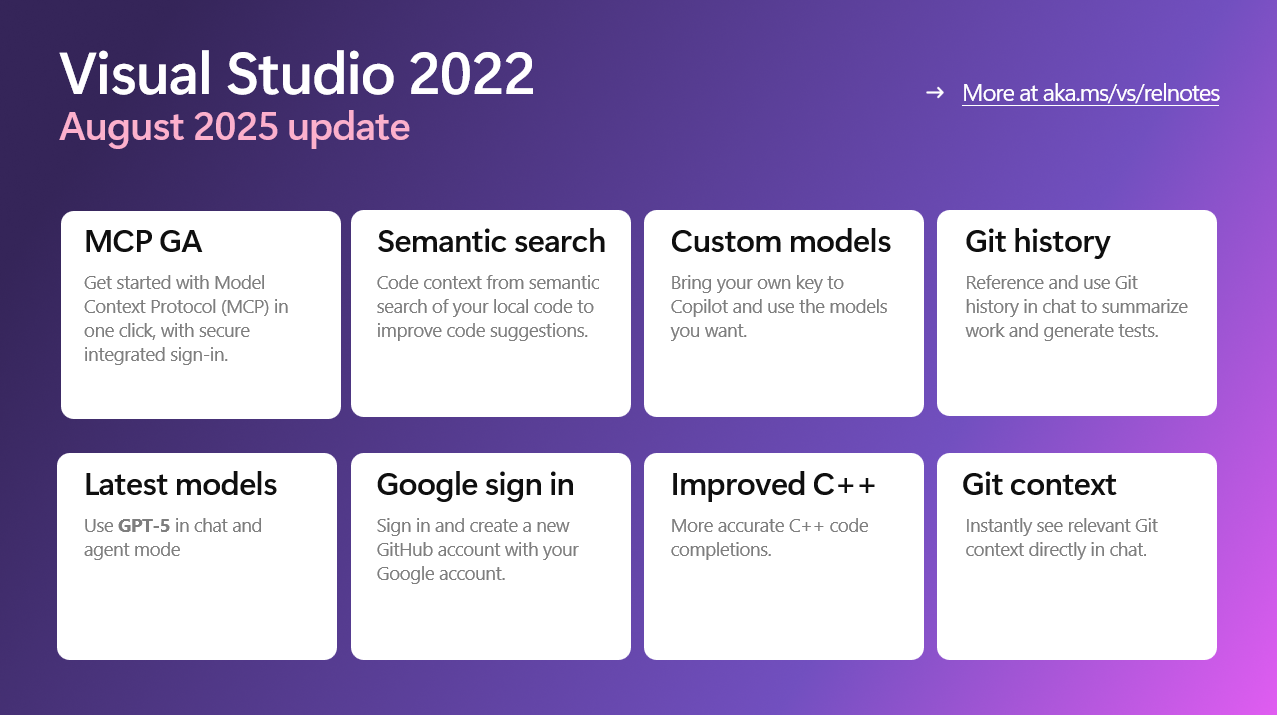
The Visual Studio August Update is here – smarter AI, better debugging, and more control

$
0
0

The August 2025 update for Visual Studio 2022 (v17.14) is now available, and it’s all about helping developers stay focused, productive, and in control. Whether you’re building games, tuning performance, or exploring AI, this release brings meaningful improvements that make everyday development smoother and smarter.

update image

GPT-5 support now available

We’re excited to announce that GPT-5 is now available in Visual Studio, bringing the latest advancements in AI directly to your development environment. With GPT-5 integration, you can leverage more powerful, accurate, and context-aware code suggestions and chat experiences. Whether you’re writing complex algorithms, refactoring large codebases, or brainstorming new features, GPT-5 helps you move faster and with greater confidence.

Showcasing the GPT-5 model being selected in copilot chat

Connect your entire stack with MCP

We’re excited to announce that MCP (Model Context Protocol) support is now generally available in Visual Studio. MCP is a powerful protocol that connects AI agents to external tools – like databases, code search, and deployment systems – without needing custom integrations for each one. Think of it as the HTTP of tool connectivity.

With this release, Visual Studio makes it easier than ever to manage and connect to MCP servers:

  • OAuth support for any provider: Authenticate with any OAuth provider directly from Visual Studio using the new authorization spec.
  • One-click server install from the web: Add MCP servers with a single click from supported repositories – no more manual JSON editing.
  • New server add flow: Use the green plus button in the Copilot Chat tool picker to quickly configure and connect to new servers.
  • Governance controls: Organizations can now manage MCP access via GitHub policy settings for better compliance and control.

showing all tools that connect with MCP

This update makes MCP a first-class experience in Visual Studio, helping teams unlock richer, real-time context across their entire engineering stack.

Smarter Copilot Chat with better context

Copilot Chat can now more reliably surface relevant code snippets. It now uses improved semantic code search to better identify when a query should trigger a code lookup. When that context is detected, it searches across your solution or workspace to retrieve the most relevant snippets, even from natural language descriptions, reducing the need to manually navigate your codebase.

Copilot provides a detailed description on how to save an image in a project calling out specific locations

Sign Up for Copilot with Google

Getting started with Copilot is now easier than ever. You can sign up using your Google account directly from Visual Studio. It’s a fast, frictionless way to get up and running with AI-powered coding-no extra setup required.

Signing up for copilot now has a google sign in path

Bring your own AI model to Chat

Want more control over your AI experience? You can now connect your own language models to Visual Studio Chat using API keys from OpenAI, Google, or Anthropic. This gives you the flexibility to choose the model that best fits your workflow, whether you’re optimizing for performance, privacy, or experimentation.

Showcasing all the models and custom models that you can upload

Unified debugging for Unreal Engine

If you’re working in C++ with Unreal Engine, debugging just got a major upgrade. Visual Studio now lets you debug Blueprint and native code together in a single session. You’ll see Blueprint data in the call stack and locals window, and you can even set breakpoints directly in Blueprint code.

Blueprint data being highlighted

This makes it easier to trace interactions and fix issues across both scripting layers.

Copilot Suggestions when you want them

Prefer a quieter editor? You can now disable automatic Copilot suggestions and trigger them manually with keyboard shortcuts. This gives you full control over when suggestions appear, helping you stay focused when you need to and get help when you want it.

Cleaner editing with collapsed suggestions

Next Edit Suggestions (NES) are now hidden by default. Instead of popping up automatically, they appear as a subtle margin indicator when relevant. You decide when to engage, keeping your editor clean and distraction-free.

showcasing the unclasped accept/decline option

Accept code completions partially

Have you ever wanted to only accept the first couple words or lines of a Copilot code completions instead of accepting the whole thing? We are excited to announce that you will now be able to partially accept a completion word by word or line by line!

Git context in Copilot Chat

Copilot Chat now understands your Git history. You can reference commits and uncommitted changes directly in chat to summarize work, explain updates, or generate tests-all without leaving the editor.

Shows a dropdown of all the git commits

This makes it easier to stay in flow while reviewing or refining your code.

Built with your feedback

Many of the features and fixes in this release come directly from the Developer Community. Your suggestions and bug reports continue to shape Visual Studio, and we’re grateful for your input. You can explore all the community-driven updates and fixes in the release notes.

Thanks again for your feedback and support. We’re excited to keep building Visual Studio with you-one update at a time. Let us know what you think, and as always, happy coding!

The post The Visual Studio August Update is here – smarter AI, better debugging, and more control appeared first on Visual Studio Blog.

Roadmap for AI in Visual Studio (September)

$
0
0

Today, we’re excited to share our public roadmap, which outlines the next steps in evolving Visual Studio with AI-powered agentic experiences. With every month, we aim to deliver smarter, faster, and more intuitive tools that enhance your coding experience.

Disclaimer: The items outlined here represent ongoing work for the month. They are not commitments or guarantees for delivery within the current month.

With that said, here is what we are working on!

New Modes for Debugging and Profiling:

We’re streamlining how you find and switch between modes and making sure both built-in and extension-provided modes can handle more complex workflows.

Two new agent-powered tools are in progress:

Supporting Customization via Modes

We are making it seamless to integrate your workflows across your development stack into Visual Studio, tailoring them to you and your organization.

Agent Mode/Chat:                             

We’ve been listening to your feedback on Agent Mode and Chat, and we’re making some big improvements.

Faster performance

Better visibility

Expanding Agent Mode functionality

Smarter context retention

More control


Model Context Proctol (MCP)

We want you to bring your entire development stack into Visual Studio, supported by the same security, governance, and trust you expect from our product. To make this possible, we’re expanding support for these capabilities and making them easier to use.

Models

We’re committed to giving you access to the latest models, and in Visual Studio we carefully evaluate them to make sure you get the best possible experience. With the recent introduction of Bring Your Own Key, your choice of models is expanding even further.

GitHub Copilot native support:

Bring Your Own Key support:


Azure Agentic DevOps

We’re bringing the power of agentic workflows and Azure-native capabilities directly into Visual Studio, so you can build, deploy, and manage your applications with the same security, governance, and trust you expect from our platform. The public preview is now available in Visual Studio 2022, featuring an automatic installation of Azure MCP for a seamless start.

Here’s what’s coming next:

Editor improvements

Copilot-powered code completions and suggestions in your editor are triggered effortlessly and can accelerate your daily programming. We want to deliver a smooth and intuitive experience for you when interacting with these suggestions that minimize potential conflicts.

To make Visual Studio a truly AI-integrated IDE, we want to ensure that Copilot is seamlessly available at every step of your development workflow—not just for writing code, but also for searching, fixing errors, writing unit tests, and even committing and pushing your changes.

We’re excited for you to try these new experiences soon. If you have feedback, post it in the developer community ticket linked above. For other ideas or suggestions, drop a comment below or create a new ticket—our team reviews them all.

Thanks 😊

The post Roadmap for AI in Visual Studio (September) appeared first on Visual Studio Blog.

Boost Your Copilot Collaboration with Reusable Prompt Files

$
0
0

Writing effective prompts for AI tools can be time-consuming and challenging. Cement those efforts by leveraging reusable prompt files. These custom prompts allow for quick access at the prompt box, and they’re automatically stored and shared with your teammates to make it easy to multiply your Copilot successes.  

Attach prompt files to your prompts

Reusable prompt files solve the prompt-writing challenge 

Reusable prompt files let you write, save, and run prompts right inside Visual Studio. Simply craft your prompt in a .github/prompts/[title].prompt.md file, save it, and reference it whenever you need to engage Copilot. This means your best prompts are always at your fingertips—no more hunting through old files, emails, or notes. 

Speed up your workflow and collaborate effortlessly 

Whether you work solo or as part of a team, reusable prompt files save you time working with Copilot. The files are shared in the repository, ensuring consistent results across your projects and making them available to your colleagues. Everyone can benefit from tested, effective prompts that accelerate understanding and solution discovery. The days of reinventing the wheel are over! 

Tips for maximizing your reusable prompt files 

  • Use #prompt: or the context menu to add prompts in the prompt box. You can add more specific content or simply run it. 
  • Write your prompts in the prompt box to easily grab the prompt syntax for referencing files (#files:“filename.md”) and other context types. 
  • Organize prompt files by topic, project, or workflow for easy access. 
  • Review and refine your most-used prompts regularly to keep them sharp and relevant. 
  • Encourage team members to contribute their most effective prompts, building a shared resource library. 

Check out the new Visual Studio Hub 

Stay connected with everything Visual Studio in one place! Visit the Visual Studio Hub for the latest release notes, YouTube videos, social updates, and community discussions.  

Appreciation for your feedback 

Your feedback helps us improve Visual Studio, making it an even more powerful tool for developers. We are immensely grateful for your contributions and look forward to your continued support. By sharing your thoughts, ideas, and any issues you encounter through Developer Community, you help us improve and shape the future of Visual Studio.

The post Boost Your Copilot Collaboration with Reusable Prompt Files appeared first on Visual Studio Blog.

Make Sense of Your Output Window with Copilot

$
0
0

Ever found yourself staring at the Output Window, overwhelmed by endless lines of logs and cryptic messages? You’re not alone! For years, developers have relied on the Output Window for critical build and debug information. But making sense of it—and translating it into action—has been a challenge. What if you could instantly ask questions about your logs and take action without leaving your workflow? Now you can, thanks to Copilot’s new Output Window context! 

Output window in the attachment context window

Say hello to smarter output window assistance

In Visual Studio 17.14, Copilot can now read your Output Window, making it possible to interact with your build and debug logs like never before. Instead of wading through log files and searching for answers, simply ask Copilot questions about the output—whether you’re facing build errors, warnings, or just want to understand what’s happening behind the scenes. 

How does the Output Window context work? 

If you’re looking at the output window, you can highlight the logs you want Copilot to help you understand, right click and invoke Copilot Chat. This works in the Build, Debug, Tests, Source Control, Package Manager, or whatever is your active output window. Additionally, if you’re facing an issue, Copilot may opt to take a look on your behalf, especially if you mention the output window with natural language in your prompts. Copilot analyzes the contents of the Output Window, provides helpful explanations, and even suggests next steps.  

Why this feature matters for developers 

The Output Window is a goldmine of information, but its sheer volume and complexity can slow you down. By bridging the gap between raw logs and actionable solutions, Copilot empowers you to debug faster, learn more, and focus on what matters—building great software. This integration is designed to boost productivity, reduce frustration, and help every developer, from beginner to expert, unlock the full power of Visual Studio. 

Check out the new Visual Studio Hub  

Stay connected with everything Visual Studio in one place! Visit the Visual Studio Hub for the latest release notes, YouTube videos, social updates, and community discussions.  

Appreciation for your feedback  

Your feedback helps us improve Visual Studio, making it an even more powerful tool for developers. We are immensely grateful for your contributions and look forward to your continued support. By sharing your thoughts, ideas, and any issues you encounter through Developer Community, you help us improve and shape the future of Visual Studio. 

The post Make Sense of Your Output Window with Copilot appeared first on Visual Studio Blog.

Visual Studio 2026 Insiders is here!

$
0
0

Watch the Visual Studio 2026 Insiders release party

Head on over to the Visual Studio YouTube channel to watch.

Visual Studio 2026 Insiders is here – and it marks one of the most ambitious steps forward we’ve taken with the IDE.

This release brings AI woven directly into the developer workflow, performance improvements that reset expectations for speed at enterprise scale, and a modern design that makes the environment feel lighter and more focused.

And for the first time, we’re introducing the new Insiders Channel, which replaces the long-standing Preview Channel as the way developers can get early access to upcoming features.

This is a release you can feel the moment you start using it – download the Insiders release and check out the release notes and see for yourself. And don’t miss out on Copilot Free to unleash the full power of AI in Visual Studio 2026.

It’s all part of a simple but powerful goal: keeping developers in flow so you can spend less time fighting the tooling and more time solving the hard problems that matter. The IDE is made by developers, for developers – and you will always be at the center of the experience. Here’s a teaser of some of the things you can find in this new version:

AI Integrated Development

AI in Visual Studio 2026 isn’t bolted on. It’s woven into the daily rhythms of coding. Think of it as a quiet partner that knows your solution, respects your muscle memory, and offers help that’s timely rather than intrusive.

You’ll notice it when you drop into a new codebase and the IDE helps you understand what you’re looking at, suggests the kinds of tests that usually get written in your repo, and keeps your docs and comments in step with your code. You’ll feel it when a “paste and fix” moment becomes a single confirmation because the editor adapts the snippet to your project’s patterns and conventions. And when performance questions pop up, you won’t be guessing – guidance is grounded in real traces and validated with benchmarks, so fixes come with confidence, not hope.

Code reviews start with clear, actionable insights about correctness, performance, and security – on your machine, before you ever open a pull request. Through it all, you stay in control. The IDE takes the busy-work; you keep the judgment. The result is simple: you move faster, and your code gets better.

profiler agent image

The Profiler Agent can identify and fix performance issues in your code.

Blazing fast performance

Speed shapes what you can build in a day. In 2026, the loops you run most – opening solutions, navigating code, building, and pressing F5 – tighten up. You’ll notice that first launch feels snappier, big solutions feel lighter, and the time between an idea and a running app keeps shrinking. The gains show up on large codebases and they hold across both x64 and Arm64, so your machine’s power turns directly into developer velocity.

You’ll feel it when you can jump between branches without losing your stride, when a full build doesn’t break your flow, and when pressing F5 is something you do instinctively because the wait is measured in moments.

Early feedback says it plainly:

  • “HOLY […] this is FAST.” – early previewer
  • “It’s blazing fast on all my projects.” – Visual Studio MVP

A modern look and feel

Clarity matters when you live in an IDE. Visual Studio 2026 introduces a cleaner and more modern visual language. The result is a workspace that feels calm and intentional.

You’ll notice crisper lines, improved iconography, and better spacing of visual elements. Options feel approachable rather than overwhelming, so tuning the IDE to your preferences is quick instead of delicate.

Managing extensions is straightforward, and a plethora of new color themes help your environment feel personal – comfortable for long sessions, focused when the pressure is on, and accessible by default.

It’s a design that respects your attention and helps you stay oriented, even in the largest solutions.

old fluent ui image

Visual Studio 2026 redesigned using Fluent UI and ships with 11 new tinted themes

Try it today

Ready to see the future of Visual Studio? You can get started right now:

Visual Studio 2026 installs side-by-side with earlier versions, and if you’re on Visual Studio 2022 you can import components and settings to get coding right away.

This is just the beginning. We’ll ship monthly updates that bring the latest performance improvements, design refinements, and AI innovations. And over the coming weeks, we’ll share deeper dives right here on the blog, so make sure to come back soon.

Thank you

Visual Studio has always been about more than code – it’s about the community of developers who build, grow, and push us to make the IDE better every day. Thank you for being part of this journey and for making Visual Studio the IDE trusted by millions worldwide.

Happy coding, The Visual Studio Team

Known issue

There’s a known issue that can cause errors to show up for some users. Learn more about the issue and follow the ticket for more information.

The post Visual Studio 2026 Insiders is here! appeared first on Visual Studio Blog.


Democratizing Performance: The Copilot Profiler Agent in Action on Real Code

$
0
0

Watch the Visual Studio 2026 Insiders release party

Head on over to the Visual Studio YouTube channel to watch.


We’re excited to announce the
Copilot Profiler Agent available in Visual Studio 2026 Insiders, it’s an AI-powered performance assistant built directly into Visual Studio. Forget staring at endless call trees or walls of mysterious numbers that leave you asking, “where do I even start?” The Copilot Profiler Agent changes that.  

Instead of raw data, you now get an AI partner that not only points out the real bottlenecks but also explains what’s going on, suggests fixes, writes benchmarks, and even validates improvements all in a smooth, guided loop. 

It’s like having a performance engineer sitting next to you. Without the coffee runs. And starting today, it’s ready for action in the latest version of Visual Studio, powered by GitHub Copilot. Download Visual Studio 2026 Insiders today.

dssss image

Copilot Profiler Agent 

Meet the Copilot Profiler Agent 

The Profiler Agent is the first-of-its-kind AI assistant in Visual Studio, designed to work seamlessly with GitHub Copilot. 

Here’s what it can do for you:

  • Analyze CPU usage, memory allocations, and runtime behavior

  • Surface the most expensive bottlenecks in your code

  • Generate new BenchmarkDotNet benchmarks (or optimize existing ones)

  • Suggest actionable performance improvements you can apply instantly

  • Validate fixes with before/after metrics, all in a smooth guided loop

And the best part, it’s as easy as asking a question in Copilot Chat. You can:

  • Tag it directly: @profiler Why is my app slow?

  • Or just ask in plain language in Copilot agent mode: “Why is my frame rate dropping?”

(Just make sure the Profiler Agent is enabled in the Copilot Chat tool menu.)

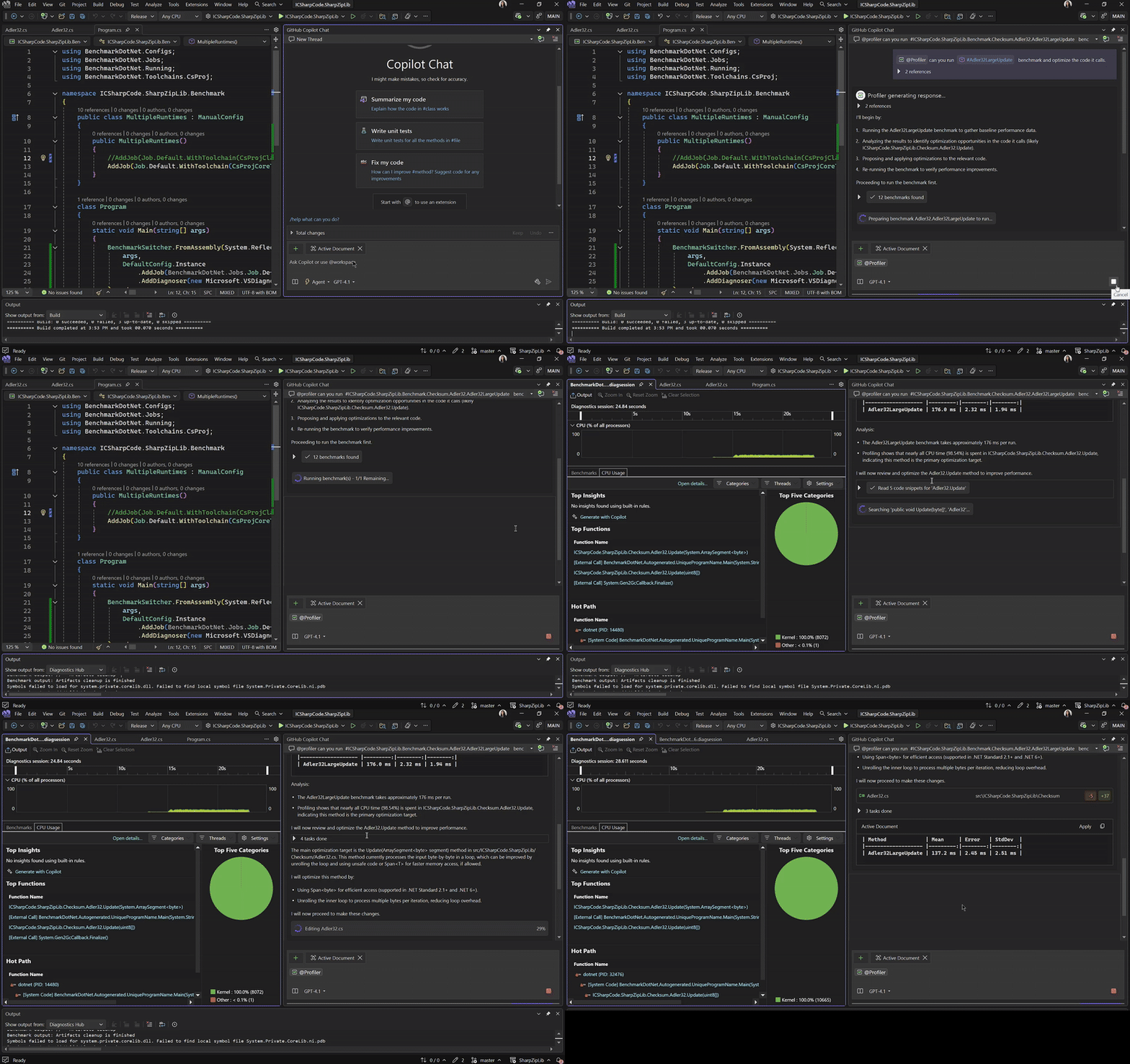
Now, let’s take a look at it in action. In the demo below, you will see I pointed the agent at an existing benchmark in SharpZipLib and asked it to optimize. From there, it handled everything: running the benchmark, guiding me through the changes, applying targeted performance fixes, and validating the results by re-running the benchmark. The result was a measurable performance improvement, all from a single prompt.

Real Code. Real Impact

When we set out to build the Copilot Profiler Agent, we knew one thing for sure: showing it off on a “hello world” app wasn’t going to prove anything. Real developers don’t struggle with toy code. The real test was whether it could handle messy, performance-critical, production-grade projects. 

So we aimed high: pointing the Profiler Agent at the top 100 most widely used open-source libraries and applications the kind of code that powers frameworks, services, and apps you probably use every single day. 

The results blew past our expectations. The Profiler Agent : 

  •  Surfaced hidden bottlenecks you wouldn’t spot on your own 
  • Suggested practical, actionable fixes 
  •  Auto-generated benchmarks to validate improvements 
  •  Turned insights into real pull requests on real projects 

We’ve already contributed PRs to CSVHelper, NLog, Serilog, and more all powered by the Profiler Agent’s insights. 

And the feedback from the community says it all: 

Saw the YouTube video and it is almost magical. Amazing how it was able to recognize that multiple expression-compiles could be merged into a single expression-compile.– NLog Maintainer 

We’ll be publishing a detailed case studies soon, walking through exactly how the Profiler Agent tackled these projects step by step. 

This isn’t just OSS, either. We rolled out the Profiler Agent for internal dogfooding across Microsoft teams, and the results have been equally eye-opening. 

Here’s one story from a Principal Engineer: 

I had a class that wrapped a dictionary and exposed a limited set of operations. I wanted to support foreach on the class, so I added IEnumerable<TKey, TValue>, but this caused a big jump in memory use and execution time compared to iterating directly over the inner dictionary. After several prompt iterations with the profiler agent, it nudged me toward the realization that .NET supports duck typing for foreach. I didn’t need IEnumerable at all just exposing GetEnumerator that forwards to the inner dictionary worked.  

Honestly, I’m not sure I would have figured this out on my own. I even asked several principal-level engineers with deep .NET experience, and none of them knew about this either. When focused on allocation optimization, the profiler agent does a great job of spotting improvements. 

What’s Next 

This is just the beginning. The Profiler Agent currently supports high CPU usage analysis and .NET object allocations and memory usage analysis and more coming soon. 

We’re excited to see how you use this in your own workflows whether it’s tuning a game engine, optimizing a service, or just speeding up a slow UI. So please try it out and don’t forget to Share your results by taking this short survey.  

Stay connected with the Visual Studio team by following us on Twitter @VS_Debugger, Twitter @VisualStudio, YouTube, and LinkedIn.

Democratizing profiling, one performance wins at a time. 😊  


The post Democratizing Performance: The Copilot Profiler Agent in Action on Real Code appeared first on Visual Studio Blog.

Getting the most out of MCP in Visual Studio with Prompts, Resources, and Sampling

$
0
0

We’re excited to announce that Visual Studio now supports MCP prompts, resources, and sampling (with even more coming soon!) to enhance your Copilot experience by bringing in more context from your engineering stack. These powerful new features unlock deeper integrations with your favorite tools and services, making your development workflow more intelligent and context aware.

Let’s dive into each of these features and discuss some examples with specific MCP servers that can truly level up your AI-coding experience.

MCP Resources and Resource Templates: Access External Data Seamlessly

Model Context Protocol also provides a standardized way for servers to expose resources to clients. Resources allow servers to share data that provides context to language models, such as files, database schemas, or application-specific information. Each resource is uniquely identified by a URI, allowing you to get even more out of your MCP servers and pull in context directly in the IDE.

Example: Azure DevOps Work Items

When working with Azure DevOps, you can now reference work items, user stories, and project data directly in your chat conversations. The Azure DevOps MCP server exposes resources like work item templates, sprint information, and team capacity data that Copilot can use to provide more contextual suggestions about your project planning and development tasks.

Install in VS

Using MCP Resources

To use any MCP resources available to you, reference them in Copilot chat the same way you would reference any other piece of context – with a hashtag (#) followed by the resource URI.

Resource Templates for Dynamic Content

Just like with prompts, MCP resources can have arguments that you can fill in to customize the resource for your specific needs. These are called resource templates. To configure them:

  1. Use the + Reference button in chat
  2. Select the MCP resource option from the menu
  3. Choose your resource template and fill in any required arguments
  4. Click Add Resource to make this MCP resource referenceable in chat

Example: Figma Design Context

For teams working closely with design systems, the Figma MCP server allows you to reference design components, style guides, and design specifications directly in your development conversations. This bridges the gap between design and development by making design context readily available to Copilot.

Install in VS

MCP Prompts and Prompt Templates: Get Better Responses with Specialized Instructions

MCP Prompts allow servers to provide structured messages and instructions for interacting with language models that are catered to the use case and content of the server in question, ensuring that you will get the best responses for a certain task.

How to Use MCP Prompts

Visual Studio now allows you to discover available prompts, retrieve their contents, and provide arguments to customize them. To reference any prompts that may come from an MCP server:

  1. Click the + Reference button in chat
  2. Select the Prompts option
  3. Choose MCP prompts from the flyout

You’ll see a pop-up where you can select the prompt you’d like to use, then click Insert Prompt to include the text from this prompt in chat.

Prompt Templates with Custom Arguments

Some MCP prompts will have arguments that you can fill in to customize the prompt for your specific needs – these are known as prompt templates. If you select a prompt in the modal dialog that contains arguments, you’ll be able to specify those values before inserting the prompt into chat.

Example: GitHub Integration

Imagine you’re working on code reviews and want to leverage GitHub’s specialized prompts. With the GitHub MCP server, you can access prompts specifically designed for analyzing pull requests, generating commit messages, or reviewing code changes. These prompts understand GitHub’s context and can provide more targeted assistance than generic prompts.

Install in VS

MCP Sampling: Enabling Advanced Agentic Behaviors

Sampling in MCP allows servers to implement agentic behaviors by enabling LLM calls to occur nested inside other MCP server features. This powerful feature allows an MCP server to make requests of an LLM, rather than the typical workflow of an LLM requesting content from an MCP server. Visual Studio now supports this advanced capability, allowing your MCP servers to perform more complex, multi-step tasks on your behalf.

How Sampling works

There’s nothing to configure to take advantage of sampling – as long as your MCP server supports it, Visual Studio will too. When Copilot determines that a request would benefit from a sampling call, you’ll see a dialog containing all details of the request, asking you to confirm the sampling call before anything happens behind the scenes. This ensures you maintain full control over any automated actions.

Example: Playwright testing scenarios 

The Playwright MCP server can use sampling to automatically generate comprehensive test scenarios based on your application’s current state. When you ask for help with testing, it might sample your application’s DOM structure, analyze user flows, and then generate targeted test scripts that cover critical user paths – all through intelligent sampling calls that you approve.

Install in VS

Getting Started

These new MCP capabilities are available now in Visual Studio. To get the most out of these features, we recommend exploring the MCP servers that align with your development workflow. Each server brings unique prompts, resources, and potentially sampling capabilities that can significantly enhance your Copilot experience.

Try out some other popular MCP servers in Visual Studio with one-click:

  • Install in VS – Discover and install custom prompts and instructions for GitHub Copilot.
  • Install in VS – Convert various file formats (PDF, Word, Excel, images, audio) to Markdown.
  • Install in VS – Query and analyze data in DuckDB databases locally and in the cloud.
  • Install in VS – Database operations and management. Execute queries, manage collections, aggregation pipelines, and document operations.
  • Install in VS – Access models, datasets, and Spaces on the Hugging Face Hub.

The seamless integration of external tools and services through MCP represents a major step forward in creating a truly connected development environment. By bringing context from your entire engineering stack directly into your IDE, these features help Copilot provide more accurate, relevant, and actionable assistance for your daily development tasks.

Give us your feedback!

We’re excited to continue evolving the MCP experience in VS, and your input plays a big role—please give us your feedback here, and let us know what you’d like to see next!

The post Getting the most out of MCP in Visual Studio with Prompts, Resources, and Sampling appeared first on Visual Studio Blog.

Enhancements to XAML Live Preview in Visual Studio for .NET MAUI

$
0
0

The XAML Live Preview feature in Visual Studio 2022 version 17.14 introduces a significant usability improvement for .NET MAUI projects: the XAML Live Preview window is now available during design time, eliminating the requirement to initiate a debug session. This change streamlines the UI development workflow for .NET MAUI applications.

Design-Time Availability

Previously, XAML Live Preview was only accessible while debugging. With this release, you can open the XAML Live Preview window directly during design time. This allows you to see changes in your app UI in real-time. You can also use Hot Reload and other live UI tools in this way, ensuring a seamless workflow, improving iteration speed, and reducing context switching.

To open it, go to Debug > Windows > XAML Live Preview.

The XAML Live Preview window supports:

  • Element selection for navigating to source XAML.
  • Zoom and ruler tools for layout inspection.
  • Docking within the IDE for persistent visibility.

.NET MAUI Support for Android Targets

In addition to Windows, XAML Live Preview also supports rendering of Android devices and emulators. This allows developers to validate UI changes across platforms, providing a high-fidelity design-time experience that ensures consistency across devices.

GitHub Copilot and Vision Support

Take your UI design to the next level with XAML Live Preview and GitHub Copilot, supporting both manual and AI-assisted XAML authoring. With Copilot Vision, you can attach a reference image of a desired UI layout, and Copilot will generate the corresponding XAML. Live Preview reflects these changes in real time, enabling rapid prototyping and refinement.

Availability and Getting Started

This feature is available in:

  • Visual Studio 2022 version 17.14
  • Visual Studio 2026 Insiders release

To begin using XAML Live Preview and explore its capabilities, refer to the official XAML Live Preview Documentation.

The post Enhancements to XAML Live Preview in Visual Studio for .NET MAUI appeared first on Visual Studio Blog.

Visual Studio September Update – profiler agent, app modernization, and more

$
0
0

The September 2025 update for Visual Studio 2022 (v17.14) is now available. In this month, we are bringing you a fully integrated and game-changing agentic AI experience, from code generation to modernization, profiling, and code reviews.  

Summary photo of all the six updates in September

Profiler Agent

We’ve heard the feedback loud and clear developers love the Profiler Agent. So, we’re bringing it to Visual Studio 2022 as well. It’s an AI-powered assistant built into Visual Studio that helps you find and fix performance issues without needing to be a profiling expert. 

The Profiler Agent works with GitHub Copilot to: 

  • Analyze CPU usage, memory, and runtime behavior 
  • Highlight performance bottlenecks 
  • Create or optimize BenchmarkDotNet benchmarks 
  • Suggest fixes and validate improvements in a guided loop 

After turning on Agent Mode in Copilot chat window, you can interact with Profiler Agent in a few ways: 

  • Tag it directly in Copilot chat: “@profiler Why is my app slow?” 
  • Ask a natural question in Agent Mode: “Why is my frame rate dropping?” 
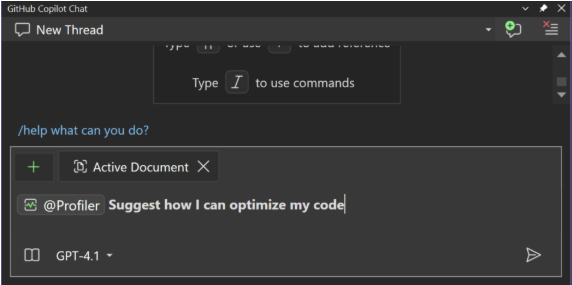
  • Or simply click the “Suggest how I can optimize my code” starter prompt in New Copilot chat when you open any C# project. 

Profiler Agent takes the guesswork out of performance tuning. It shows you what’s wrong, suggests what to try, and confirms whether the change really helps. It’s faster, simpler, and approachable for anyone, new or experienced. Currently, it supports high CPU usage analysis and .NET object allocations, with more scenarios coming soon.

Using profiler agent to run benchmark and optimize code

.NET Application Modernization 

The GitHub Copilot app modernization agent is an AI-powered tool in Visual Studio that helps you upgrade .NET applications to newer versions and migrate them to Azure. 

To try out the app modernization agent, you should: 

  1. Open your .NET project or solution in Visual Studio. 
  2. Launch the modernization agent using one of the following methods: 
    1. Right-click the solution or project in Solution Explorer and select Modernize. – or – 
    2. Open the Copilot Chat window and type @modernize followed by your upgrade request. 
  3. Let the @modernize agent know what you’d like to upgrade or migrate. 

With the app modernization agent, it’s easier than ever to keep your .NET apps up to date and take advantage of the latest Azure features. Give it a try and see how much time you can save! 

Copilot Agent Mode Improvement 

Over the past few months, we’ve made significant updates to Agent Mode to improve reliability, responsiveness, and overall usability. Here are some of the improvements we’ve shipped:

Performance & Reliability 

  • Agent Mode now shows clearer progress indicators, so you always know what’s happening behind the scenes. 
  • Improved prompt caching to speed up response times. 

Working Set & File Management 

  • The working set now stays hidden when empty, and only shows a file count when relevant. 
  • Rejected files are automatically deleted from disk and removed from the working set. 
  • Items marked with no changes are now sorted to the bottom to reduce clutter. 

Prompting & Planning 

  • Updated prompt formatting improves Agent Mode performance with GPT-5 models. 
  • We’re testing a new planning tool that lets the model break down complex requests into smaller, trackable steps using a live-updating markdown file. Early benchmarks (including SWE-bench) show significant gains on multi-step tasks. 

Build & Tool Control 

  • You can now disable automatic builds in Agent Mode. Open the tools menu next to the chat prompt and deselect run_build to take manual control. 

Fixes & General Improvements 

  • Cancelling an Agent Mode request now works more reliably. 
  • Resolved several issues where Agent Mode could stall or hang during tool execution. 

We’re shipping updates every sprint. If you haven’t used Agent Mode in a while, now’s a great time to try it again. The experience is faster, smoother, and more stable – and we’re just getting started. 

MCP Prompts, Resources, and Sampling 

The Model Context Protocol (MCP) enables a powerful and standardized way for servers to expose structured prompts, contextual resources, and agentic behaviors to clients, enhancing how large language models operate within development environments. 

Prompts and Prompt Templates 

MCP prompts provide structured instructions tailored to specific tasks and server contexts, ensuring optimal responses from models. In Visual Studio, you can discover and insert these prompts via the + Reference button in chat. Some prompts support arguments, allowing for customization, which are known as prompt templates. 

Resources and Resource Templates 

MCP Resources offer contextual data such as files, schemas, or app-specific information, referenced using a #URI in chat. Like prompts, resources can be customized using resource templates, which are configured through the same + Reference dialog. Once added, these resources become referenceable in chat, enriching model interactions with relevant context. 

Sampling 

MCP Sampling introduces agentic capabilities by allowing servers to initiate LLM calls internally. This reverses the typical flow and enables servers to request model actions. Visual Studio supports this feature natively. When sampling is beneficial, you’ll be prompted with a confirmation dialog detailing the request before execution. 

To learn more about these new functionalities with examples, see: Getting the most out of MCP in Visual Studio with Prompts, Resources, and Sampling – Visual Studio Blog 

Generate and view Mermaid diagrams with Copilot 

We are excited to announce that Visual Studio now supports rendering Mermaid  diagrams in the Markdown editor, where you can provide your own Mermaid syntax or have Copilot generate it for you! This new feature lets you visualize complex data structures and workflows directly within your editor, which would previously require an extension.  

You can prompt Copilot to generate architectural, flowchart, sequence, class, Gantt diagrams, pie charts or any other kind of mermaid diagram to visualize abstract concepts.  

If you don’t have any ideas yet, try out the following prompts: 

  • Create a sequence diagram for the API call flow 
  • Visualize the relationships between entities in this schema 
  • Create a Mermaid state diagram for the lifecycle of a task 
  • I’m new to this project, visualize major components and their relationships to help me onboard 

Copilot will read any attached references or related files in your codebase to grab necessary contexts and then return the Mermaid syntax in an embedded chat window. Simply click the Preview button, a new markdown file will open, and the Mermaid diagram will be displayed in preview. 

Copilot Chat Window with a wrapped response of mermaid syntax, and the preview button is circled out

A markdown editor where the left side is the mermaid syntax and the right side is the rendered mermaid chart

Smarter code reviews 

We’ve made a major update to our local code review process, now powered by GitHub Copilot’s latest advancements for code review. This integration elevates the quality of code reviews, making them smarter and more efficient. Now you can expect similar quality of code reviews to github.com and receive the reviews one step earlier right inside Visual Studio. 

screenshot of the version control tab and the mouse cursor is pointing at the local code review icon

Experience smarter code reviews in Visual Studio with comments that are more insightful and precise, thanks to advanced reasoning models and improved prompting. Enjoy faster and more thorough reviews with optimized comment generation that covers your entire change set. 

To give you more control over the responses, custom instructions are now supported for local code review. Like how you would enable custom instructions for Copilot Chat, you can create/add a custom instructions file `.github/copilot-instructions.md` in the root of your repository. 

To use this feature, ensure your GitHub Copilot subscription is active and enabled within Visual Studio. If you don’t already have GitHub Copilot, you can sign up for free here.  

You’ll need to enable the necessary feature flags:  

  • Tools > Options > Preview Features > Pull Request Comments  
  • Tools > Options > GitHub > Copilot > Source Control Integration > Enable Git preview features.  

Then, you’ll see a new sparkle comment button in the Git Changes window. Clicking on this button allows GitHub Copilot to review your local code changes and provide inline suggestions.  

Check out the new Visual Studio Hub 

Stay connected with everything Visual Studio in one place! Visit the Visual Studio Hub for the latest release notes, YouTube videos, social updates, and community discussions. 

Appreciation for your feedback 

Your feedback helps us improve Visual Studio, making it an even more powerful tool for developers. We are immensely grateful for your contributions and look forward to your continued support. By sharing your thoughts, ideas, and any issues you encounter through Developer Community, you help us improve and shape the future of Visual Studio.

The post Visual Studio September Update – profiler agent, app modernization, and more appeared first on Visual Studio Blog.

The $150 Secret Hiding in Plain Sight

$
0
0

Picture this: I’m standing in front of 400+ developers at Visual Studio Live! Redmond, right here on the Microsoft campus in Building 33, about to reveal what I call the hidden value of a Visual Studio subscription. I pull up a simple question on the screen:

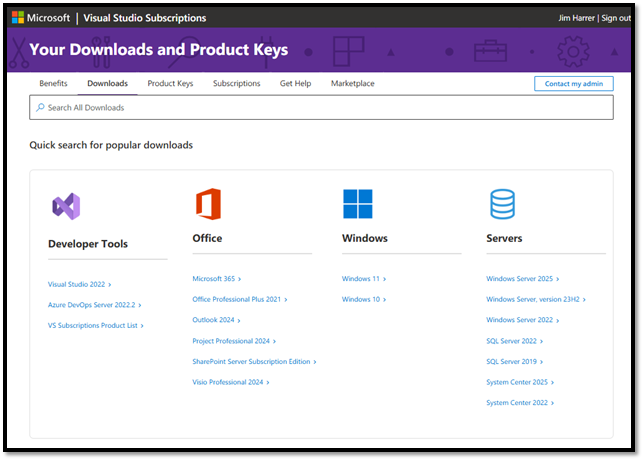
Picture of My.VisualStudio.com Portal Question

About half the hands go up in the packed Kodiak Auditorium. Good start.

“Now, how many have actually logged in and activated your benefits?”

The room goes quiet. Maybe 160 hands remain raised.

“And how many are using your monthly Azure credits?”

I watch as the forest of hands dwindles to just a couple dozen brave souls. The math is staggering, and I see it everywhere I go. Visual Studio subscribers are essentially leaving money on the table.

The Moment Everything Clicks

What happens next never gets old. I navigate to my.visualstudio.com live on stage, and I watch faces light up across all 400+ seats as we explore together. There’s always that one developer in the third row who suddenly sits up straighter when they realize their Professional subscription includes $50 monthly in Azure credits. Or the enterprise developer in the back who does quick math and realizes she’s been missing out on $1,800 worth of annual Azure credits.

MSDN image

But the real magic happens when we dive deeper into the Downloads section. This is what used to be called MSDN. The gasps are audible when developers see the treasure trove waiting for them: Windows Server, SQL Server Developer Edition, Office Professional Plus, and dozens of other Microsoft products they could have been using for development and testing all along.

“Wait,” someone always calls out from the 400-person crowd, “I can download all of this? Now?”

Yes, when you need software for development and testing, this portal will help you find, download and activate it. 

The Stories That Stick

Austin, a team lead from Dallas, approached me after a session at our Redmond event. She and her dev team had been eyeing some Pluralsight licenses for months, not realizing their Visual Studio Enterprise subscriptions already included up to 12 months of access for every Visual Studio developer. “We were about to submit a training budget request,” she said, pulling out her phone to message her team. “Turns out we can unlock this right now.”

Then there’s Miguel from Chicago, who discovered the power of Azure Dev/Test discounts during our benefits walkthrough. His company was struggling to afford a proper testing environment that mirrored their production setup for integrating a new asset management system with Logic Apps. “I can spin up the exact same environment for 50% less, “He texted his manager right in front of me. ‘Discounted DevTest pricing means we can finally test this integration properly without blowing our budget.'”

These aren’t isolated stories. At every single Visual Studio Live! event (whether it’s our intimate 400-person Microsoft HQ gathering or our larger city events) I hear variations of these revelations. Developers who’ve been subscribers for years, completely unaware of the developer toolkit they’ve been carrying in their back pocket.

Why This Matters More Than Ever

In my focus groups across the country (from our exclusive Microsoft HQ events to cities nationwide) I’ve discovered something interesting: developers who actively use their subscription benefits are 40% more likely to report job satisfaction. They’re learning new skills with Cloud Academy training, building prototypes with Azure credits, and testing enterprise scenarios with software included with the subscription.

One CTO in Boston told me, “Once our team started actually using their Visual Studio benefits, our innovation velocity doubled. They’re not asking for budget approval to try new technologies. They’re already experimenting and showing me prototypes. We even held our first internal Hackathon.”

Your Benefits are waiting

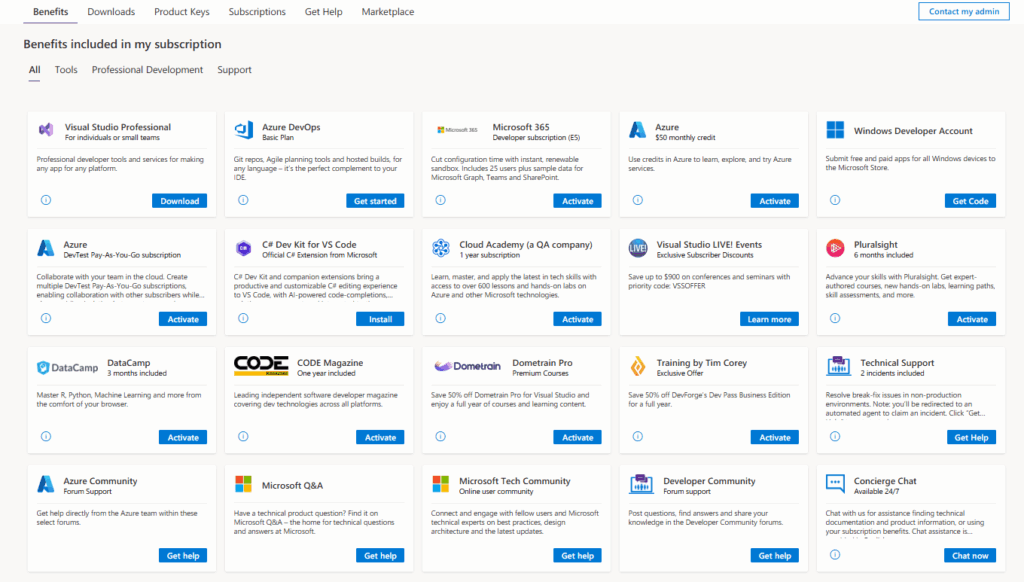
vss pro benefits list2 image

Here’s the beautiful irony: the portal designed to unlock all these benefits (my.visualstudio.com) is itself the best-kept secret. Microsoft created this gateway to developer success, yet most subscribers treat it like a forgotten app on their phone.

The next time you’re stuck waiting for budget approval to try a new Azure service, remember: you might already have $50 (Professional) or $150 (Enterprise) in monthly Azure credits waiting — every month, with no credit card required. When you need SQL Server for a side project, remember: the Developer Edition is sitting in your Downloads section. When you need to mirror your production environment for testing, remember: DevTest pricing can cut your costs by up to 57%.

The Five-Minute Challenge

I’ll leave you with the same challenge I give every audience (all 400+ developers at our Microsoft HQ events and beyond): Set a timer for five minutes right now. Go to my.visualstudio.com, sign in with your Visual Studio subscription email, and click through every section. Benefits, Downloads, Product Keys. Don’t overthink it, don’t plan what you’ll use. Just see what’s there.

I guarantee you’ll find something that makes you smile. Maybe it’s those Azure credits you forgot about. Maybe it’s a piece of software you were planning to purchase. Maybe it’s access to training from Cloud Academy or Pluralsight that could change your career trajectory.

The key to your developer toolkit has been in your pocket all along. It’s time to unlock it.

Ready to unlock what you’ve already paid for? Visit my.visualstudio.com today and discover the benefits waiting for you. Share this post with a fellow developer. Chances are, they need to hear this too.


The post The $150 Secret Hiding in Plain Sight appeared first on Visual Studio Blog.

VS Live! Orlando – Your Ultimate Learning Adventure

$
0
0

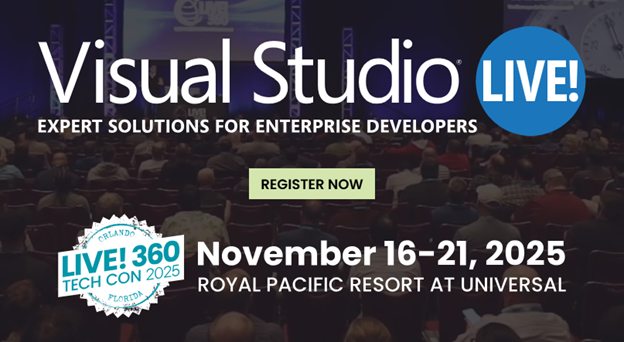
Imagine swapping stories with fellow developers over dinner as the Florida sun sets, then beginning the next morning with a stroll past the resort’s palm-lined walkways before catching your first session across 41 dynamic tracks. From there, immerse yourself in a full day of learning and connection. That’s the magic of Visual Studio Live! at Live 360 Tech Con, November 16–21, 2025, at Universal Orlando’s Royal Pacific Resort. 

VSLive Orlando 2025 image

Content-Rich Days, Networking Nights

From breakfast to late afternoon, Live! 360 delivers back-to-back sessions, workshops, and labs led by Microsoft product managers and industry experts. When the formal agenda ends, the real learning begins at evening networking events—grab a drink, compare notes with peers, or pick the brains of speakers and Product Managers of the Tools and Products you use every day. You’ll level-up your knowledge and discover how other Visual Studio users solve challenges just like yours.

A Custom Learning Journey for Every Role

With six co-located events under one roof, Live! 360 lets you chart your own path through today’s hottest topics:

  • Visual Studio Live!: Deep dives on .NET, C#, DevOps, and the latest IDE features
  • Data Platform Live!: Best practices for databases, analytics, and big data
  • TechMentor: Hands-on architecture, design patterns, and leadership
  • Artificial Intelligence Live!: Practical AI, machine learning, and cognitive services
  • Cloud & Containers Live!: Modern architectures, Kubernetes, and serverless
  • Cybersecurity & Ransomware Live!: Threat defense, compliance, and incident response

Mix and match sessions across disciplines to tackle your toughest problems, whether you’re a developer, data pro, cloud engineer, or security specialist.

VSLive Tracks image

Spotlight Sessions You Can’t Miss

Subscriber Savings and Team Packages

If you’re a Visual Studio Professional or Enterprise subscriber, sign in to my.visualstudio.com to unlock your Priority Code and save up to $900 off the regular price. Not a subscriber? Early bird pricing is available on the Live! 360 event page—but act fast, early bird is ending! Bring your team and take advantage of group rates, lab bundles, and hotel packages at Royal Pacific or Sapphire Falls.

Why Orlando?

Learn from top experts by day, then enjoy world-class dining, resorts, and Universal Orlando by night. With perfect fall weather, it’s a tech-cation that recharges your skills and your spirit. You’ll return to the office refreshed, reconnected, and ready to apply everything you’ve learned.

Your Next Chapter Starts Here

Don’t settle for another one-size-fits-all conference. Forge your own path, connect with peers and Microsoft insiders, and return home ready to transform your projects—and maybe sneak in a roller coaster ride or two.


The post VS Live! Orlando – Your Ultimate Learning Adventure appeared first on Visual Studio Blog.

Roadmap for AI in Visual Studio (October)

$
0
0

Today, we’re excited to share our public roadmap, which outlines the next steps in evolving Visual Studio with AI-powered agentic experiences. With every month, we aim to deliver smarter, faster, and more intuitive tools that enhance your coding experience.

Disclaimer: The items outlined here represent ongoing work for the month. They are not commitments or guarantees for delivery within the current month. Upvote the features you or your organization care about most, so we know what to prioritize. With that said, here is what we are working on!

Remote agents

We are starting to bring remote agents like the GitHub Copilot Coding Agent into the platform as a native experience, and this is just the beginning.

New Agents

We’re streamlining how you find and switch between modes and making sure both built-in and extension-provided modes can handle more complex workflows. New agents are in progress:

Agent Mode/Chat:                             

We’ve been listening to your feedback on Agent Mode and Chat, and we’re making some big improvements.

Tool call improvements

Planning lead development

Performance

Performance and response quality are the biggest themes we’ve heard in feedback. Improving them is our top priority, and here’s what we’re tackling:

Model Context Protocol (MCP)

We want you to bring your entire development stack into Visual Studio, backed by the same security, governance, and trust you already expect from our product. This sprint, we’re focused on reaching MCP full spec, improving UX and enhancing your governance controls.

Models

We’re committed to giving you access to the latest models, and in Visual Studio we carefully evaluate them to make sure you get the best possible experience. We are continuing to expand even further.

To make Visual Studio a truly AI-integrated IDE, we want to ensure that Copilot is seamlessly available at every step of your development workflow—not just for writing code, but also for searching, fixing errors, writing unit tests, and even committing and pushing your changes.

We’re excited for you to try these new experiences soon. If you have feedback, post it in the developer community ticket linked above. For other ideas or suggestions, drop a comment below or create a new ticket—our team reviews them all.

Thanks 😊

The post Roadmap for AI in Visual Studio (October) appeared first on Visual Studio Blog.


Visual Studio Dev/Test Benefit Explained

$
0
0

Before joining Microsoft, I served as VP of Application Development at one of the largest temporary staffing companies in the United States. I’ll never forget the look on our CFO’s face when I told him we needed two to three additional cloud environments to support a large-scale modernization project. His expression went from curious to cautious as he started calculating what that might mean for compute, storage, and database costs.

“You want three more cloud environments? Do you have any idea what that’s going to cost us each month?”

He wasn’t wrong to ask. Expanding our cloud footprint could easily double our monthly spend. What he didn’t realize was that we already had a built-in advantage—a Visual Studio Subscription benefit that provides discounted Dev/Test rates for non-production workloads in Azure.


Why This Matters

Like many enterprises, we were expanding our cloud footprint to support a modernization effort that touched multiple systems across accounting, ticketing, and field operations. Running in parallel across so many integration streams required more than just production and staging. We needed additional cloud environments for accounting integration, API modernization, mobile development, and quality assurance — each one mirroring production as closely as possible.

The challenge wasn’t technical, it was financial. Every new environment meant more compute, more storage, and higher monthly costs. Our CFO was right to ask where that money would come from.

That’s when I discovered something already included in our Visual Studio Professional and Enterprise subscriptions — the Azure Dev/Test benefit.

Azure DevTest Savings Examples image


This benefit allows Visual Studio subscribers to run Windows and SQL Server VMs in Azure at the same base rates as Linux VMs of equivalent size. The Microsoft licensing costs are waived for development and testing, so you only pay for compute while it’s running. It’s a simple change with major impact: production-level environments for non-production costs.


The Pilot That Changed Everything

With cautious approval, I launched a pilot to test the Dev/Test benefit in action. Within a week, our team replicated the entire production environment in Azure using discounted Dev/Test rates. There were no procurement delays, no licensing complexities, and no approval bottlenecks—just straightforward cloud provisioning with real cost transparency.

That one-week turnaround shattered our assumptions about how quickly we could scale and test new workloads in the cloud.


Why Developers Love Dev/Test

When I lead focus groups at Visual Studio Live! events, I often ask developers which subscription benefits stand out beyond the IDE itself. The Azure Dev/Test benefit consistently ranks near the top. Developers tell me the same two things every time:

  • Prototyping freedom: they can spin up environments on demand to test ideas without waiting for budget approvals.
  • Production-grade testing: they can validate integrations and updates in environments that mirror production, without the production-level price tag.

It’s one of the most valuable capabilities hidden in plain sight. Every Professional and Enterprise annual subscription includes access to these discounted Dev/Test rates for non-production workloads.


Scaling the Solution

Once we proved the model worked, we expanded quickly. Using the Visual Studio Dev/Test benefit, our cloud environment evolved from a handful of shared test spaces into a scalable system that supported every stream of work:

  • Dedicated environments for each integration area
  • Parallel development that removed team bottlenecks
  • On-demand provisioning that could be started or stopped as needed
  • Minimal oversight required from IT operations

Because the benefit handled the licensing automatically, our IT pros no longer had to manage or approve environment requests. They stayed focused on higher-value initiatives while developers created the test environments they needed in minutes.

The result was faster releases, greater agility, and significantly lower operational costs.


Hidden Advantages

Beyond the speed and savings, several additional benefits became clear:

  • Parallel velocity: multiple teams could work independently without stepping on each other’s code.
  • Risk-free innovation: the reduced cost of experimentation encouraged creative problem-solving.
  • Realistic validation: production-like conditions made deployments smoother and more predictable.
  • Operational simplicity: no hardware maintenance, no software installs, and fewer administrative blockers.

What started as a cost-saving pilot ended up transforming how we delivered software across the organization.


How You Can Get Started

Visual Studio subscribers can access Azure Dev/Test pricing through one of three paths:

  • Enterprise Dev/Test: available to organizations with an Enterprise Agreement (EA). This option provides centralized billing and the broadest management capabilities for teams running multiple non-production environments.
  • Pay-As-You-Go Dev/Test: ideal for individual developers or small teams with Visual Studio Professional or Enterprise subscriptions who are not covered under an Enterprise Agreement.
  • Azure Plan for Dev/Test: designed for customers with Microsoft Customer Agreements (MCA), offering simplified modern billing and flexibility as organizations transition away from legacy agreements.

Each path unlocks the same Dev/Test discounts already included with your Visual Studio subscription, helping you run Windows and SQL Server workloads in Azure at significantly reduced rates for development and testing.


The Takeaway

Most IT leaders still think of Visual Studio subscriptions as just IDE licenses. In reality, the Azure Dev/Test benefit is one of the fastest ways to reduce cloud spend while accelerating development.

Several customers have told me this single benefit can easily justify the full cost of a Visual Studio subscription through cloud-computing savings alone.

The real question isn’t whether you can afford to modernize. The real question is whether you can afford not to take advantage of the benefits you already own.

👉 Sign in to my.visualstudio.com today to explore Azure Dev/Test pricing and see how it can accelerate your next project.

The post Visual Studio Dev/Test Benefit Explained appeared first on Visual Studio Blog.

Modernizing Visual Studio Extension Compatibility: Effortless Migration for Extension Developers and Users

$
0
0

We have great news for extension users and developers: Visual Studio 2026 is introducing an extension compatibility model designed specifically to make your life easier. Our top priority is to ensure that your extensions continue to work seamlessly across Visual Studio releases – with no extra effort required from you. For users: extensions that work in Visual Studio 2022 will just automatically work in Visual Studio 2026. And when upgrading to Visual Studio 2026 the Installer will install most extensions you’re using in Visual Studio 2022.

For extension developers, gone are the days of needing to update version ranges or addressing broad sweeping compatibility issues with every major update. With this new model, your existing extension just works in Visual Studio 2026 – no need to publish updates! By raising the compatibility bar and stabilizing the extension environment, we are removing the friction from your update process and giving you the confidence that your users can rely on your extension, release after release. And for those of you who rely on extensions to get your work done, you can rest assured that your favorite extensions will continue to function smoothly with Visual Studio 2026.

The rest of this post will offer in-depth guidance for extension developers.

Principles of a modern extension compatibility model

If you are an experienced developer in the Visual Studio ecosystem, you’re probably well-acquainted with vsixmanifest files and managing the version ranges in installation targets. Traditionally, each major release of Visual Studio meant updating the upper bound of your supported version range and checking for potential compatibility issues. However, with Visual Studio 2026, this routine has changed – extensions built for Visual Studio 2022 have transferred seamlessly to Visual Studio 2026 without any modifications required.

The new extension compatibility model for Visual Studio is guided by three core principles:

  1. Extensions specify the API versions they are built against. Visual Studio evaluates which API versions are supported at load time and only loads extensions compatible with those versions. This represents a shift from the previous approach, where extensions indicated the Visual Studio versions they supported. We understand that there are many parts to what make up the full API set for extending Visual Studio, and we are working on providing a clearer picture going forward.
  2. The Visual Studio platform aims to minimize or eliminate breaking changes to stable APIs. We understand that Visual Studio 2022 was a disruptive transition for many extension authors with our shift from 32 to 64 bit. Going forward, we commit to a smoother and more streamlined migration process.
  3. Additive changes will undergo an iterative process prior to being released as stable. As new features are introduced, we will add new APIs to extend these features. However, new APIs require a period of iteration during which modifications and potential breaks may occur. Preview APIs will be made available for evaluation, but extenders should refrain from using them in production extensions due to the possibility of breaking changes.

Impact to Visual Studio 2026 extensions

What does this mean for Visual Studio 2026? Simply put, if you have a Visual Studio 2022 extension, you don’t need to modify it for compatibility with Visual Studio 2026. This is because Visual Studio 2026 supports API version 17.x, and we determine API compatibility using only the lower bound of the installation target version range – ignoring the upper bound from now on. The following example demonstrates an extension that works with Visual Studio 2022, and no updates are necessary if this describes your situation.

<InstallationTarget Id="Microsoft.VisualStudio.Community" Version="[17.0, 18.0)">

If you use Visual Studio 2026 to create new extensions, you’ll notice that the lower bound will be automatically set to 17.0, with the upper bound left empty, as demonstrated in the example below.

<InstallationTarget Id="Microsoft.VisualStudio.Community" Version="[17.0,)">

This means that any new extensions created will now automatically target both Visual Studio 2022 and Visual Studio 2026!

Despite the easy migration process, we still recommend that extenders test their extensions on Visual Studio 2026 to catch any compatibility bugs. If you find an issue is likely caused by the platform, please file a feedback ticket using Report a Problem.

The smooth migration process for getting extensions in Visual Studio only applies to VSIX-based extensions. Developers who maintain MSI-based extensions are responsible for managing how users install them, and these MSI installers would need to adapt to this updated approach. Our general recommendation is that extension authors do not create MSI installers and just use VSIX to distribute their extensions.

What’s next?

Are you wondering about new APIs that will support extending new features in Visual Studio 2026? These are part of the ongoing additive changes, and we’re not ready to release them yet because we are still refining their design. Once they are ready, we’ll make them available as preview packages first, allowing interested developers to test them and share feedback. Keep in mind that extensions built with these preview APIs cannot be uploaded to the Marketplace, since breaking changes are likely to impact extension users.

As Visual Studio keeps evolving, we are updating every part of extensibility to meet the needs of both extension developers and users. This includes new APIs in VisualStudio.Extensibility, improvements in extension build tooling, Marketplace enhancements, and easier extension acquisition. We’ll share more updates as development progresses.

We want to hear from you!

Thank you for sharing your issues and suggestions with us, and we hope you’ll keep providing feedback about what you like and what we can improve in Visual Studio. We understand this is a shift in how to think about extension compatibility in Visual Studio, so we are providing an opportunity for interested extension developers to engage with us directly through ecosystem partner calls. If you are interested, please fill out this survey to get on the list.

For those new and experienced to extending Visual Studio, we invite you to visit our documentation to learn more, or watch the video series on Visual Studio Toolbox where Visual Studio engineers take you through how to build extensions using our samples on GitHub. Feel free to share feedback with us via Developer Community: report any bugs or issues via report a problem and share your suggestions for new features or improvements to existing ones. If you want a closer engagement with other partners in the ecosystem, please visit our GitHub repo to report issues as well.

Stay connected with the Visual Studio team by following us on YouTube, Twitter, LinkedIn, Twitch and on Microsoft Learn.

The post Modernizing Visual Studio Extension Compatibility: Effortless Migration for Extension Developers and Users appeared first on Visual Studio Blog.

Introducing Planning in Visual Studio (Public Preview)

$
0
0

Quick prompts are great for small fixes, but they fall short on big projects. You end up rewriting instructions, tweaking them constantly, and hoping the model stays on track. It gives Copilot a visible, structured path to follow, one that updates as it works and keeps you in control at every step.

In Agent Mode, Copilot can now create plans that research your codebase, break down big tasks, and run them step by step while iterating along the way. The result is a more predictable and transparent workflow that helps you understand exactly what it’s doing.

  🟩 Now available: Planning in Chat is in public preview in Visual Studio 2022 17.14. We’re rolling this out gradually, so you might already have it enabled. If not, you can turn it on via Tools > Options > Copilot > Enable Planning.

How It Works

Planning uses transparent tool calls to manage complex tasks in a structured way.

When you ask Copilot to handle a multi-step task, it automatically determines whether to respond directly or switch into built in planning. Simple prompts get quick answers, while multi-step ones trigger a coordinated plan. When invoked, Planning creates a markdown file that defines the task, research steps, and progress updates as each execution begins. As Copilot works, it revises and refines the plan — adapting to new context or results.

A few details to keep in mind:

  • The plan is written to a temporary file (%TEMP%\VisualStudio\copilot-vs\). To reuse it across threads, add it to your repo. If you want longer-term storage options, upvote this request. 
  • If you edit the plan while a response is running, changes may not take effect immediately. Stop the response, update the file or prompt, and restart it. We’re exploring ways to make mid-response edits smoother. Upvote this idea -> if you’d like to see it sooner.
  • Progress is tracked directly in the plan file, so you can always see what’s completed and what’s next.

How Planning Impacts Response Quality

Planning makes Copilot more predictable and consistent by giving it a structured way to reason about your project. It builds on techniques from hierarchical and closed-loop planning research – enabling Copilot to plan at a high level, execute step-by-step, and adjust dynamically as it learns more about your codebase and issues encountered during implementation.

In our latest SWE-bench runs, both GPT-5 and Claude Sonnet 4 performed better with planning, around 15% higher success and 20% more tasks resolved and we’re continuing to test additional models to confirm the trend.

These early results show measurable gains in reliability and task completion, especially for larger, multi-step problems.

What’s Next

We’re actively collecting feedback as we evolve Copilot’s planning system to better fit your workflow. This marks the foundation of planning-driven development in Visual Studio. Upcoming improvements will focus on smarter caching, refined reasoning, and deeper project context. It’s an early milestone – but one we believe will make Copilot a more predictable and transparent collaborator. Share your feedback here: Planning/To dos in Copilot Chat.

This remains a preview feature as we continue refining the planning format, expanding tests across newer models, and validating how these structured plans evolve alongside model improvements.


The post Introducing Planning in Visual Studio (Public Preview) appeared first on Visual Studio Blog.

Visual Studio October Update – new models, memories, planning, and more

$
0
0

The October 2025 update for Visual Studio 2022 (v17.14) is now available. In this month, we are bringing you improvements to model choices and agentic flows. 

Oct 2025 Recap image

New Models 

We now have Claude Sonnet 4.5  and Claude Haiku 4.5 available in the chat window. This means the latest innovations for driving your agentic workflows is right at your fingertips. 

Memories 

17 14 memories image

For Copilot to work effectively for your unique team and repository, it needs to learn about your project and team best practices. Copilot memories enable Copilot to understand and apply your project’s specific coding standards, making it project-aware and consistent across sessions. 

How Copilot memories work 

Memories use intelligent detection to understand your team’s preferences as you prompt in the chat. That means, as you prompt how you normally would, Copilot is looking for instances where you correct its behavior, explicitly indicate a standard, or ask it to remember something. When detected, you’ll see a confirmation nudge to save the preference. Copilot will then categorize the preference into one of three files: 

  • .editorconfig for coding standards 
  • CONTRIBUTING.md for best practices, guidelines, architectural standards, etc. 
  • and README.md for high level project information 

So, as you prompt, you’re not only teaching Copilot how to respond better to you in the future, but you’re also helping out your team by documenting your development best practices, and augmenting their future Copilot responses as well! 

Planning 

Copilot Chat now includes built-in planning to help guide large, multi-step tasks.  

When you ask a complex question, Copilot automatically creates a markdown plan file with: 

  • A task list  
  • The files it plans to edit  
  • Context for its approach 

As it works, Copilot updates the plan in real time – tracking progress, adapting to blockers, and keeping its logic transparent. 

Planning is fully visible, scoped to your goal, and implemented through tool calling, making behavior more predictable, reliable, and easy to follow. 

Try it out: Ask Copilot to refactor a component, add a new feature, or fix bugs across multiple files. 

💡 Plan files are temporary by default. To reuse or share them across threads, save the file into your repo. 
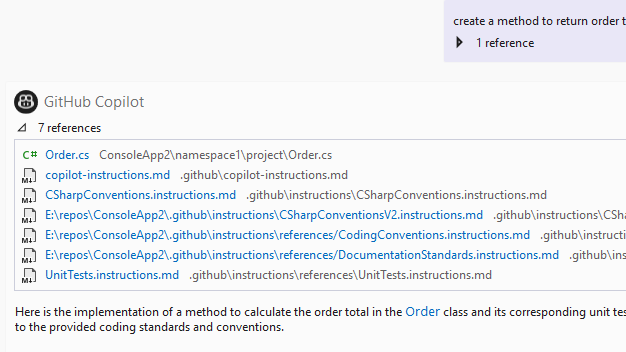
To learn more about planning or share your feedback, check out the blog post. 

Instruction Files 

17 14 14 instruction files image

Getting Copilot to respond the way you want can be a challenge. You may have different coding standards, best practices, or architectural patterns in different areas of your codebase. With instruction files, you can now target specific instructions to specific folders or files in your repository, making Copilot truly project-aware and consistent across sessions. 

Enable the feature 

Turn on the feature at Tools > Options > GitHub > Copilot > Copilot Chat > Enable custom instructions to be loaded from .github/instructions/*.instructions.md files and added to requests. 

Write instruction files 

  1. Format your instructions with the applyTo header and specify a glob pattern for which files you want these instructions to be included for. 

---    applyTo: "src/**/*.cs"    ---

  1. In the file body, you can use natural language to specify your content and reference other instruction files to compose instructions together.  
  1. Save the file with the .instructions.md file extension in the root of your repository in the .github/instructions folder. 

Tip: You can even get Copilot’s help refining your instructions to be more detailed. 

How it works 

When you prompt Copilot, it will automatically detect which instruction files apply to the files in your current context and attach them as references. You can see which instructions were attached by clicking on the references in the response card. 

Bring Your Own Model with Azure Foundry

Want the ultimate layer of control over which models you’re using in GitHub Copilot Chat? Try out the new Azure Foundry integration to bring your own models.

Check out the new Visual Studio Hub 

Stay connected with everything in Visual Studio in one place! Visit the Visual Studio Hub for the latest release notes, YouTube videos, social updates, and community discussions. 

Appreciation for your feedback 

Your feedback helps us improve Visual Studio, making it an even more powerful tool for developers. We are immensely grateful for your contributions and look forward to your continued support. By sharing your thoughts, ideas, and any issues you encounter through Developer Community, you help us improve and shape the future of Visual Studio.

The post Visual Studio October Update – new models, memories, planning, and more appeared first on Visual Studio Blog.

Join us at .NET Conf: Dive into the future of development with Visual Studio 2026

$
0
0

We’re thrilled to invite you to one of the most exciting events in the .NET ecosystem: .NET Conf. It runs from November 11th through the 13th and you’re invited!

This annual virtual conference is a must-attend for developers, architects, and enthusiasts looking to level up their skills and stay ahead of the curve in .NET and Visual Studio development.

dotnetconf image

What to expect at .NET Conf

.NET Conf brings together experts from Microsoft and the broader community to share insights, best practices, and the latest innovations. Whether you’re building web apps, mobile solutions, cloud services, or anything in between, there’s something for everyone. Sessions cover a wide range of topics, including performance optimizations, AI integration, cross-platform development, and more.

This year, we’re especially excited about the deep dives into Visual Studio 2026. You’ll get to explore tons of new features, enhancements, and productivity tools designed to make your coding life easier and more efficient. From improved debugging capabilities to seamless integration with emerging technologies, these sessions will give you a firsthand look at how Visual Studio is evolving to meet the demands of modern development workflows.

Speakers from the Visual Studio team

You’ll also get to hear from a bunch of folks on the Visual Studio team, sharing cool stuff about what’s new in Visual Studio 2026.

Nik Karpinsky is showing how the new profiler agent can help you identify performance issues in your apps and fix them. This revolutionary feature will help you speed up your app in no time.

Mika Dumont explains how new technology makes upgrading apps to .NET 10 easier than ever. She also describes how it enhances the use of Azure cloud features. If you maintain older solutions, you don’t want to miss this.

Harshada Hole takes you through a whirlwind of new productivity features in the Visual Studio debugger. This is your first step in becoming a debugging rock star.

Jui Hanamshet and Oscar Obeso demos the latest innovations in Copilot for Visual Studio and how you can benefit from having AI by your side.

.NET Conf is free and virtual, so you can join from anywhere. It’s the perfect opportunity to get inspired, learn new tricks, and prepare for what’s next in .NET and Visual Studio.

Mark your calendars

.NET Conf kicks off soon! Head over to dotnetconf.com and click Add to calendar to save your spot. Don’t miss the Visual Studio 2026 sessions that will help you work smarter and build faster. We can’t wait to see you there.

The Visual Studio Team

The post Join us at .NET Conf: Dive into the future of development with Visual Studio 2026 appeared first on Visual Studio Blog.

Viewing all 1144 articles
Browse latest View live


<script src="https://jsc.adskeeper.com/r/s/rssing.com.1596347.js" async> </script>