Quantcast
Channel: Visual Studio Blog
Viewing all 1144 articles
Browse latest View live

Roadmap for AI in Visual Studio (November)

$
0
0

Today, we’re excited to share our public roadmap, which outlines the next steps in evolving Visual Studio with AI-powered agentic experiences. With every month, we aim to deliver smarter, faster, and more intuitive tools that enhance your coding experience.

Disclaimer: The items outlined here represent ongoing work for the month. They are not commitments or guarantees for delivery within the current month. Upvote the features you or your organization care about most, so we know what to prioritize. With that said, here is what we are working on!

New Agents

We’re streamlining how you find and switch between modes and making sure both built-in and extension-provided agents can handle more complex workflows. New agents are in progress:

We are even working on supporting multiple agents at once

Agent Mode/Chat:                             

We’ve been listening to your feedback on Agent Mode and Chat, and we’re making some big improvements.

Tool call improvements


Planning lead development

Model Context Protocol (MCP)

We want you to bring your entire development stack into Visual Studio, backed by the same security, governance, and trust you already expect from our product. This sprint, we’re focused on reaching MCP full spec, improving UX and enhancing your governance controls.

Models

We’re committed to giving you access to the latest models, and in Visual Studio we carefully evaluate them to make sure you get the best possible experience. We are continuing to expand even further.


To make Visual Studio a truly AI-integrated IDE, we want to ensure that Copilot is seamlessly available at every step of your development workflow—not just for writing code, but also for searching, fixing errors, writing unit tests, and even committing and pushing your changes.

We’re excited for you to try these new experiences soon. If you have feedback, post it in the developer community ticket linked above. For other ideas or suggestions, drop a comment below or create a new ticket—our team reviews them all.

Thanks 😊

The post Roadmap for AI in Visual Studio (November) appeared first on Visual Studio Blog.


Visual Studio 2026 is here: faster, smarter, and a hit with early adopters

$
0
0

Dear developers,

We’re thrilled to announce that Visual Studio 2026 is now generally available! This is a moment we’ve built side by side with you. Your feedback has helped shape this release more than any before. Since the introduction of the Insiders Channel in September, more developers have downloaded and tested this preview than any other in Visual Studio’s history.

In the year leading up to this release, we fixed over 5,000 of your reported bugs and implemented 300 feature requests. That’s the most we’ve ever done, and we’re just getting started!

With several performance improvements, a redesigned user experience, and a major leap in AI-driven development, this release is built to help developers focus on what truly matters: creating. Every click, keystroke, and compile is now smoother, faster, and more intuitive – empowering you to turn ideas into code at unprecedented speed.

You know that sinking feeling when lag interrupts your flow? We’ve worked hard to make that a thing of the past. Blazing-fast performance means startup is significantly snappier, and the UI responds so smoothly you’ll barely notice it’s there, cutting hangs by over 50% and giving the IDE a lightweight, effortless vibe, even on massive projects. Whether you’re wrangling enterprise-scale repos or tinkering on smaller codebases, this sets a new bar for getting stuff done.

solution load time image
Figure 1: Shows large .NET solution load time to interactive is faster than in VS 2022

But it’s not just about loading solutions faster. The UI stays more responsive while things are loading too. In fact, those annoying UI freezes have been cut by more than half.

solution load hang time image
Figure 2: Shows the amount of time the UI is unresponsive is less than half of VS 2022 on large solution loads

Stats are cool, but what really matters is how it actually feels to use. The IDE just runs way faster, smoother, and more responsive. That’s something you can’t always see in the numbers.


Wow! I just opened a solution with over 100 projects, and I can’t believe how fast it came up and was ready! Well done, Visual Studio team!

– Steve Smith, Principal Software Architect, NimblePros


Visual Studio 2026 is AI-native, making it the world’s first Intelligent Developer Environment (IDE). That doesn’t mean changing how you work. It means giving you intelligence when it matters most. If you’re debugging a tricky issue, profiling performance, or modernizing an application, AI steps in to remove friction and surface insights that help you move faster without disrupting your flow. It’s there to elevate the practices you already trust, not replace them.

This release also brings new C# and C++ agents, designed for professional developers who need precision and speed every day. These capabilities extend what you can do without adding complexity, so you stay in control while accomplishing more in less time. Visual Studio 2026 isn’t AI for the sake of AI, but a natural evolution of the tools you rely on to get the job done while boosting your productivity.


This evolution opens doors to possibilities that once felt out of reach, weaving AI naturally into your daily flow. GitHub Copilot has quickly become one of the most used features in Visual Studio, earning praise from developers who rely on it every day.


“The Profiler Agent in Visual Studio immediately highlighted the bottlenecks and guided me to faster, cleaner performance – like having a built-in performance coach.”

– Roberto Perez, Senior Global Solutions Architect, Redis


When you’re using Visual Studio all day long, every interaction matters. We’ve doubled down on perfecting the essentials – removing friction, fixing those subtle “paper cuts,” and refining the flow of your work. This release introduces a flexible new settings system, a beautifully modern UI redesign, and hundreds of under-the-hood improvements that make the IDE feel better in every way.

feedback tickets fixed image
Figure 3: The amount of feedback tickets implemented by the Visual Studio team in the past 12 months

Over the past 12 months, your feedback has helped us fix more than 5,000 bugs and added over 300 feature requests. Our biggest push leading up to a major Visual Studio release yet, and the momentum is still growing. With AI-driven tools accelerating how we identify and resolve issues, we’re delivering improvements faster than ever before.


“What I love most about Visual Studio 2026 is the performance and the fresh and crisp UI – and support for Mermaid diagrams is the icing on the cake.”

– Erik Ejlskov Jensen, Context& A/S


Here’s the best part: Visual Studio 2026 is fully compatible with your projects and extensions from Visual Studio 2022. Open your existing solutions and start coding immediately. No migration steps, no surprises. All your favorite extensions are available too, so your workspace, tools, and projects transition seamlessly, making the IDE feel like home from the very first launch.

The over 4,000 extensions that works with Visual Studio 2022 today, all work with Visual Studio 2026 too. You can upgrade with peace of mind, and your setup will feel just as stable and familiar as ever.


“Getting the extensions from Visual Studio 2022 was a definitive plus: I was ready to use VS 2026 immediately”

– Didier Donner, Principal Software Engineer, Aspen Technology


Plus, with GitHub Copilot app modernization, upgrades to .NET 10 and the latest C++ build tools are accelerated and guided with expertise, so you’re ready to take full advantage of all the latest performance enhancements and features. GitHub Copilot’s new C++ capabilities are available now in Private Preview.

For a long time, updating Visual Studio meant you also had to upgrade your .NET and C++ build tools, since those were tightly linked to the IDE. That often made things tricky, because you’d want the latest features and bug fixes, but the update could mess with your existing projects or force you into toolchain changes you weren’t ready for.

Visual Studio 2026 changes all that. Now the IDE is decoupled from its build tools, so you can update Visual Studio itself any time you want without affecting your .NET or C++ compilers. Even better, you’ll get automatic monthly updates with fresh features, design tweaks, and productivity boosts delivered right to your IDE, while keeping your toolchains stable for as long as you need.

If you like to try out new features before everyone else, the Insiders Channel is for you. It receives frequent updates and allows you to evaluate the newest features without impacting your primary setup, as it can be installed alongside the Stable version. Many people already use it to stay up to date. Join the Insiders Channel to always have the newest features first.

Curious about what else to find in this new version? Check out the Release Notes for the full scoop.

Download Visual Studio 2026 now and swing by the Visual Studio Developer Community to share what’s working, what you’re creating, or where we can step it up. We’re listening.

What to expect next

If you’re a Visual Studio subscriber, simply sign in to Visual Studio 2026 and your license will activate automatically.

Subscribers who use product keys can retrieve them anytime at my.visualstudio.com.

For developers who want to purchase a stand-alone Professional license, Visual Studio 2026 will be available through the Microsoft Store starting December 1, 2025.

Huge thanks to our Insiders and MVPs for making this release something special. Let’s keep building the future of coding together.

With gratitude,

The Visual Studio Team

The post Visual Studio 2026 is here: faster, smarter, and a hit with early adopters appeared first on Visual Studio Blog.

Introducing Copilot auto model selection (preview)

$
0
0

Faster responses, a lower chance of rate limiting, and 10% off premium requests for paid users – auto picks the best available model for each request based on current capacity and performance. With auto, you don’t need to choose a specific model. Copilot automatically selects the best one for your task. Auto model selection in Chat is rolling out in preview to all GitHub Copilot users.

How auto model selection works

Auto selects the best model to ensure that you get the optimal performance and reduce the likelihood of rate limits. Auto will choose between GPT-5, GPT-5 mini, GPT-4.1, Sonnet 4.5, and Haiku 4.5 and other models, unless your organization has disabled access to these models. Once auto picks a model, it uses that same model for the entire chat session. As we introduce picking models based on task complexity, this behavior will change over the next iterations.

For paid users, we currently primarily rely on Claude Sonnet 4.5 as the model powering auto.

auto image

When using auto model selection, Visual Studio uses a variable model multiplier based on the automatically selected model. If you are a paid user, auto applies a 10% request discount. For example, if auto selects Sonnet 4.5, it will be counted as 0.9x of a premium request; You can see which model and model multiplier are used by hovering over the chat response.

If you are a paid user and run out of premium requests, auto will always choose a 0x model (for example, GPT-4.1), so you can continue using auto without interruption.

What’s next

Our long-term vision for auto. We aim to make auto the best model selection for most users and to achieve this, here’s what we plan next:

  • Dynamically switch between small and large models based on the task – this flexibility ensures that you get the right balance of performance and efficiency, while saving on requests
  • Add more language models to auto
  • Let users on a free plan take advantage of the latest models through auto
  • Improve the model dropdown to make it more obvious which models and discounts are used

Thanks 😊

The post Introducing Copilot auto model selection (preview) appeared first on Visual Studio Blog.

A first look at the all‑new UX in Visual Studio 2026

$
0
0

Visual Studio 2026 introduces a refreshed user experience, thoughtfully crafted for clarity, accessibility, and a clean interface that feels right at home on Windows. This update is the result of extensive collaboration with developers and incorporates valuable feedback from the community. We’ve improved typography, iconography, and the overall layout to minimize distractions and keep your code front and center. Each update is designed to support modern workflows, making Visual Studio a more intuitive, consistent, and personal experience.

Download the Insiders release and try our new visual improvements, AI integrated development capabilities, and latest performance improvements that reset expectations for speed at enterprise scale.

A design that puts your code first

One of the biggest feedback themes we heard from you was clarity. Developers told us that small inconsistencies and visual noise add up, especially on dense screens and large solutions. To address that, we refined the visual details of many elements, improved the layout and overall spacing to make navigation clearer, and to reduce distractions. Our goal was to minimize distractions and enable greater productivity by allowing you to focus on your work more efficiently.

Visual Studio 2026 introduces refreshed iconography

From the moment you launch Visual Studio 2026, you’ll notice the updated Get Started and What’s New experiences. These aren’t just visual upgrades; they’re designed to preview a smoother, more developer-friendly workflow that keeps your code front and center.

What's New redesign helps to thoughtfully showcase the new functionality


A new settings experience: modern, consistent, and transparent

Visual Studio 2026 introduces a completely redesigned settings experience, built for transparency, consistency, and ease of use. Our aim was to modernize how settings are managed, making them easier to discover and adjust. The new interface provides a streamlined, intuitive way to configure your environment, an improved search that delivers more accurate and better organized results, and, for those who want direct control, a new underlying JSON file that makes every change visible and trackable in real time.

The settings interface is now fully themed, so your preferences carry through the look and feel of the IDE in a transparent and accessible way that fits modern development workflows.

Visual Studio 2026 introduces a new modern settings experience

We’ve converted most of the popular settings and are actively working to add more. For any settings not yet updated, you’ll find them under a More Settings node, which provides legacy links to their respective areas. This approach ensures your workflow remains uninterrupted as we continue to enhance the overall experience.

Themes that feel personal (and accessible by default)

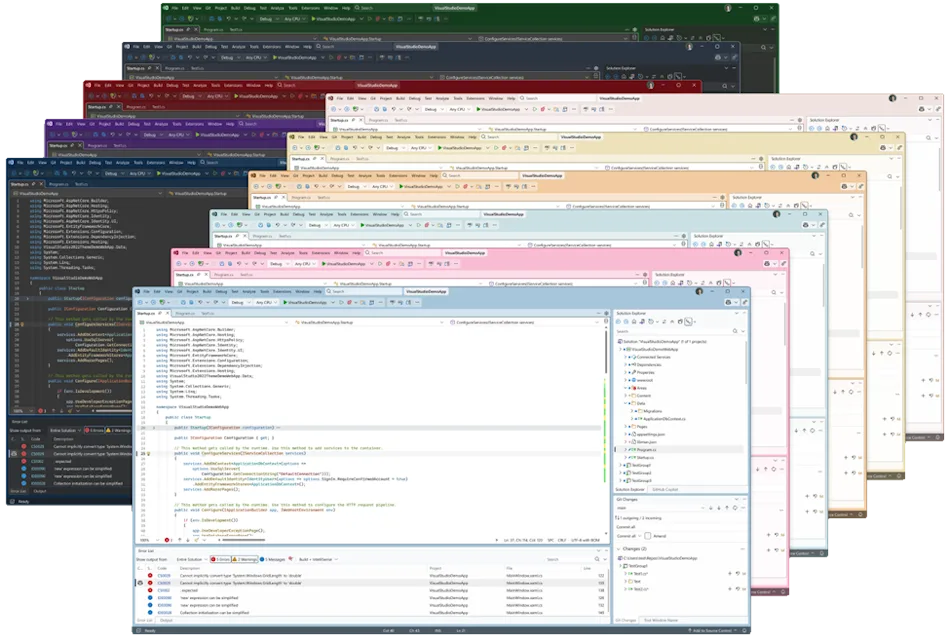
Personalization matters, but so does readability. That’s why we’re introducing 11 new tinted themes that incorporate subtle color accents onto Light or Dark backgrounds, enabling you to select an appearance that matches your environment or mood. Our built-in themes boost accessibility enhancements such as increased contrast and improved text legibility, designed to minimize eye strain and support users with specific needs.


Visual Studio 2026 introduces a new collection of tinted themes

If you develop themes or extensions, keep an eye out for updated guidance coming soon. We’ll provide tips and best practices to help you craft unique and engaging experiences in the refreshed Visual Studio 2026 environment.

New editor appearance: your code, your way

We recognize how important it is to customize your IDE experience. Alongside the new collection of themes, we’ve added an editor appearance setting that lets you choose whether the editor matches the IDE theme or stands apart.

For those who need or prefer higher contrast, there are now additional extra contrast options available specifically for the editor. These updates make it easier to personalize Visual Studio while also supporting accessibility and readability needs.

Visual Studio 2026 introduces a new Editor Appearance setting to independently configure the editor theme.

A screenshot of the editor using a light theme while the Visual Studio 2026 shell uses a darker looking theme.

Your editor font family, size, and style persist as you try different themes, so personalization doesn’t mean starting over.

Try it and tell us what you think

Ready to try out the new look, AI capabilities, and faster performance in Visual Studio 2026? You can install it alongside your current version, so it’s easy to explore what’s new without disrupting your current setup.

Let us know what you think and share any problems or suggestions via Developer Community Feedback.

The post A first look at the all‑new UX in Visual Studio 2026 appeared first on Visual Studio Blog.

Azure MCP Server Now Built-In with Visual Studio 2026: A New Era for Agentic Workflows

$
0
0

Managing cloud resources often means juggling multiple tools, writing custom scripts, and switching contexts between your IDE and cloud management portals. These extra steps slow development and make it harder to build intelligent, secure applications efficiently.

We’re excited to announce that Azure MCP Server (Model Context Protocol) tools are now generally available out-of-the-box in Visual Studio 2026, bringing agentic cloud automation directly into your trusted IDE. This integration empowers developers to build intelligent, secure applications faster, with less complexity and more confidence.

Why It Matters

Azure MCP Server is a standards-based Model Context Protocol server that enables AI agents to securely access and manage Azure resources through natural language—helping teams streamline cloud operations and boost developer productivity without custom integrations.

Visual Studio 2026 is designed as an AI-native IDE, and Azure MCP Server is the perfect complement. With these MCP tools available out-of-the-box, developers can:

  • Generate Azure-related code and infrastructure as code using natural language.
  • Query and manage resources such as Azure Kubernetes Service, Azure Container Apps, Cosmos DB, AI Foundry, and more.
  • Apply Azure best practices for enterprise-grade security.
  • Diagnose and troubleshoot easily with direct access to logs, diagnostics, and telemetry.

This means less context-switching, fewer manual steps, and more time building great software.

For more details on Azure MCP, visit Azure MCP Overview.

Additional Azure Development Tools

In addition to the core Azure MCP Server tools, Visual Studio 2026 introduces an expanded suite of Azure Development tools designed to streamline and enhance common workflows:

  • Automated CI/CD Setup Generate Azure DevOps or GitHub Actions workflows for ASP.NET, Blazor, or Azure Functions projects—complete with YAML files and securely managed credentials.
  • Effortless Publishing Create and verify publish profiles, select the appropriate Azure Web App, and deploy—all via natural language prompts.
  • Azure CLI Command Generation Need an Azure CLI command? Just ask. Copilot translates intent into precise az commands.

Get Started

  1. Download Visual Studio 2026 or Visual Studio 2026 Insiders and install using the Visual Studio Installer.
    • If Visual Studio 2026 is already installed, open the Installer and select Modify to view available workloads.
  2. On the Workloads tab, select Azure and AI development and enable GitHub Copilot.
  3. Click Install while downloading to complete the installation.
  4. Launch Visual Studio 2026 and create or load a project.
  5. Open GitHub Copilot Chat.
  6. In the chat area, select the Select tools button (two wrenches icon) to display a list of available tools. Enable all Azure tools by checking the top nodes for Azure and Azure MCP Server.

AzureDevelopmentToolSelection image AzureMCPServerToolSelection image

For more information, visit Get started with GitHub Copilot for Azure – GitHub Copilot for Azure | Microsoft Learn.

Closing Thoughts

The integration of Azure MCP into Visual Studio 2026 marks a significant step toward agentic workflows—where AI-driven automation meets developer creativity. By reducing friction and enabling natural language interactions with Azure, we’re helping developers focus on what matters most: building innovative, secure, and scalable applications.


The post Azure MCP Server Now Built-In with Visual Studio 2026: A New Era for Agentic Workflows appeared first on Visual Studio Blog.

Spend Less Time Upgrading, More Time Coding in Visual Studio 2026

$
0
0

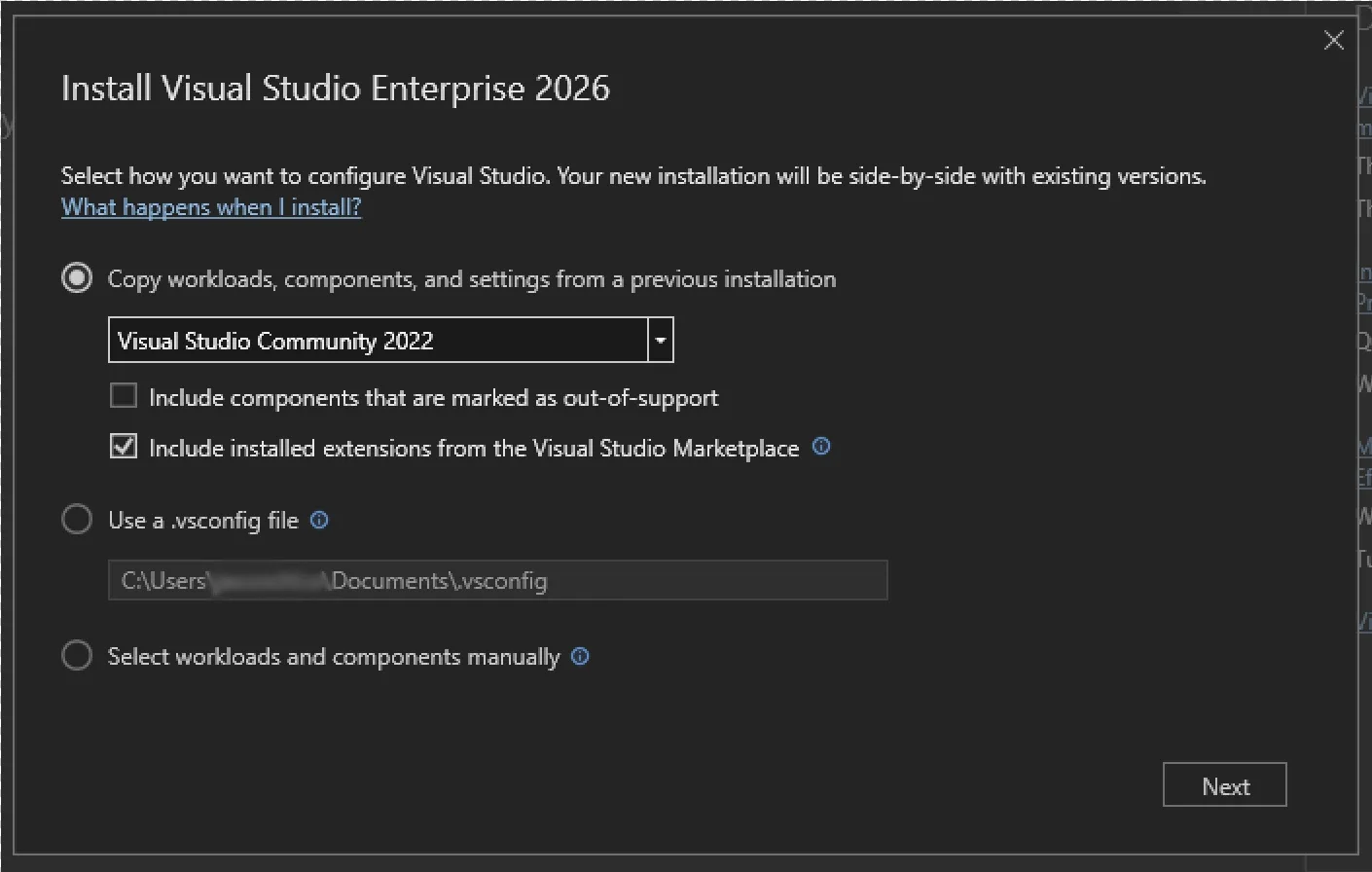
In the past, moving to the next major version of Visual Studio could take hours, sometimes days, to recreate your dev environment the way you like it. Visual Studio 2026 makes it easier than ever to stay current with the latest productivity features, performance improvements, and security fixes all without disrupting your flow. With the new Visual Studio install experience, you can effortlessly recreate your previous Visual Studio 2022 environment. Your workloads, SDKs, toolsets, extensions and settings are automatically copied and configured, so everything you need to build and continue developing your project is ready the moment you open Visual Studio 2026.

With support for multiple toolsets and SDK versions, Visual Studio 2026 lets you update the IDE independently from your project dependencies. Keep your environment modern and secure, while maintaining full compatibility with your existing builds.

Install Visual Studio 2026 from the installer Available tab or download the bootstrapper.

The new install experience

The new Visual Studio Installer is built to make upgrading seamless. It detects your existing Visual Studio 2022 setup and can rebuild it in Visual Studio 2026, including workloads, toolsets, SDKs, extensions, and settings. You’ll spend less time setting up and more time writing code.

If you’re setting up on a new machine, simply import your .vsconfig file (which captures your favorite workloads, toolsets, SDKs and extensions) and pair it with your .vssettings file to recreate your previous Visual Studio environment exactly the way you like it.

New install experience, Migration landing page in Installer

Setup Assistant (in-IDE dependency acquisition)

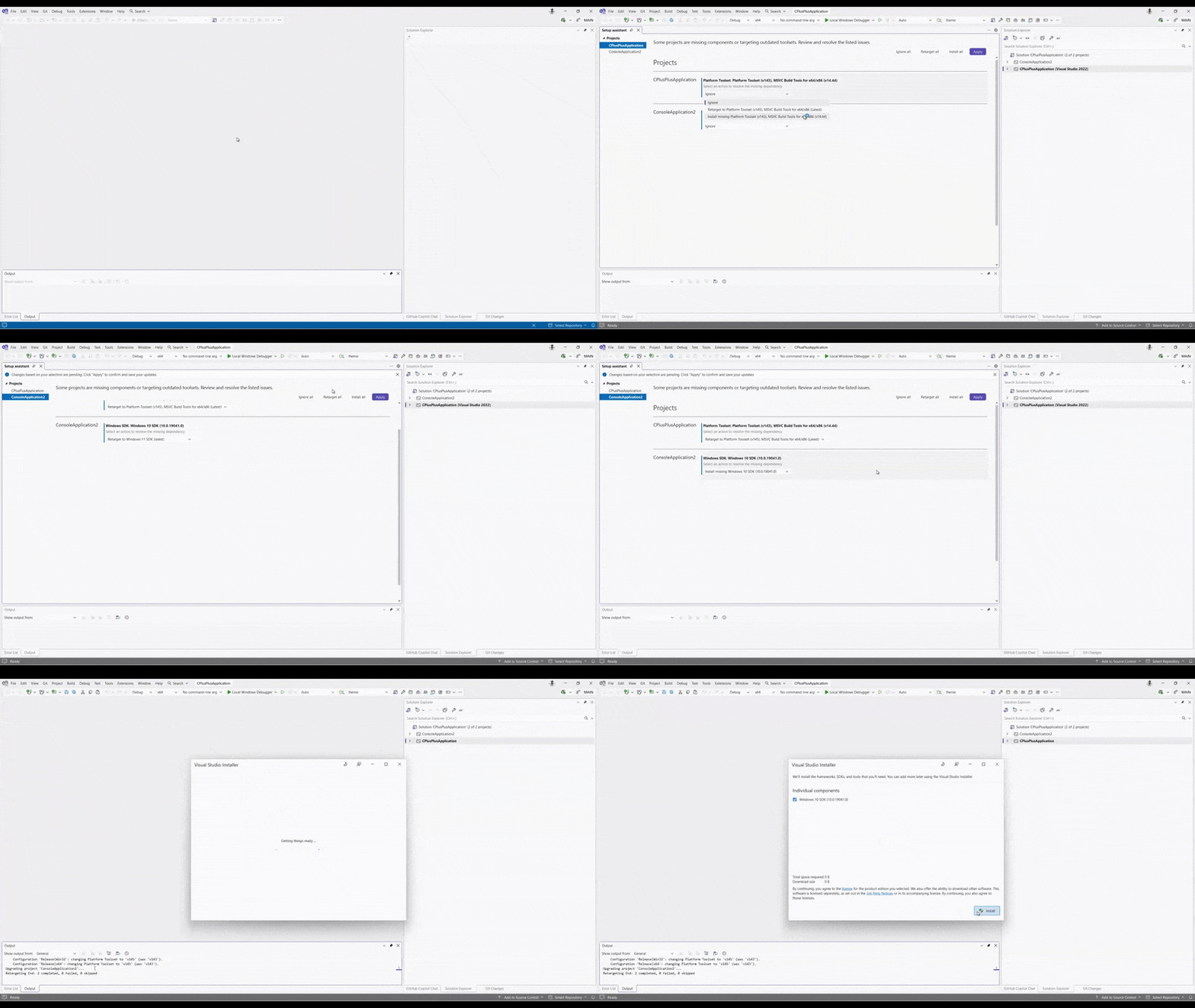
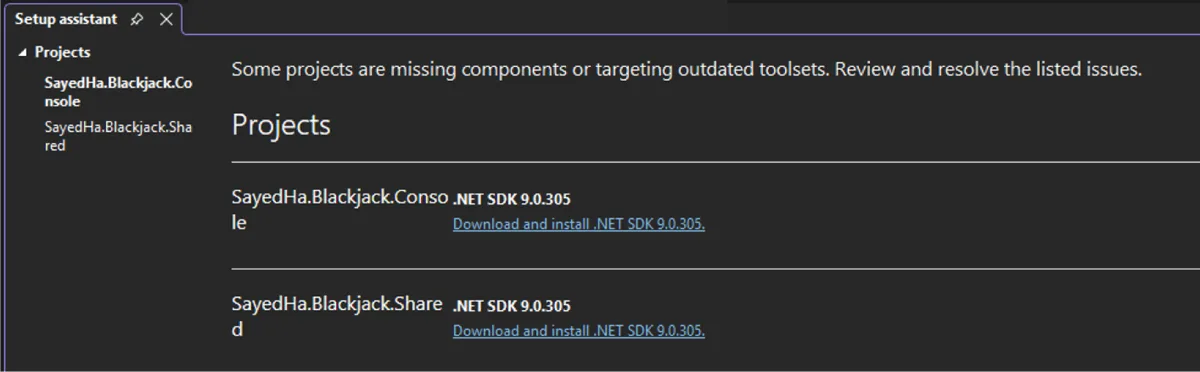
When you load a project in Visual Studio 2026, the new Setup Assistant automatically detects the dependencies your project targets. With support for multiple toolsets and SDKs, you can quickly retarget your project to the latest version, or, if needed, install any specific missing dependencies with just a few clicks.

For C++ developers – the Setup Assistant identifies MSVC Build Tools and Windows SDKs your project targets. You can retarget your project to the latest version or install any missing components with a single click directly in the Visual Studio Installer.

Gif of C++ Setup Assistant experience

For more details check out the C++ blog post: Blog Post – Upgrading Your Projects.docx

For .NET developers (based on your feedback) – If your project uses a pinned global.json, Setup Assistant provides a link matching the pinned .NET SDK, for quick installation in your browser.

Image of .NET Setup Assistant experience

GitHub Copilot app modernization now built into Visual Studio

The GitHub Copilot app modernization agent is an AI-powered tool in Visual Studio that helps you upgrade your projects to newer versions and migrate them to Azure. It automatically detects outdated dependencies and target frameworks, provides guided recommendations, and makes real-time code changes, so you can modernize your code without interruptions. Migrating to Azure unlocks scalability, security, and operational efficiency for your projects.

How to get started:

Open your project or solution in Visual Studio, then launch the Modernization Agent by right-clicking your project or solution and selecting Modernize, or type @modernize in Copilot Chat with your upgrade or migration request.

When new SDKs or toolsets become available, you can easily retarget your entire solution or specific projects with the Setup Assistant. Simply reopen this tab via Project > Retarget solution, or right click your solution/project and select Retarget solution. This makes it simple to modernize projects.

See live examples

Visual Studio is shipping faster

Visual Studio 2026 will get updates on the Stable channel every month, bringing new features, performance improvements, security and bug fixes to you faster than ever.

Visual Studio Insiders will get updates even faster, helping us iterate with you in real time. With this new cadence and rapid iteration speed you’ll always have the latest.

Always current with Visual Studio 2026

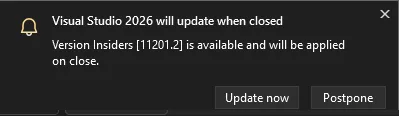
To make updating effortless, Visual Studio 2026 introduces Update on Close. When you finish your session, Visual Studio will download and install updates after you close the IDE, so you’ll always start your next session with the latest features, fixes, and improvements.

This is enabled by default for Community and Team Explorer and on the Insiders Channel. For Enterprise and Professional editions on the Stable Channel, you can turn it on by navigating to Tools > Options > Environment > More Settings > Product Updates and select the “Always update on close” checkbox.

Update on close dialog in IDE with update now and postpone option

You are always in control

If something doesn’t go as planned, Visual Studio 2026 keeps you in control:

  • Improved repair detects and resolves incomplete installations automatically.
  • A quick rollback returns you to your previous environment in minutes.
  • Side-by-side installs let you keep Visual Studio 2022 and 2026 on the same machine.

You’re always in control, knowing your productivity and stability are protected. Visual Studio provides options to move forward or revert with minimal risk.

When Should You Upgrade?

The best time is now. Visual Studio 2026 is our most performant, reliable, and productive IDE yet with the easiest upgrade experience we’ve ever delivered.

Get faster installs, monthly feature updates, smarter dependency management, and an environment built to keep you focused on writing great code, not maintaining your setup.

Try Visual Studio 2026 today and see how seamless upgrading can be.

Install Visual Studio 2026 Stable from the Installer Available tab or download the bootstrapper.

The post Spend Less Time Upgrading, More Time Coding in Visual Studio 2026 appeared first on Visual Studio Blog.

Visual Studio – Built for the Speed of Modern Development

$
0
0

The release of Visual Studio 2026 two weeks ago marks the next evolution in Microsoft’s 50-year commitment to deliver the tools that developers love and enterprises trust, built to move at the pace of modern development. Software development is moving faster than ever, and Visual Studio is evolving right along with you.

Today, we’re announcing an important step forward in the lifecycle and release cadence for Visual Studio. Visual Studio will be a continuously updated modern IDE designed to deliver innovation as soon as it is ready, while maintaining the reliability and stability you count on every day. We’ll deliver this through monthly feature updates and a new annual major release.

Why We’re Modernizing

Visual Studio now innovates at the pace of modern software. Whether you build desktop apps, cloud services, games, web APIs, or AI agents, the IDE will now ship the latest performance and capability improvements every month, with GitHub Copilot experiences always up to date.

We also heard the request for frictionless updates. Your existing projects, solutions, and extensions continue to work as they do today. We’re maintaining a high compatibility bar across monthly and annual releases, so you stay productive while the IDE evolves in place and your builds remain stable.

Because the IDE is decoupled from the build tools, these changes do not require you to modify existing projects or rebuild working applications. Visual Studio updates monthly, but your .NET or C++ compiler build tools, runtimes, and extensions continue to work exactly as before. Build tools and SDKs have their own multi-year lifecycles, so your build environment remains stable even as the IDE gets new features.

Built for Modern Development

Since Visual Studio 2017, we have been steadily increasing our release cadence, delivering quarterly feature updates, servicing releases, and flexible build tools choices. With Visual Studio 2026, we are taking the next step, moving to a modern support lifecycle that keeps you on the latest tools and features automatically.

This new approach means:

  • Feature updates every month, not every quarter.
  • A new annual version each year, released in November alongside the .NET release.
  • Predictable servicing and support under the Modern Support Lifecycle, with one year of monthly feature updates followed by one year of security fixes.
  • Update to the latest release to remain supported and serviced with new features, fixes, and security updates.

It is all about giving you updates as soon as they are ready.

Build Tools Freedom – You Are in Control

With these changes to how Visual Studio is updated and supported, it’s equally important to understand how build tools and components fit into this new model.

We know every team moves at its own pace. Visual Studio continues to carry a wide range of build tools and components to target the platforms you’ve come to expect. With multiple supported versions of these build tools included, you can choose when to move your projects forward. You can adopt the latest compiler, runtime, or SDK on your schedule while still benefiting from IDE improvements and AI features each month.

These build tools, SDKs, and runtimes are available under their own support lifecycles. For example, modern .NET releases every year, with Standard Term Support (STS) for 2 years and Long-Term Support (LTS) support for 3 years. The lifecycle for .NET Framework is tied to the Windows release in which it ships.

For C++ developers, we are also decoupling the Microsoft C++ (MSVC) compilers and Build Tools from the Visual Studio lifecycle. This lets the compiler team ship faster, more agile updates every six months, with long-term supported versions every 2 years. For more details, see today’s blog post on the new MSVC lifecycle.

Insiders and Stable Channels

To support this faster cadence, starting with Visual Studio 2026 two channels are available:

Features that appear in the Insiders Channel will roll into the Stable Channel when they’re ready for broad adoption. If you are on Stable, you will receive a monthly feature update and servicing releases as needed. (For more information, see Visual Studio Channels and Release Rhythm and Visual Studio Product Lifecycle and Servicing.)

Each year, the IDE will update to the next annual version, for example next November, Visual Studio 2026 will update in place to Visual Studio 2027, with no disruption to your environment.

Our enterprise customers at times need more flexibility in when they schedule updates. To ensure they are fully supported, we’ll also offer a side-by-side Long-Term-Servicing Channel (LTSC) for the prior annual release. The LTSC provides security servicing for 1 year. For example, in November of 2026, you will be able to choose to switch to the Visual Studio 2026 LTS Channel to remain on a static feature set for an additional year.

However, it’s important to note that Visual Studio LTSC is not necessary to maintain your project in a known state. If your project uses .NET 10 or MSVC 14.50 that ship with Visual Studio 2026, when you update to Visual Studio 2027 those build tools will still be available, and your projects should just build as before.

Flexible Licensing and Registration

These changes for Visual Studio result in a shift in how we handle product registration. There are no changes to Visual Studio Community, it remains free for open-source projects, education, and small organizations. (See the license for details.)

For the Professional and Enterprise editions, if you have a Visual Studio Subscription, there’s no change to the registration process. You will continue signing in as before and automatically receive updates through the modern lifecycle or obtain your product key from the Visual Studio Subscribers portal. If you use a stand-alone Professional license, you simply purchase the new annual version each year. Product keys will continue to work for that annual version, and new keys will unlock the next year’s release.

Additionally, there are no changes to the lifecycle for Visual Studio 2022, Visual Studio 2019, and Visual Studio 2017.

Always Current, Always Ready

Visual Studio 2026 marks the start of a new era, an IDE that is modern, intelligent, and continuously improving. You will spend less time waiting for updates and more time building great software with the latest tools.

We are excited for you to experience this new cadence, share your feedback, and help shape the future of Visual Studio. The journey continues, and Visual Studio will be right there with you, every month, every release.

The post Visual Studio – Built for the Speed of Modern Development appeared first on Visual Studio Blog.

Upgrade MSVC, improve C++ build performance, and refactor C++ code with GitHub Copilot

$
0
0

Visual Studio 2026 introduces new GitHub Copilot capabilities to support C++ developers in three development tasks: 

  • Performing large-scale C++ refactors 
  • Improving C++ build performance  
  • Upgrading Microsoft C++ (MSVC) Build Tools 

These experiences are available now as a Private Preview in Visual Studio 2026. Install Visual Studio 2026 and join the waitlist for Private Preview today. 

C++ code editing tools for GitHub Copilot 

C++ code editing tools for GitHub Copilot bring the precision of C++ IntelliSense to Visual Studio agent mode to enable faster and more accurate codebase-wide edits. This includes: 

  • Viewing all references across your codebase 
  • Understanding relevant metadata (e.g., type, declaration, and scope) 
  • Visualizing class inheritance hierarchies 
  • Tracing function call chains 

See Perform wide-sweeping refactors using C++ code editing tools for GitHub Copilot on the C++ Team Blog for more information. 

GitHub Copilot build performance for Windows 

GitHub Copilot build performance for Windows uses the power of Build Insights to analyze your C++ build and suggest changes to improve performance. Check out Optimize Your C++ Build Times with GitHub Copilot on the C++ Team Blog to learn more. 

GitHub Copilot app modernization for C++ 

GitHub Copilot app modernization for C++ helps you migrate your C++ projects to a newer version of the MSVC Build Tools and resolve all warnings and errors. See Fix build issues using GitHub Copilot after upgrading MSVC Build Tools on the C++ Team Blog for more information. 

Thank you for your feedback 

We’re excited to build alongside you and deliver new capabilities that make GitHub Copilot even more valuable for C++ developers.  

If you’re curious about these new capabilities, sign up for the Private Preview waitlist. If you have general feedback on Visual Studio 2026, you can file an issue or suggestion on Developer Community. 

The post Upgrade MSVC, improve C++ build performance, and refactor C++ code with GitHub Copilot appeared first on Visual Studio Blog.


Profiler Agent – Delegate the analysis, not the performance

$
0
0

In Visual Studio 2026 we introduced Copilot Profiler Agent, a new AI-powered assistant that helps you analyze and optimize performance bottlenecks in your code. By combining the power of GitHub Copilot with Visual Studio’s performance profiler, you can now ask natural language questions about performance, get insights into hot paths, and quickly identify optimization opportunities. Let’s walk through a real-world example of how this tool can help you make meaningful performance improvements. 

Benchmarking a real project

To demonstrate the capabilities of the Copilot Profiler Agent, let’s optimize CsvHelper, a popular open-source project. You can follow along by cloning my fork of the repo then checking out to right before my fix that we will detail below with git checkout 435ff7c

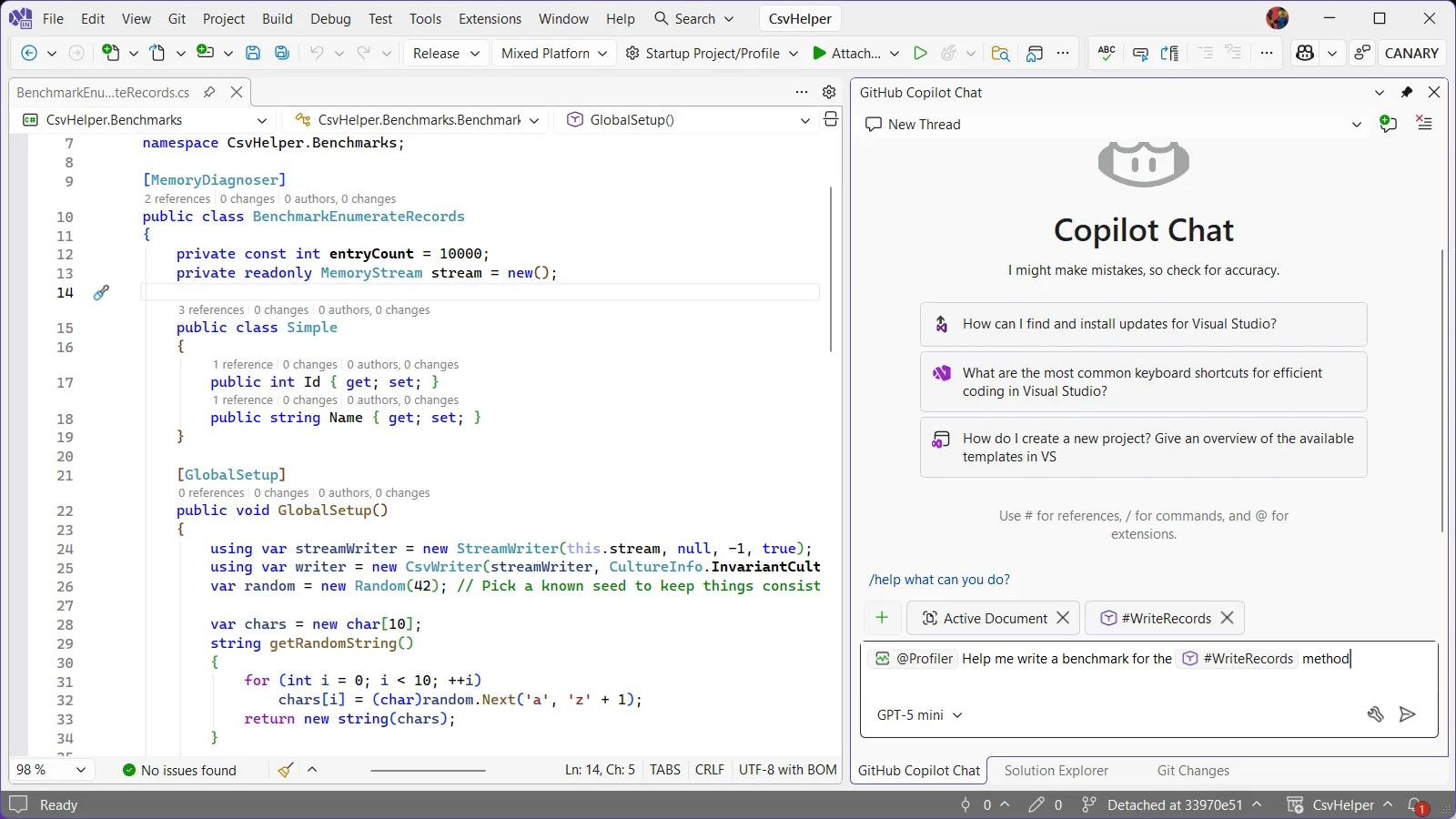
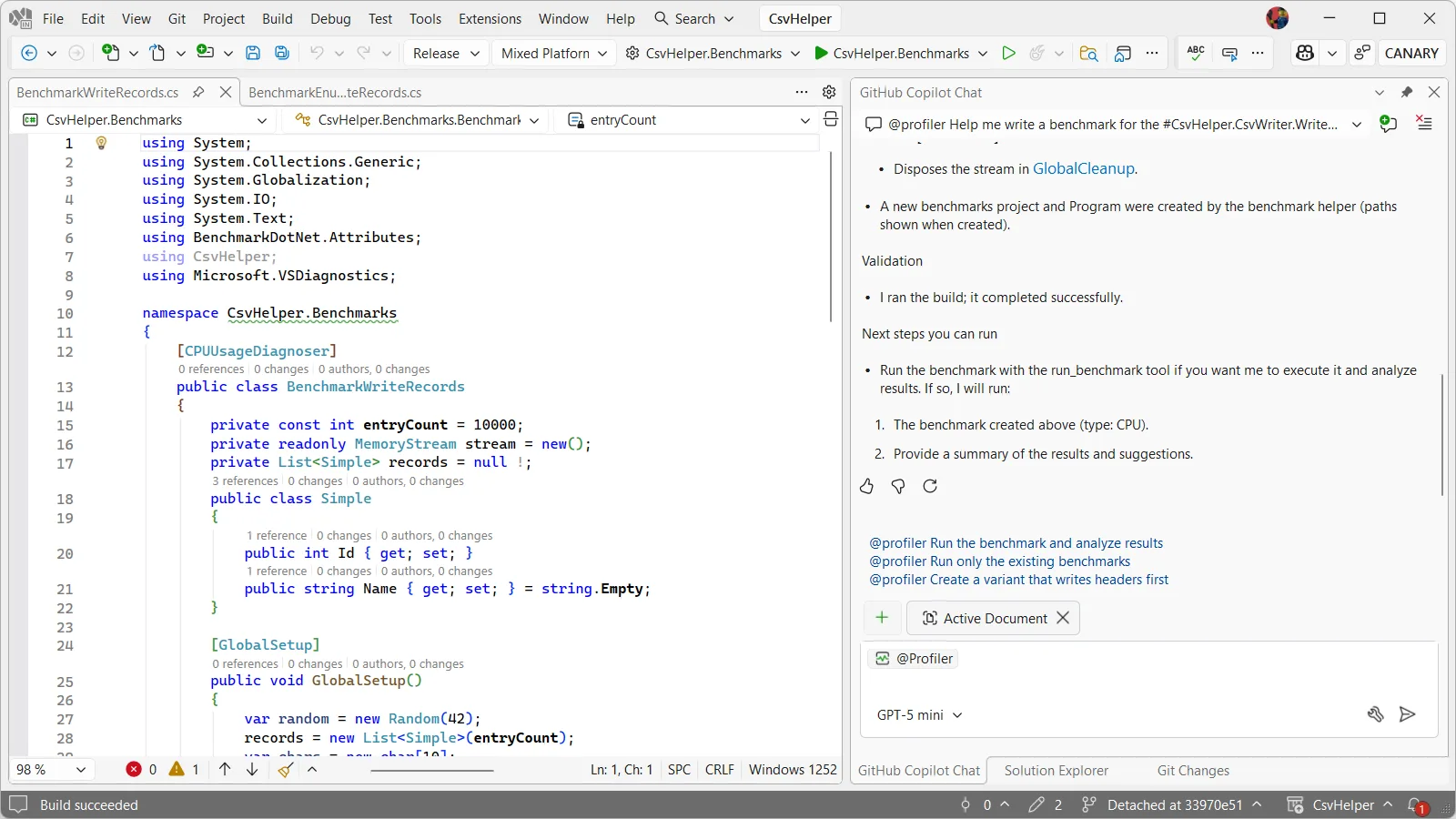
In one of my previous blog posts I added a CsvHelper.Benchmarks project that contains a benchmark for reading CSV records. This time I want to see if we can optimize writing CSV records instead. Normally I would start this investigation by creating a benchmark for the code that I want to optimize, and while we will still do that we can have Copilot do the toil work for us. In the Copilot Chat window I can ask @Profiler Help me write a benchmark for the #WriteRecords method. The @Profiler gets us talking directly with the Copilot Profiler agent and #WriteRecords tells it exactly the method we are interested in benchmarking. CopilotProfiler1Full image

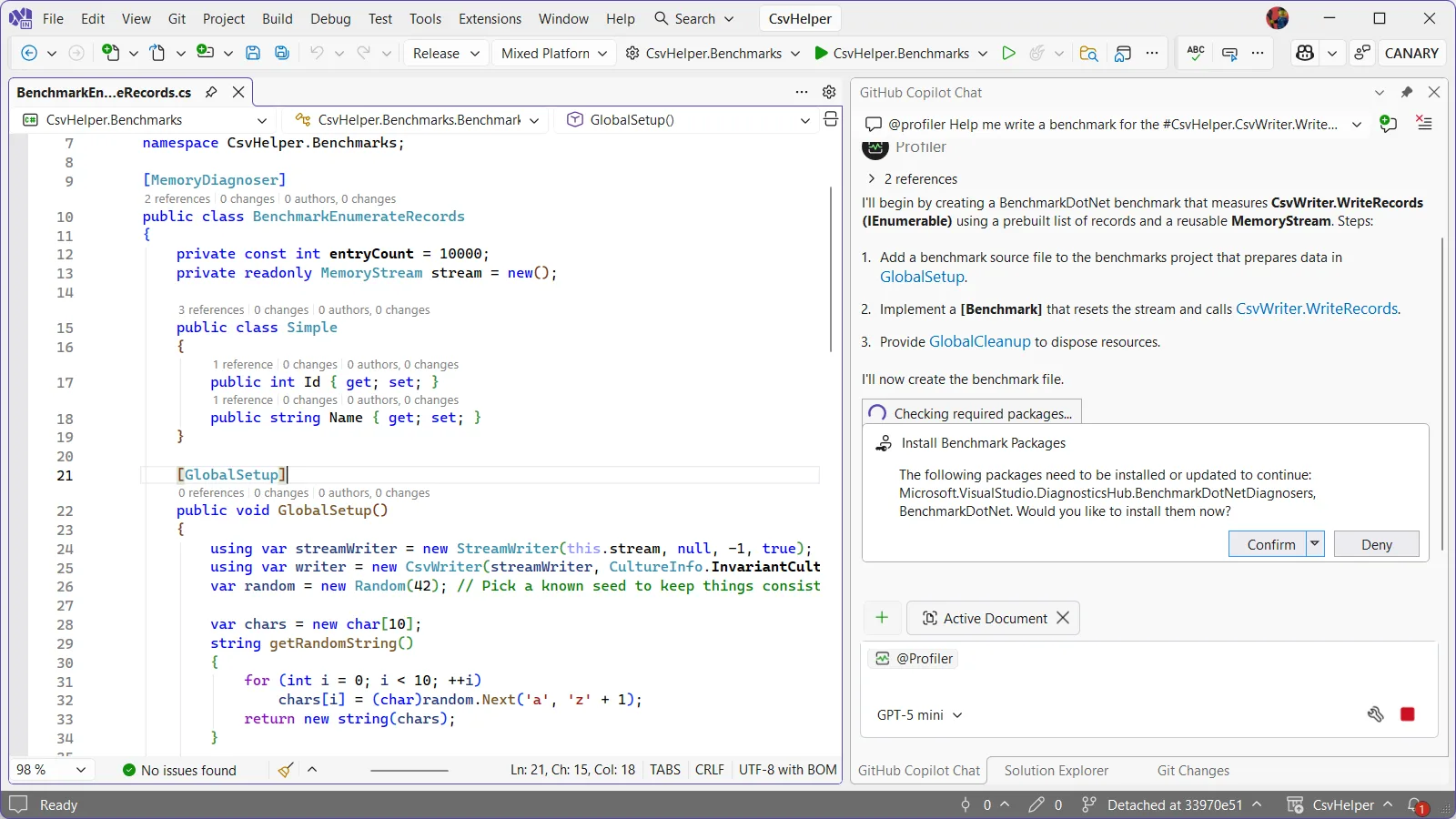
From here Copilot starts creating our new benchmark, asking us if its ok to install the profiler’s NuGet package to pull information from the benchmarks when it runs it. It also models the benchmarks after any existing benchmarks that it finds so the resulting benchmark is very similar to the one we already wrote keeping things consistent with the style of the repository. Lastly, it kicks off a build to make sure everything is good.

CopilotProfiler2Full image

Once it’s done, it provides some useful follow-up prompts to start the investigation. We could click one of these to launch into our investigation, though I want to edit things slightly in the benchmark.

CopilotProfiler3Full image

I tweaked the benchmark to have a few more fields for us to write, in this case 2 int fields and 2 string fields. When I originally had Copilot do this, before writing it up for this blog, instead of writing to the same memory stream it wrote to a new one each time. Writing into the same memory stream is probably the better way to go about things, you win this time Copilot, but in my original PR to CsvHelper I didn’t and it should be fine.

public class BenchmarkWriteCsv 
{ 
    private const int entryCount = 10000; 
    private readonly List records = new(entryCount); 

    public class Simple 
    { 
        public int Id1 { get; set; } 
        public int Id2 { get; set; } 
        public string Name1 { get; set; } 
        public string Name2 { get; set; } 
    } 

    [GlobalSetup] 
    public void GlobalSetup() 
    { 
        var random = new Random(42); 
        var chars = new char[10]; 

        string getRandomString() 
        { 
            for (int i = 0; i < 10; ++i) 
                chars[i] = (char)random.Next('a', 'z' + 1); 
            return new string(chars); 
        } 

        for (int i = 0; i < entryCount; ++i) 
        { 
            records.Add(new Simple 
            { 
                Id1 = random.Next(), 
                Id2 = random.Next(), 
                Name1 = getRandomString(), 
                Name2 = getRandomString(), 
            }); 
        } 
    } 

    [Benchmark] 
    public void WriteRecords() 
    { 
        using var stream = new MemoryStream(); 
        using var streamWriter = new StreamWriter(stream); 
        using var writer = new CsvHelper.CsvWriter(streamWriter, CultureInfo.InvariantCulture); 
        writer.WriteRecords(records); 
        streamWriter.Flush(); 
    } 
} 

Getting insight into the benchmark

Now to get started with the analysis I can either ask Profiler Agent to run the benchmark or just click on the follow up prompt for @Profiler Run the benchmark and analyze results. From here Copilot edits my main method which at first glance might seem odd but when looking at the changes I see it made the necessary changes to use BenchmarkSwitcher so it can choose which benchmarks to run:

static void Main(string[] args)
{
    // Use assembly-wide discovery so all benchmarks in this assembly are run,
    // including the newly added BenchmarkWriteRecords.
    _ = BenchmarkSwitcher.FromAssembly(typeof(BenchmarkEnumerateRecords).Assembly).Run(args);
}

Then it kicks off a benchmarking run and when it’s done I’m presented with a diagsession where we can begin investigating.

Using Copilot Profiler Agent to find bottlenecks

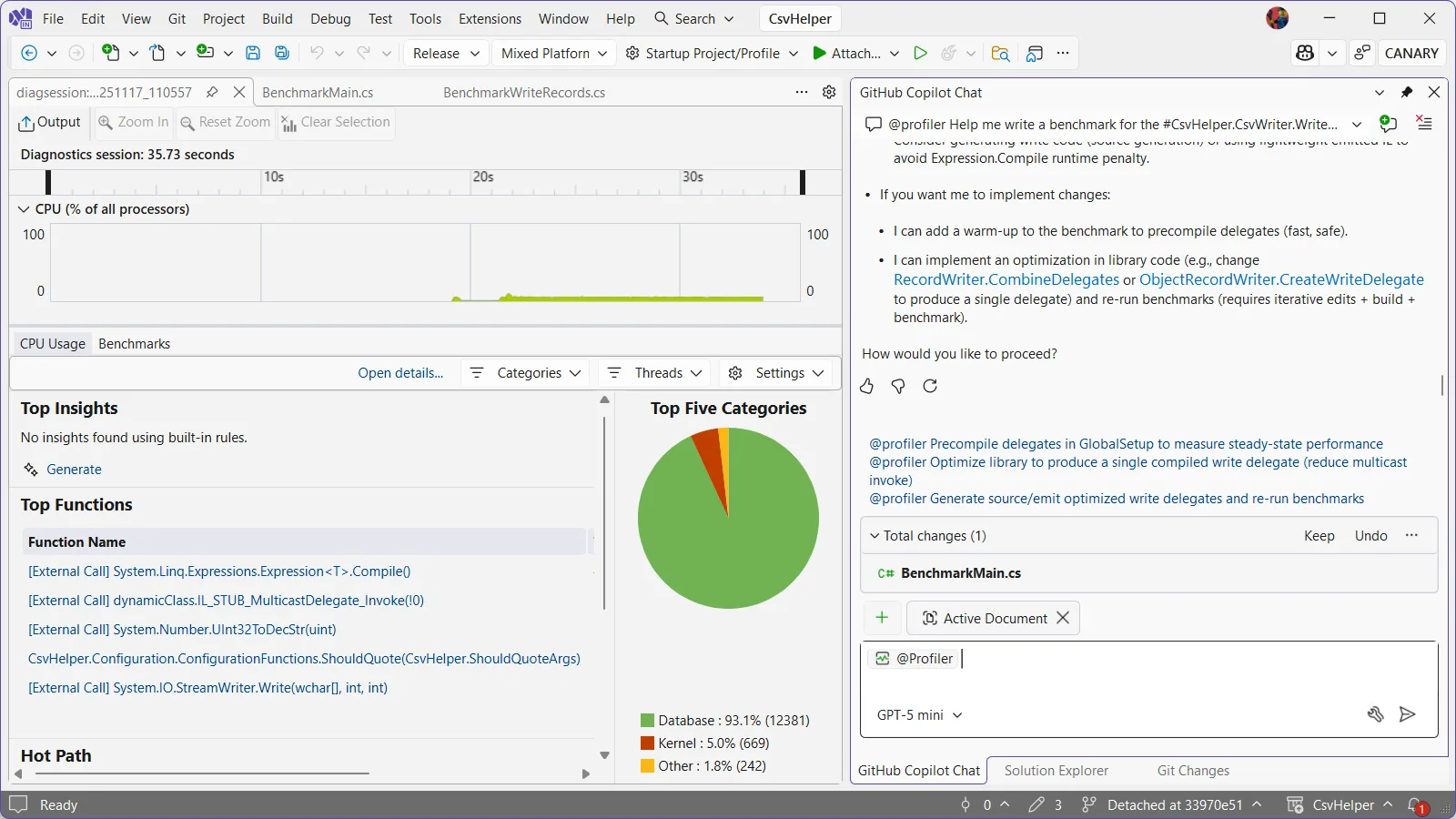
Now comes the exciting part. After running the benchmark, the Profiler agent analyzes the trace and highlights where time is spent. I can ask the Profiler Agent questions about the trace and have it explain why code is slow or why certain optimizations could help. It has already pointed out that most of the time is spent in delegate compilation and invocation, which is done for each field in the CSV record. For a record with 4 fields written 10,000 times, that means 40,000 delegate invocations. Each invocation has overhead, and this is showing up as a hot path in the profiler.

CopilotProfiler5Full image

I can ask the Profiler Agent: “How can I reduce the delegate invocation overhead?” or “Why is delegate invocation slow” and the agent like a patient teacher will explain concepts and suggest fixes.

Implementing the fix

I’m going to click the @Profiler Optimize library to produce a single compiled write delegate (reduce multicast invokes) and see what it comes up with. The Profiler Agent makes an edit to ObjectRecordWriter and I can click on that in the chat window to see the diff of the changes it makes.

Looking at the current implementation, the code builds a list of delegates, one for each field:

var delegates = new List<Action>();

foreach (var memberMap in members)
{
    // ... field writing logic ...

    delegates.Add(Expression.Lambda<Action>(writeFieldMethodCall, recordParameter).Compile());
}

var action = CombineDelegates(delegates) ?? new Action((T parameter) => { });
return action;

The issue is that CombineDelegates creates a multicast delegate which invokes each individual delegate separately in series. Instead, Profiler Agent is suggesting we use Expression.Block to combine all the expressions before compiling:

var expressions = new List<Expression>(members.Count);

foreach (var memberMap in members)
{
    // ... field writing logic ...

    expressions.Add(writeFieldMethodCall);
}

if (expressions.Count == 0)
{
    return new Action<T>((T parameter) => { });
}

// Combine all field writes into a single block
var block = Expression.Block(expressions);
return Expression.Lambda<Action<T>>(block, recordParameter).Compile();

This change is small but elegant: instead of creating multiple delegates and invoking them sequentially, we create a single block expression containing all the field writes, then compile it once. Now all fields are written in a single call when we invoke the delegate for each record, with no additional delegate overhead.

Measuring the impact

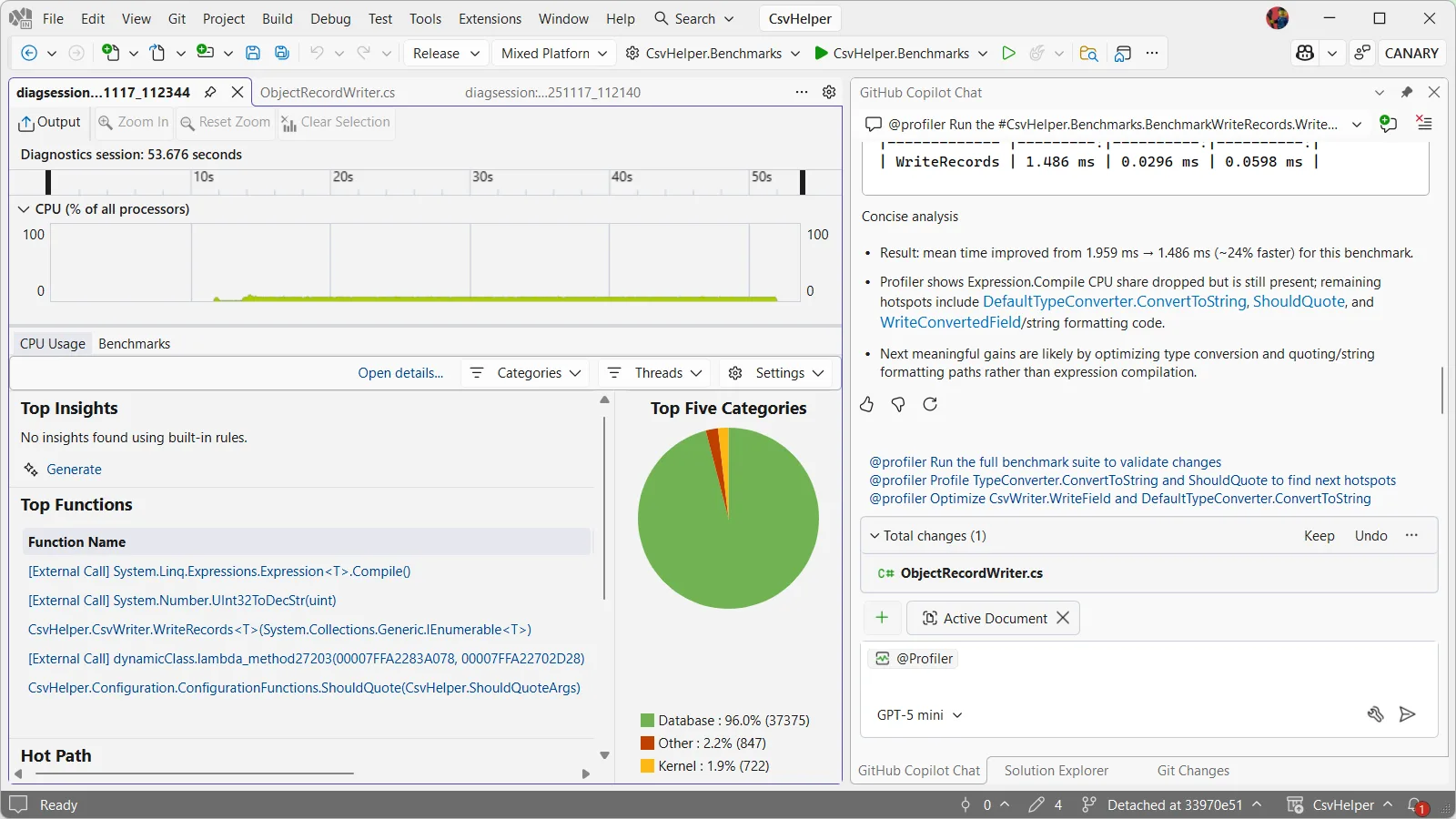
After making this change, Copilot automatically reruns the benchmarks to measure the improvement. The results show approximately 24% better performance in this run with the profiler. Our previously staged PR for CsvHelper shows ~15% better performance. The CPU profiler confirms that we’ve eliminated the delegate invocation overhead and instead of 40,000 delegate calls for our 10,000 records with 4 fields each, we now have just 10,000 delegate calls.

CopilotProfiler6Full image

This is a meaningful win for a library that’s already heavily optimized. For applications writing large CSV files with many fields, this improvement translates directly to reduced CPU time and faster processing. And because CsvHelper has millions of downloads, this optimization benefits a huge number of users. From here I went ahead and staged the PR, though Copilot helpfully provides more follow up prompts regarding the type conversion and ShouldQuote logic so that I could continue to improve performance further.

The power of Copilot Profiler Agent

What makes this workflow powerful is the combination of precise performance data from the Visual Studio Profiler with the analytical and code generation capabilities of Copilot. Instead of manually digging through CPU traces and trying to understand what the hot paths mean, you can ask natural language questions, get actionable insights, and quickly test ideas.

The agent doesn’t just tell you what’s slow – it helps you understand why it’s slow and suggests concrete ways to fix it. In this case, it identified that delegate invocation overhead was the bottleneck and suggested the Expression.Block optimization, which is exactly the right solution for this problem. It even reran the benchmarks to confirm the optimization!

Let us know what you think

We’ve shown how the Copilot Profiler Agent can help you take a real-world project, identify performance bottlenecks through natural language queries, and make meaningful improvements backed by data. The measure/change/measure cycle becomes much faster when you can ask questions about your performance data and get intelligent answers. We’d love to hear what you think!

The post Profiler Agent – Delegate the analysis, not the performance appeared first on Visual Studio Blog.

Why changing keyboard shortcuts in Visual Studio isn’t as simple as it seems

$
0
0

A straight look at what’s behind the keys

We’ve all tried unlearning a keyboard shortcut – it feels like forgetting how to breathe. Muscle memory doesn’t mess around. We wrestle with this every time someone suggest a “quick” shortcut change. It’s not just editing a keybinding but navigating a history that makes Visual Studio so customizable for developers like us.

Picture yourself deep in code, chugging coffee, ready to close a tab. You hit Ctrl+W because Chrome, VS Code, and every other tool uses it. But in Visual Studio? You likely need Ctrl+F4, a combo straight out of the Windows 98 era. Or maybe you try commenting out a line if code with Ctrl+/, a standard elsewhere, but Visual Studio adopted it late. Why? The team isn’t clueless – every shortcut ties to years of workflows we depend on.

Let’s walk through why that history powers Visual Studio and why changing a shortcut like Ctrl+W is such a challenge.

One command, multiple shortcuts

Visual Studio lets you handle the same task with different shortcuts to match your workflow. To close a tab, you can hit Ctrl+F4, a go-to for longtime users. If you come from tools like VS Code or Chrome and prefer Ctrl+W, Visual Studio supports that too. This flexibility rocks – you stick with what you know or adopt newer standards without losing your groove.

But it gets tricky. Many key combos in Visual Studio already do something and reassigning one can disrupt established workflows. For example, Ctrl+W closes tabs in most tools, but in Visual Studio, it selects the current word – a shortcut coders have relied on since the 2000s. If that’s wired into your fingers, changing it could derail you. Visual Studio keeps both shortcuts, letting you use what works while supporting everyone else’s habits.

That ability to support multiple shortcuts is just the start of Visual Studio’s customization, though – it goes deeper with how it tailors the IDE to you.

Developer profiles

When you launch Visual Studio, it doesn’t throw you into a generic setup. It prompts you to choose a developer profile – General, Web, C#, C++, and others. This choice shapes your shortcuts, layout, and entire coding experience to fit how you work. Visual Studio’s history of letting developers carry over habits from other IDEs or editors ensures your shortcuts feel right from the start.

Here’s the catch: the same command can use different shortcuts based on your profile. In the C# profile, you build a solution with F6. In the General profile, you hit Ctrl+Shift+B. It’s not chaos – it stems from years of developers like us telling the team what fits our work.

Profiles aren’t the only way Visual Studio adapts to your coding style, though – there’s another layer that makes switching tools even smoother.

Keyboard schemes

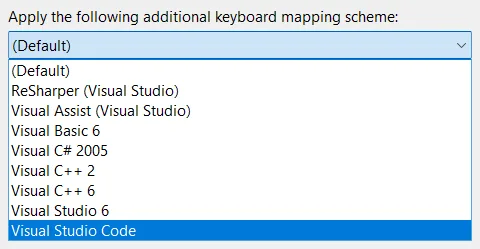
To make jumping between tools less jarring, Visual Studio offers keyboard schemes – like VS Code’s shortcuts or ReSharper’s keymap. It’s like plugging your own keyboard into a shared machine. These schemes build on Visual Studio’s history of supporting diverse coding styles, letting you dive in without starting from scratch.

keyboard schemes image

But with all this customization, how do we know what shortcuts you’re actually using and why? That’s where things get murky.

The intent behind the shortcut

When we consider changing a shortcut, we dig into telemetry to see how you use Visual Studio. It reveals which shortcuts you hit, how often, and when. But here’s the tough part: it doesn’t explain why. If you press Ctrl+W, do you select a word, as Visual Studio intends, or expect to close a tab because VS Code or Chrome does that? We see the keypresses, but your intent remains a mystery.

That’s where the art lies. Some of us rely on Ctrl+W for its original role; others follow muscle memory from another tool. Without knowing who’s who, changing a shortcut risk breaking someone’s workflow.

This uncertainty complicates things further when you factor in how Visual Studio organizes shortcuts behind the scenes.

Scopes

Visual Studio’s commanding system has a killer feature: scoped shortcuts. Every shortcut applies to a specific scope, so you can bind the same shortcut to different commands in different contexts. To close a tab with Ctrl+W, we register it in the Global scope. But any scope can override that. For example, Ctrl+W selects the current word in the Text Editor scope. The active scope depends on where your focus is – the editor, Solution Explorer, or another tool window.

To remap Ctrl+W to close tabs, we register it in the Global scope and ensure no other scope overrides it. This setup gives you flexibility but adds complexity when changing shortcuts, as we must account for every scope’s bindings.

And just when you think you’ve got a handle on that, another wrinkle shows up in how some shortcuts are structured.

Sequenced shortcuts

Visual Studio supports sequenced shortcuts, where you press multiple keys to trigger a command. For example, in the Text Editor scope, Ctrl+E, Ctrl+W toggles word wrap. Many sequenced shortcuts start with Ctrl+E, followed by another key. If we bind a command to just Ctrl+E, it fires immediately, cutting off any chance for the second key in the sequence to register. This breaks all those Ctrl+E-based sequences, as Visual Studio stops listening for additional keypresses once it detects Ctrl+E.

This means we must carefully check existing sequences before assigning single-key shortcuts to avoid breaking workflows that rely on multi-key combos.

With all these layers – multiple shortcuts, profiles, schemes, scopes, sequences, and unknown user intent – changing a shortcut becomes a high-stakes juggling act.

The balancing act

Every shortcut in Visual Studio connects to our coding habits – late-night bug hunts, team workflows we’ve refined for years. When we add or change a shortcut, we don’t just pick a new key. We examine the entire keyboard, identify what’s in use, and sometimes shuffle other shortcuts to make room. For instance, if we set Ctrl+W to close tabs to align with modern tools, we might need to reassign “Select Current Word” to avoid leaving anyone stranded. It’s a delicate balance to keep every developer’s flow intact, and that history of customization makes Visual Studio ours.

Ctrl+W in Visual Studio 2026

This walked you through the process we followed to map Ctrl+W to close the current tab in Visual Studio 2026. For C# profile users, we held off on this change to avoid disrupting existing workflows, especially given potential conflicts with sequenced shortcuts. If you’re using the C# profile and want Ctrl+W to close tabs, you can easily set it up yourself in the keybinding settings.

What’s next?

So, what shortcuts do you want to see next? Got a key combo you need or one that’s driving you nuts? Throw it in the comments – the team’s reading, and your input could help steer where Visual Studio goes from here.

Resources

The post Why changing keyboard shortcuts in Visual Studio isn’t as simple as it seems appeared first on Visual Studio Blog.

Visual Studio November Update – Visual Studio 2026, Cloud Agent Preview, and more

$
0
0

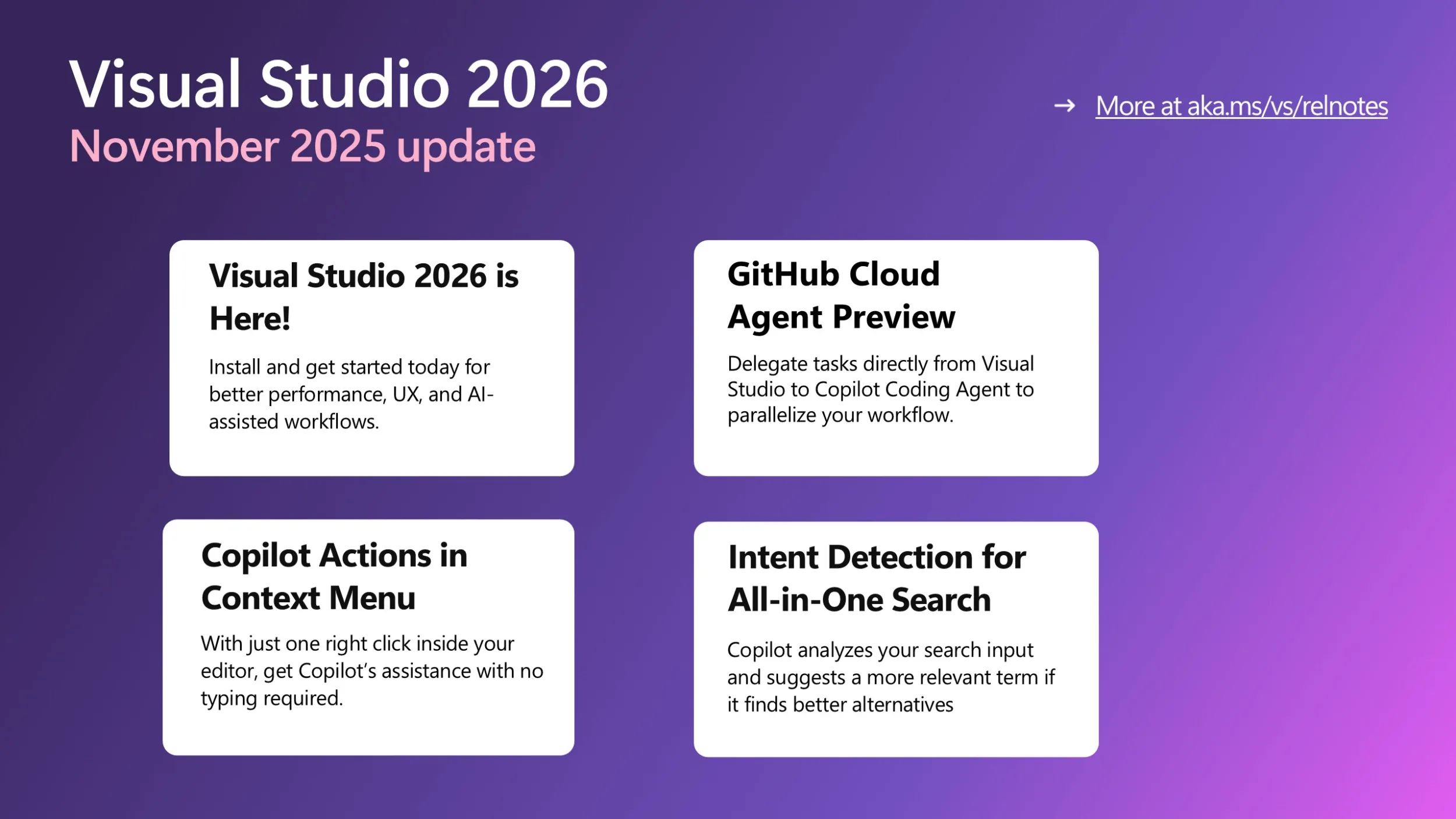
Image summarizing November 2025 updates: - Visual Studio 2026 is here - GitHub Cloud Agent Preview - Copilot Actions in Context Menu - Intent Detection for All-in-One Search

Visual Studio 2026 is here!

If you haven’t heard the news yet, we’re excited to share with you that Visual Studio 2026 is now generally available! This new version can better assist you with several performance improvements, a redesigned user experience, and a major leap in AI-driven development. Read more about it here and get started with VS 2026 today!

Below updates are all available in Visual Studio 2026 only.

GitHub Cloud Agent Preview is now available in Visual Studio

The Cloud Agent is now in preview and ready to help you offload repetitive or time-consuming work. Enable it via the Copilot badge dropdown → Settings & Options → Coding Agent (Preview).

Note: You’ll need to restart Visual Studio after enabling.  Requires: A solution connected to a GitHub repo.

Once enabled, you can delegate tasks directly from Visual Studio—UI cleanups, refactors, doc updates, multi-file edits, and anything you want Copilot to draft so you can review later.

We’re actively improving this experience, and your feedback is essential. Soon, you’ll see direct PR links inside Visual Studio, so you can review agent-generated changes without breaking your flow.

We’re excited to help you work faster by letting the Cloud Agent handle the tedious parts while you stay focused on building and debugging the core of your project.

Copilot Actions in your Context Menu

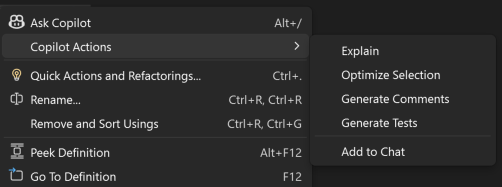
We are excited to announce that you can now interact with Copilot directly from your context menu in Visual Studio! With just one click, you can now get Copilot’s assistance with no typing required. Whether you are looking to quickly generate comments or explanations of a class, Copilot is right there when you need it.

A screenshot of the context menu, where Copilot Actions is hovered over, which shows a nested sub menu with five actions.

Note that “Optimize Selection” requires you to select code to trigger. Copilot will analyze the selected code and its surrounding context, offering targeted suggestions directly in the editor. Copilot will suggest improvements in performance, maintainability, reliability, and architecture.

Copilot Intent Detection for All-In-One Search

Have you ever forgotten the name of a file while coding, and thus couldn’t search or find it easily? The new Did You Mean feature is here to help! When you search using All-In-One Search and Copilot detects a better match than the top result – perhaps because of a typo or a fuzzy memory – it will suggest what you might have meant.

When you type a search term, Copilot analyzes your input and suggests a more relevant term if it finds one that more closely matches your intent. This feature helps with whether the search results are empty or when the top result isn’t what you intended.

Thank you for reading till the end! We will skip the December blog post as we are approaching the end of year and holiday season. See you soon in the January update blog post!

The post Visual Studio November Update – Visual Studio 2026, Cloud Agent Preview, and more appeared first on Visual Studio Blog.

Unlocking the Power of Web with Copilot Chat’s New URL Context

$
0
0

There are many scenarios where Copilot Chat can feel limited by the built-in model training data. Maybe you want guidance on the latest web framework, documentation, or project-specific resources—but Copilot’s responses just aren’t specific enough. For developers who rely on up-to-date or esoteric answers, this gap can be a real frustration. 

URL Context: Bringing the web into Copilot Chat 

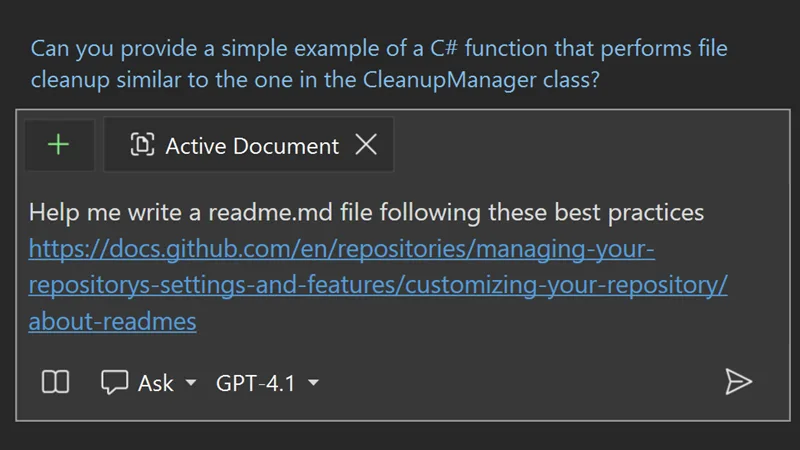
With the new URL context feature, Copilot Chat can now access and use information directly from web pages you specify. By pasting a URL into your Copilot Chat prompt, you empower Copilot to pull real-time, relevant information from the source. This means more tailored responses. 

18 0 url context image

How to use reference URLs in Copilot Chat 

Getting started is easy. When you need Copilot to answer using a specific web resource, simply paste the desired URL into your chat prompt. Copilot will then process the contents of that page, giving you context-aware answers that go beyond its original training. This opens the door to more personalized support. 

Limitations to keep in mind 

While the URL context feature is powerful, there are a few things to remember. Copilot’s ability to extract and understand content depends on the accessibility of the web page and the clarity of its information. Some sites might have authentication restrictions or have dynamic content that limit Copilot’s ability to read the web page’s content. Always review responses for accuracy and completeness, especially when referencing complex or highly technical sources. 

Check out the new Visual Studio Hub 

Stay connected with everything Visual Studio in one place! Visit the Visual Studio Hub for the latest release notes, YouTube videos, social updates, and community discussions. 

Appreciation for your feedback 

Your feedback helps us improve Visual Studio, making it an even more powerful tool for developers. We are immensely grateful for your contributions and look forward to your continued support. By sharing your thoughts, ideas, and any issues you encounter through Developer Community, you help us improve and shape the future of Visual Studio. 

The post Unlocking the Power of Web with Copilot Chat’s New URL Context appeared first on Visual Studio Blog.

Streamlining your Git workflow with Visual Studio 2026

$
0
0

You’re a .NET developer with a busy morning, and an Azure DevOps ticket drops: “Login endpoint 500s under load.” You’ve got to fix it, review a teammate’s feature branch, and keep your repo clean – all before lunch. Visual Studio’s Git tools turn this everyday Git workflow of creating topic branches, stashing changes, committing, and handling PRs into a smooth, fast process.

Let’s walk through your morning, showing how Visual Studio keeps Git friction out of your way.

9:00 AM: Spin up a topic branch for your bug fix

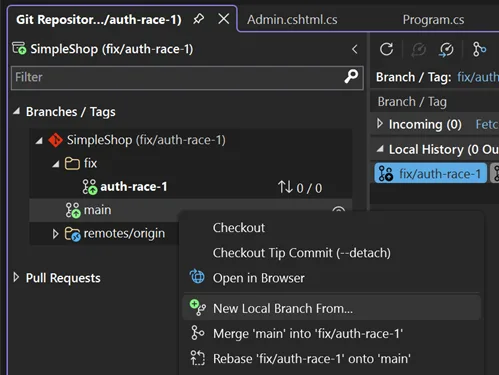
Your repo’s open in VS (View → Git Repository), and you’re on main, fresh from last night’s CI run. To keep your bug-fix isolated, you right-click main in the Git Repository Window, select New Local Branch From, and name it fix/auth-race-1, linking it to your DevOps ticket. You’re switched to the new branch instantly, and the 2026 Git status bar shows your branch and sync status, so you’re never lost.

New Local Branch From

You update AuthService.cs with an async lock to fix the race condition.

A Slack ping from the PM interrupts: they need you to review a feature branch for a demo. Time to pause your work without losing it.

9:30 AM: Stash changes to juggle tasks

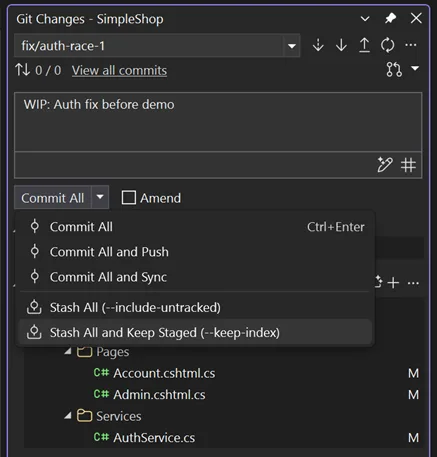
You’re mid-fix with unsaved changes, not ready to commit. In the Git Changes Window (View → Git Changes), you select your modified files, click Stash All, and add a note: “WIP: Auth fix before demo.” Visual Studio shelves everything, leaving your directory clean.

Picture2 image

Branch switching in Visual Studio is a lot faster now thanks to optimized solution load and indexing. You polish the feature and push it to remote, all while your bug fix stays safely stashed.

With the feature review done, you’re ready to return to your bug fix and polish it before committing.

10:15 AM: Pop stash and review code

You switch back to fix/auth-race-1, and Visual Studio’s fast branch switching keeps you moving. To restore your work, go to Git Changes Window, hit the Stash tab, right-click, and select Pop Stash. Your changes come back seamlessly.

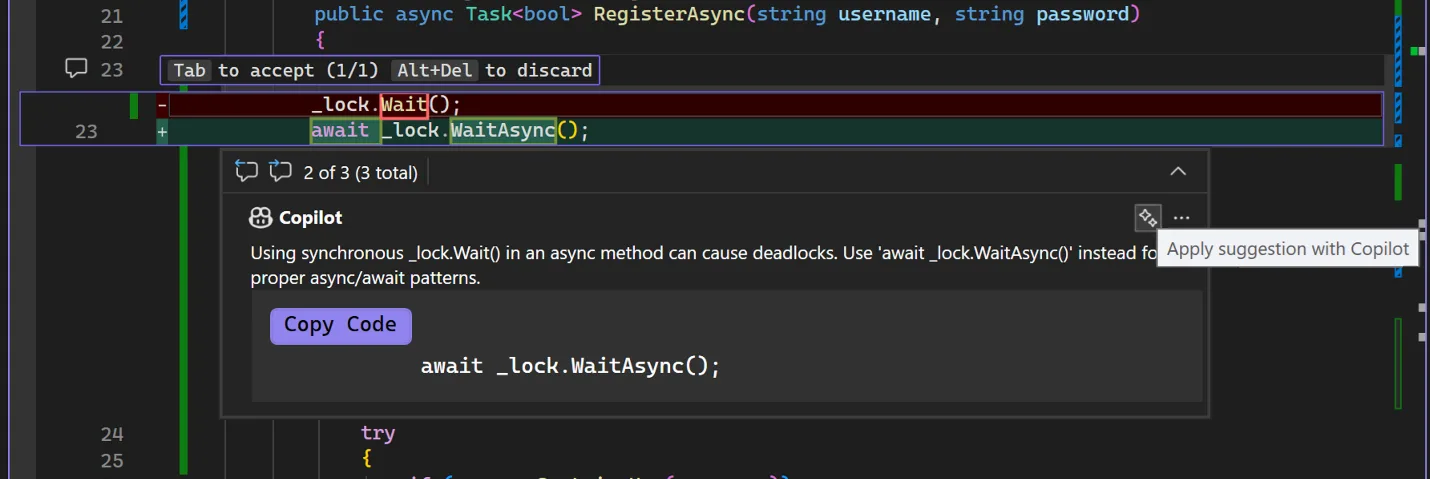
Before committing, you want to catch any slip-ups. In Git Changes Window, click the Copilot Code Review button. Copilot scans your diff and leaves a few comments in the editor. You apply the suggestions with one click.

Picture3 image

For extra confidence, open Copilot Chat (View → Copilot Chat), type “#changes Check security,” and get: “Add rate limiting for brute-force protection.” You tweak the code, catching more issues early, which makes your eventual PR cleaner.

With your code polished, you’re ready to commit your changes.

10:45 AM: Time to commit

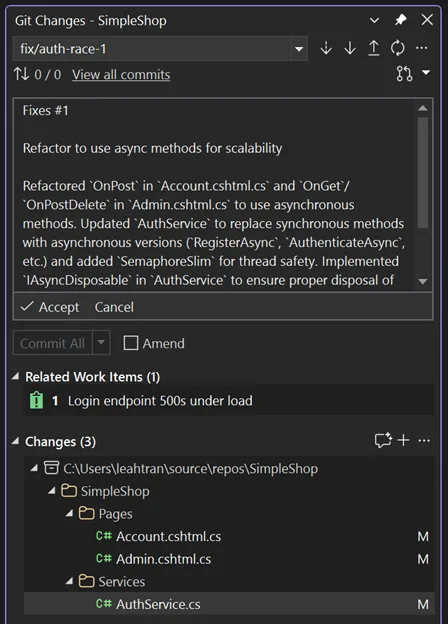
Your code’s solid, so it’s time to commit. In the Git Changes Window, click the Generate Commit Message button. It’s formatted to your team’s standard (learn how to set that up in an earlier blog post), tied to DevOps, and saves you a minute. Push your changes with a click, keeping your history clean and team friendly.

Picture4 image

Now it’s time to share this with your team.

11:15 AM: Create PR and review inline

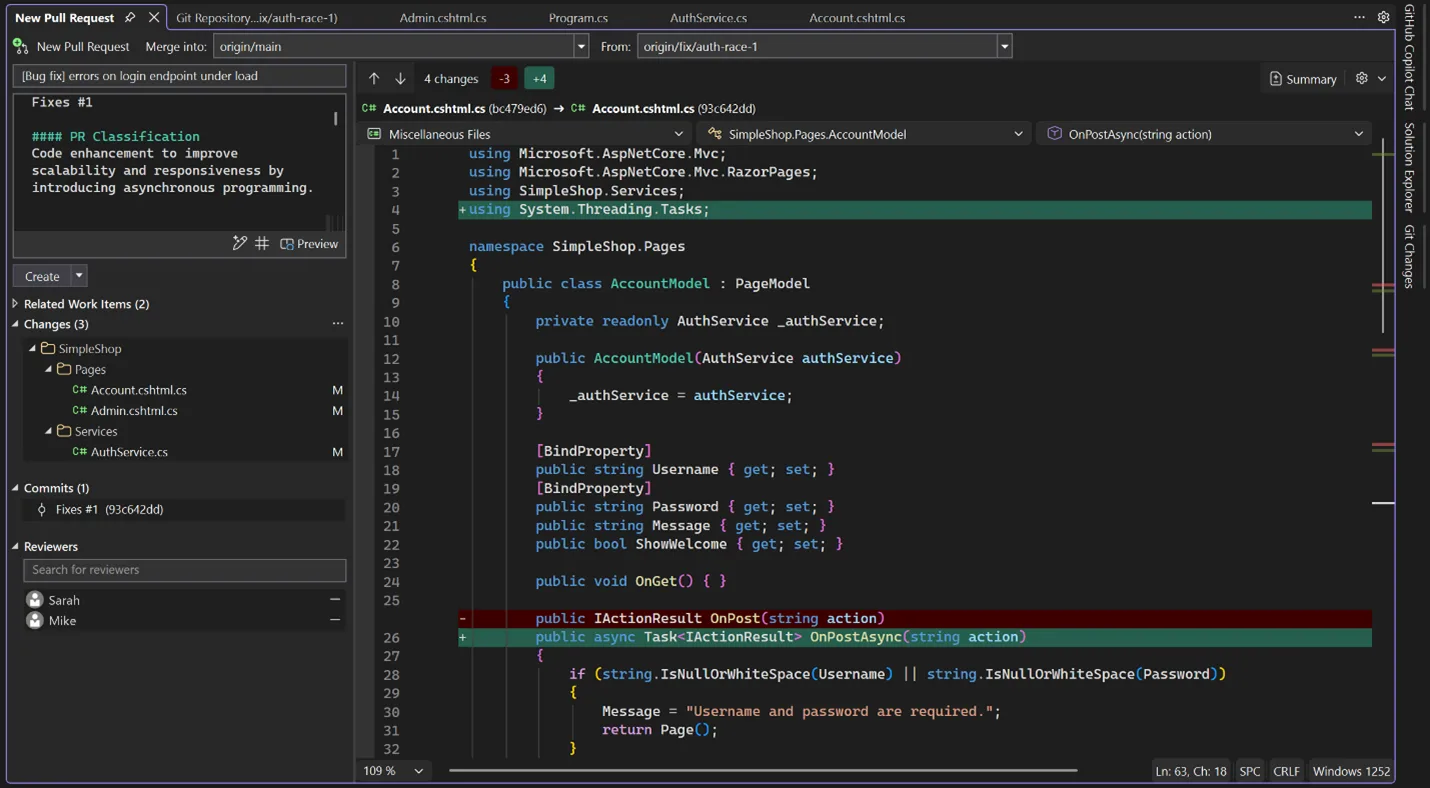
Your work is now ready for a review! Upon pushing, you get a banner in the Git Changes window and click the link to create a pull request. (Alternatively, you can also go to Git Repository Window and right-click fix/auth-race-1 → Create Pull Request.) In the PR creation UI, select your lead, Sarah, and another teammate, Mike, as reviewers by clicking the Add Reviewers field and choosing their names from the dropdown. Since there’s just one commit, VS automatically pulls Copilot’s commit message into the Azure DevOps PR description. You could also generate a PR description to ensure it matches your team’s standards. Click Create, and it’s up for review.

Picture5 image

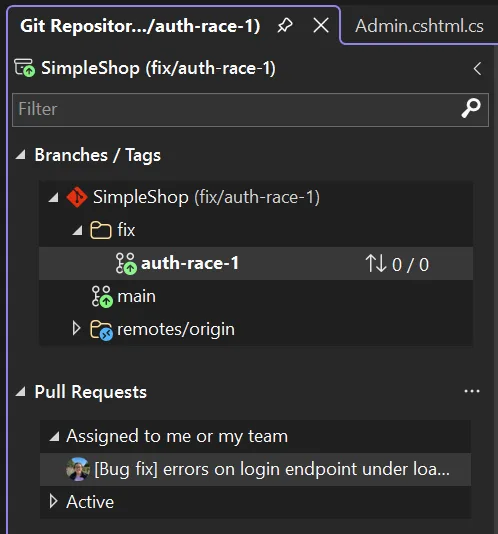
Sarah can easily review the PR right in Visual Studio, finding it assigned to her in the Git Repository Window.

Picture6 image

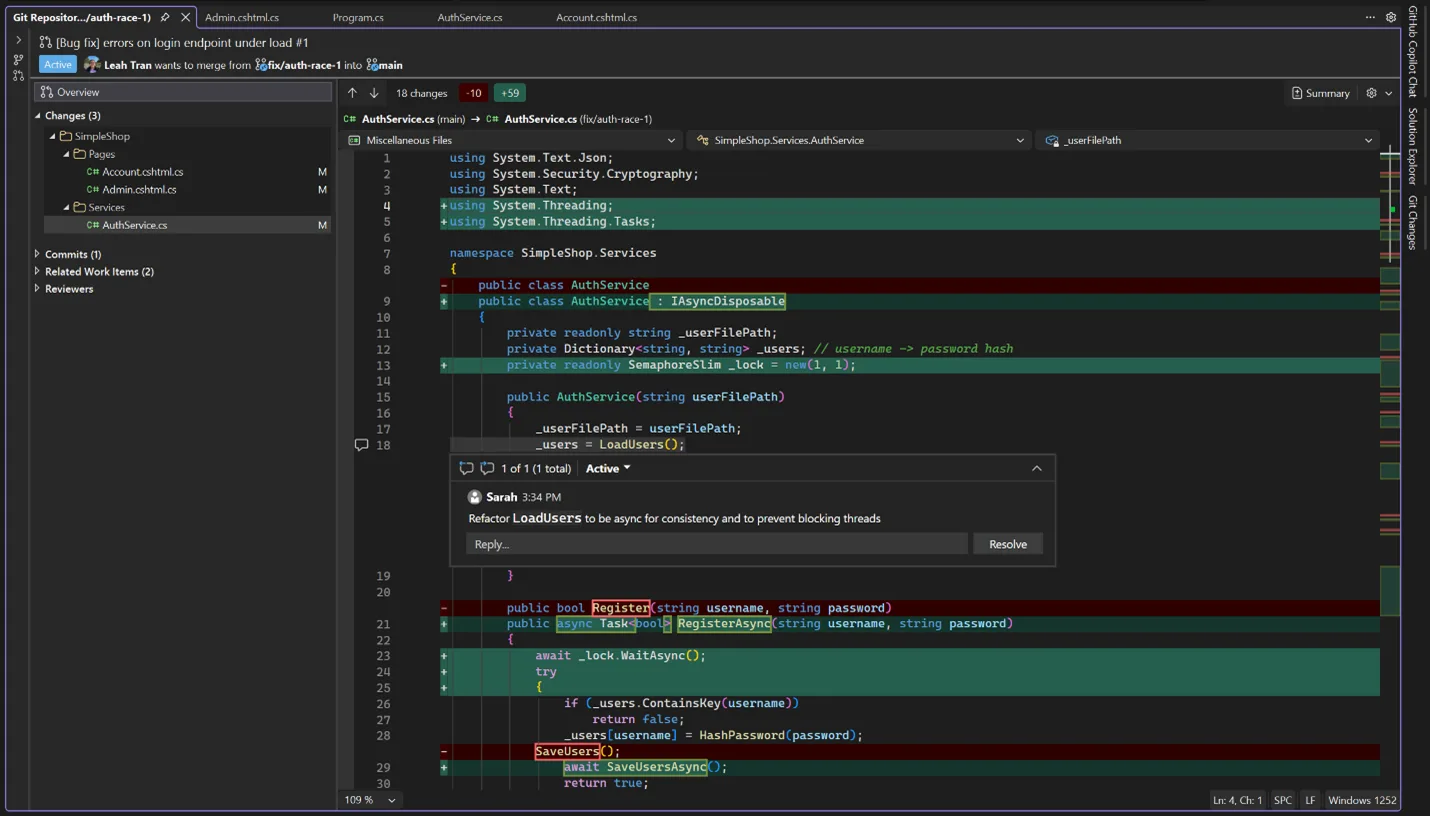
She opens the PR and adds comments directly inside Visual Studio. The Markdown renders right in the diff, threaded and clear. No browser tabs needed!

Picture7 image

You reply inline, make updates, and push your new changes. Visual Studio syncs the diff instantly. Reviews feel less cluttered, and Sarah and Mike approve. You merge to main and delete the branch to keep the repo clean.

Wrap-up: Git that flows

Visual Studio’s Git tools – fast branch switches, visual diffs, Copilot commits, AI reviews, inline comments – save you time in your daily grind. Branching, stashing, and PRs are smoother than ever before, letting you focus on code. The AI review before committing catches mistakes early, setting your PRs up for success.

Try it out and let us know what other Git topics you want to know more about in the comments below.

Happy coding!


The post Streamlining your Git workflow with Visual Studio 2026 appeared first on Visual Studio Blog.

Behind the scenes of the Visual Studio feedback system

$
0
0

Here on the Visual Studio team, our top priority is making your coding experience smoother and more enjoyable. And that begins with truly listening to your feedback. We understand that sometimes sharing your thoughts can feel like tossing bug reports and suggestions into a black hole. It doesn’t feel good, and we get it.

But here’s the good news: over the past year, we’ve resolved more bugs reported by users and delivered more requested features than at any other time in Visual Studio’s history. We believe in being open about what happens to your feedback, so in this post, we’ll pull back the curtain and show you exactly how your input is processed and how it directly influences our work.

So, grab your favorite warm drink, settle in, and join us for a behind-the-scenes look at how your feedback truly shapes the future of Visual Studio.

Every bug report or feature request you submit on developercommunity.visualstudio.com becomes a ticket in our system. We mirror that ticket in our internal Azure DevOps setup and assign it to the right team.

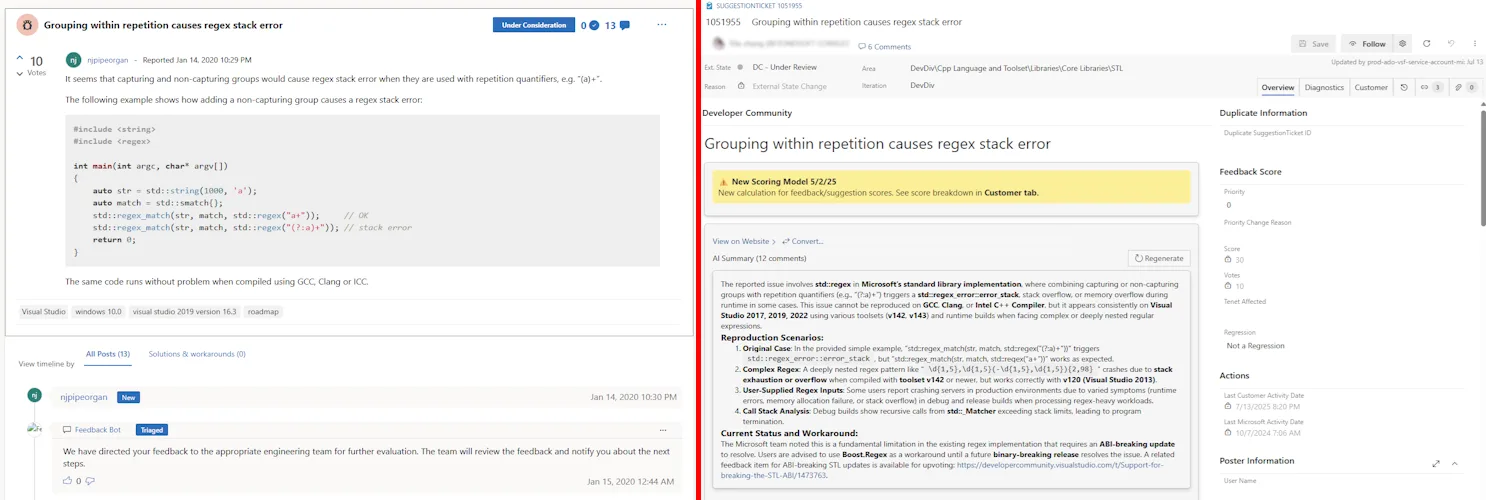
Picture1 image
Figure 1: The public ticket on Developer Community on the left, and the internal ticket in Azure DevOps on the right

We treat your feedback with the same priority as our internal tasks, triaging and prioritizing it to align with our goals and direction. In other words, who created the issue doesn’t matter. If the issue is important and impactful, we consider it.

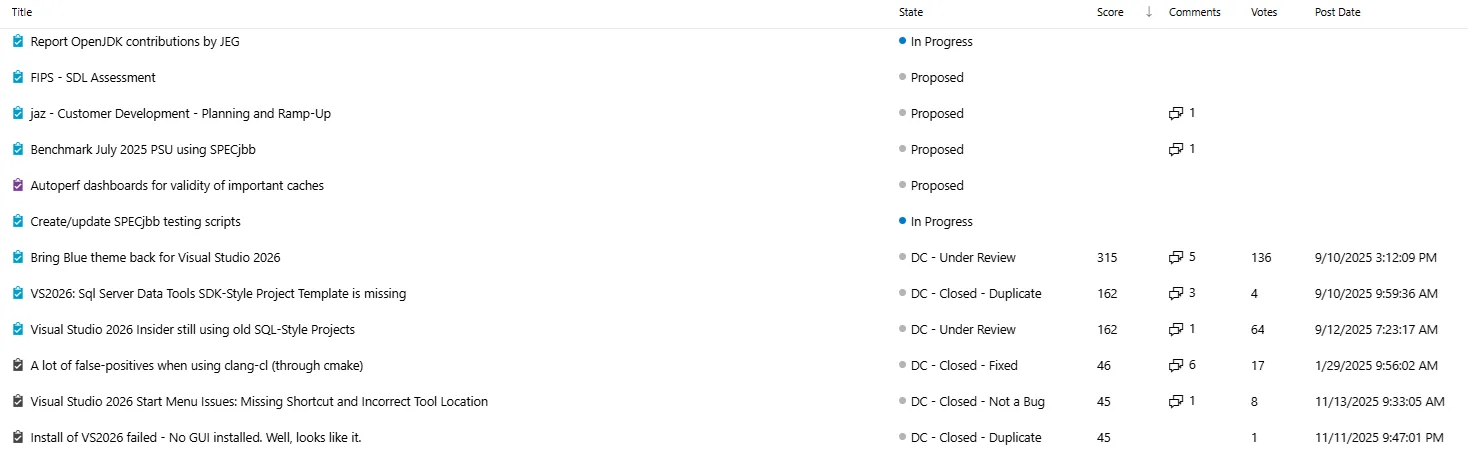
Picture2 imageFigure 2: Internal and external tickets are triaged together in the same view in Azure DevOps

So, what makes a feedback ticket important and impactful? Your engagement on the Developer Community directly influences what we work on next. We assign an internal Score to every ticket based on community traction, impact, and severity. Each vote increases the ticket’s Score and highlights issues or ideas the community cares about. It’s important that you upvote existing tickets and add more context rather than submitting a new ticket for the same issue. Comments add context and boost the Score, helping us understand the issue or feature request’s importance. Comment on existing tickets to add more context to the issue or feature request. It all helps.

Picture3 image
Figure 3: A bug ticket with votes and comments

As a ticket’s Score rises, it can automatically escalate in priority – low, medium, or high. Medium and high-priority bugs come with Service Level Agreements (SLAs). High-priority tickets are targeted for investigation within a week, while medium-priority tickets have a longer but defined timeline.

Priority isn’t just about votes and comments, though. Our teams weigh the Score against factors like technical complexity and alignment with goals, such as performance, reliability, and accessibility. A high Score doesn’t guarantee top priority, but it’s a major factor.

This system ensures that feedback from our users shapes the IDE, and that we catch bugs as early as possible. Some bugs require immediate attention, especially regressions and issues affecting key tenets like performance or accessibility.

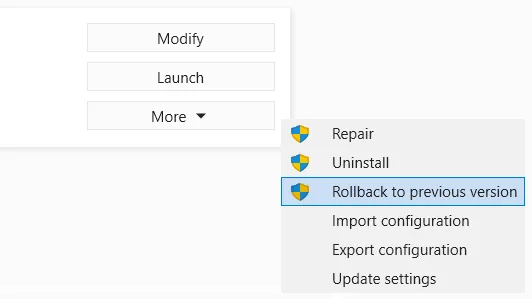
Picture4 image
Figure 4: The option to rollback to a previous version in the Installer

Regressions – cases where something that used to work breaks – are typically high priority because they disrupt your workflow. If you ever need to rollback to a prior release due to a regression or critical issue, it’s crucial to let us know. After you complete the rollback, Visual Studio asks you to submit feedback describing what led you to revert and the specific problem you encountered.

Your input is invaluable for helping us identify, prioritize, and resolve regressions quickly so we can prevent similar disruptions in future updates. Bugs affecting core tenets like performance or accessibility also get quick attention. A slowdown in the IDE or an accessibility issue that limits usability? We prioritize those to keep Visual Studio smooth and inclusive.

To help us address your feedback as quickly and effectively as possible, here are some tips for writing a ticket that stands out and speeds up resolution.

  • Use descriptive title: Use a title that is easy for others to find so they can vote, comment, and add more information.
  • Include clear reproduction steps: Describe exactly what you did leading up to the issue. List each step in order so we can follow your process and reliably see the problem on our end.
  • Add screenshots: Visuals make it easier to understand what’s happening. If possible, attach screenshots that highlight the issue or error message.
  • Use the recording function: Consider using the built-in recording feature to capture your workflow and the issue in real time. This gives us a direct view of the problem as it occurs.
  • Share a minimal reproducible project: If you can, create a simple project that demonstrates the issue. Zip up the project files and include them with your ticket submission. This helps us isolate the bug and find a solution faster.

Sometimes, we still can’t figure out what’s going on. The team can’t reproduce the issue, or the error logs just don’t give us enough to go on. When that happens, we usually reach out to you and the rest of the community for more details. We’re not trying to be a hassle; we really do want to fix the problem, but we just need a little more info to get there. Anyone can add more info to any ticket, and we encourage you to jump in if you can help.


Speaking of feedback, love that Visual Studio fixed the build status after I reported the misleading output and many of you upvoted it. The next text is much better. Your feedback matters!

– “.Morten” Nielsen, MVP and Visual Studio user


What happens if you want to open a bug on the bug reporting system itself? This is one of the feedback team’s most frequently asked questions. The answer is that you report it the exact same way as any other Visual Studio bug. Go to Help > Send Feedback > Report a Problem… and fill in the ticket.

In conclusion…

The bug is there whether you tell us or not. But when you take the time to let us know about it, you’re really doing all of us – our team and other users – a huge favor. We know reporting bugs isn’t much fun, but we do our best to make it a good experience.

It may not always seem like it, but things are getting better. We’re fixing more bugs and adding more features now than ever before in our nearly 30 years of history. And that’s all because of you. Thank you for all your feedback over the years. It’s made a bigger difference than you can possibly imagine.

Keep sharing your thoughts on developercommunity.visualstudio.com and in the comments below.

The post Behind the scenes of the Visual Studio feedback system appeared first on Visual Studio Blog.

Debugging, but Without the Drama (A Visual Studio 2026 Story)

$
0
0

It starts the way these things always start. 

A red build. A failing test. And that quiet, sinking feeling of “This worked yesterday.” 

Meet Sam. Sam’s not a junior, not a rockstar, just a solid developer who’s shipped enough code to know that bugs don’t care how confident you feel on Monday morning. 

That test failure does not offer much help at all. There are no clear steps to reproduce the issue. The exception message seems familiar in a vague way. But it does not prove useful right then. Out of habit Sam hits F5. He notices something small yet pretty important about it. 

The debugger launches faster than before. No long pause, no breaking his flow. Sam gets straight into debugging, and that small improvement already feels like a win. 

The Exception Knows More Than It Used To 

The app crashes. Sam opens the exception details. Normally, he’d read the error message, scroll through the stack trace, which shows the chain of function calls that led to the crash and start guessing what went wrong. 

This time, things feel different. Exception Assistance ‘s Copilot analysis looked at the whole repository, not just the file in front of Sam. It checks past bugs, old pull requests, and even fixes from months ago. It notices a similar error that happened after a validation tweak, flags the code paths that might have been hit, and points to places where that odd value could have slipped in. 

If Sam wants a different angle, he can pick any model in Copilot Chat to analyze the exception the way that fits the problem. And for trickier, nested, or chained errors, Copilot may decide it needs more context and offer to dig deeper.  Sam can continue with the deeper analysis to get a more context-driven, accurate understanding of what went wrong, without losing control of the investigation 

What used to take hours now feels like a conversation with a teammate who knows the history of your code and points you exactly where you need to look. 

Want to see this in action?

Inline Values: When If-Statements Stop Lying and Values Appear Where You Need Them 

Sam steps through the code and lands on a conditional that should be true but is now showing false. 

Normally, you’d hover over every variable, checking them one by one but now? The result is right there. Inline in editor. The condition shows how it was evaluated.

Sam hovers and chooses Analyze with Copilot. Instead of just seeing “false,” Copilot breaks the condition apart sub-expression by sub expression showing exactly which part failed and how it affected the outcome. No stepping. No breakpoint. Just reasoning where the decision happened.  

As Sam moves on, he notices something else that clicks: 

  • Method parameters? Inline. 
  • Loop variables? Inline. 
  • Return values? Inline, where they’re used, not buried inside a function call.

One way keeps returning a value that feels wrong. Sam doesn’t step into it. Doesn’t add watches. He just hovers, asks Copilot to analyze the value, and instantly sees an explanation grounded in runtime behavior and the surrounding code. 

It doesn’t replace DataTips or visualizers; they’re still there when Sam needs to dig deeper. But most of the time, the answer he’s looking for is already right in front of him. 

Want to see this in action?

When a Test Fails, and You Don’t Debug Alone 

Later that day, another test failed. Different feature. Same frustration. Sam right-clicks the test and selects Debug with Copilot. 

The Debugger Agent takes over. It looks at the test, its code, and recent changes. Then it makes a guess, applies a fix, runs the test, adjusts, and tries again. Sam watches. Not hands-off, but without the usual busy work. When it’s done, there’s a clear summary of what has changed and why. Sam reviews it, nods, and commits. 

This isn’t giving up control. It’s cutting out the repetitive stuff so Sam can focus on the important decisions. 

Want to see this in action?

The Calm at the End of Debugging 

By the end of the day, Sam notices something important. 

The bugs weren’t easy. The code wasn’t simple. But understand them? That came faster. 

Visual Studio 2026 doesn’t make debugging magic. It makes it feel like a conversation between Sam, his code, his history, and tools that get the context. By the end of the day, Sam closes the debugger feeling focused, not worn down.  

These improvements in Visual Studio 2026 are the first steps toward a smoother, calmer, more intuitive debugging experience, less time guessing, and more time understanding.  There’s a lot more coming, and your feedback is crucial. Tell us what works, what doesn’t, and where debugging still trips you up. 

Happy Debugging. 🙂 

The post Debugging, but Without the Drama (A Visual Studio 2026 Story) appeared first on Visual Studio Blog.


How AI fixed my procrastination

$
0
0

I struggled to get started. For ages, I kept putting off building this website, creating a new programming language for Visual Studio, and coming up with fresh color themes. Each project looked overwhelming, and I couldn’t find the time or motivation to jump in. It all just felt like too much at once.

But when a national holiday gave me a long weekend, I grabbed the chance to try out Copilot in Visual Studio and see how far I could get. To my surprise, I knocked out all three projects way faster and more easily than I expected. I’m sharing what I learned because I hope it inspires you to finally tackle those projects you’ve been putting off.

If you have some free time at the end of 2025, it might be the perfect opportunity to finally kickstart those ideas you’ve been meaning to work on.

Let’s jump into how I kicked off the web development project.

Project 1 – a static website

A few years ago, I wrote a book called The Automated Home with little success. I wrote it mostly for myself and to help other smart home geeks come up with ideas and recipes for their own automations. A book isn’t a good format for that, so I’ve been wanting to turn it into a website for a long time.

I exported the book from .docx to .txt so that I could feed it to Copilot in Visual Studio. Then I created an empty folder to hold the static website and opened it using File -> Open Folder.

And then I went to the chat window and wrote a prompt to Copilot that went like this: “Turn this book into a website that should function like a book of recipes for home automation”.

It chewed on that for a while and a static website was slowly taking shape in front of my eyes. One file at a time added to Solution Explorer and opened in the editor.

The first result was pretty good. It had most of the content right, but the design, menu system, and content organization was suboptimal. My background as a web developer came in handy, because I knew what I wanted and how I wanted it. So, I started to be a lot more specific in my prompting and telling it how I wanted the CSS to look like etc.

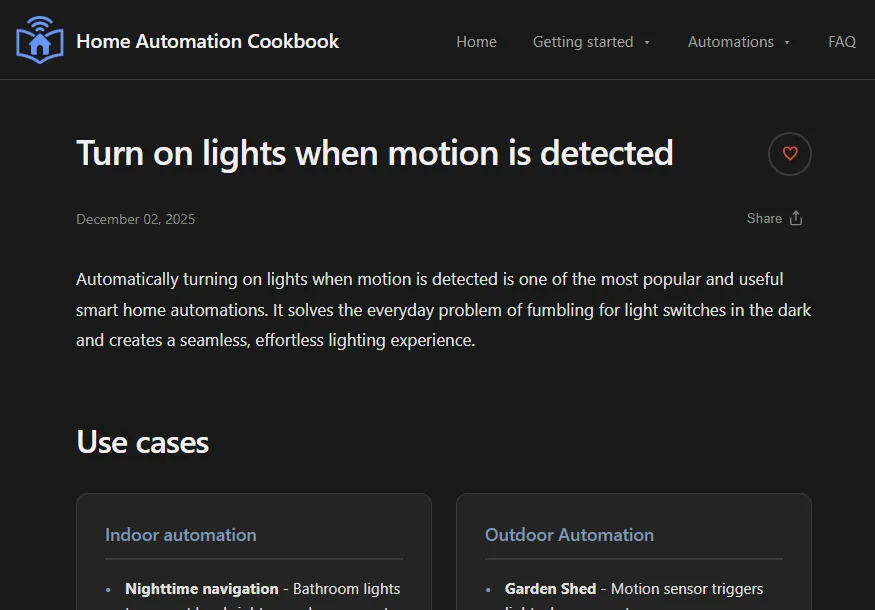
Picture1 image
The Home Automation Cookbook website

The AI was able to create this website in much less time than I would have been able to manually. Probably around 5x faster. I didn’t write much myself but would prompt the AI whenever I wanted a change. Only for small things would I do the coding manually.

The workflow was amazing, but it did involve quite a bit of waiting for Copilot to finish its tasks. That turned out great, because I was able to spend time with the family and make progress on the website at the same time.

Check it out at https://www.homeautomationcookbook.com

Project 2 – a TOON language service

I write Visual Studio extensions a lot, and this one has made it to the top of my to-do list. Mainly because of the challenge of creating a language parser and tokenizer that would work as a Visual Studio language service. TOON is a simple language, but even so, a language service requires some unique features I couldn’t find in any of the current TOON implementations in C#.

Picture2 image
The TOON language inside Visual Studio

To provide syntax highlighting, syntax validation (squiggles), and other features, a language parser must be very fault tolerant. If you make a syntax error on line 10, you don’t want the rest of the file to lose syntax highlighting or be riddled with syntax violation errors. Most language parsers will simply throw an error if they see a syntax error and stop parsing completely.

My plan was to point the GitHub cloud agent to the TOON language specification and have it create the parser and based on that. I also wanted it to create unit tests based on the specification to validate the implementation was correct.

I created a new .NET 10 Class Library project in Visual Studio 2026 and opened the Copilot chat window. The prompt I gave Copilot was something like “Based on the TOON specification (<url to spec>), create a parser and tokenizer that is suitable for use in a Visual Studio language service”.

Picture3 image
The Copilot prompt for creating a TOON language parser showing the new Cloud Agent button

Once I clicked the Cloud Agent button to feed it my prompt, Visual Studio starts gathering the information it needs to come up with a plan. Once it does, it creates an issue on the GitHub repository with the information and then assigns GitHub’s cloud agent to the task.

In about 20 minutes, I received a pull request with the initial implementation by the cloud agent. It was a good first try, but more work was needed to make it work the way I wanted. I used a mix of both regular agent mode and the cloud agent to make further improvements.

Picture4 image
Over 600 tests created to validate the parser against the official TOON language specification

I found that the cloud agent was most helpful when it came to isolated tasks. I could simply prompt it to begin the work in the background, while I did other work in Visual Studio. That way I had two workstreams going on in parallel and I could make headway fast.

Once complete, I asked the agent to make the class library into a NuGet package and set up automated CI/CD using GitHub Actions. I published the Toon Tokenizer package shortly thereafter and could now start working on the Visual Studio extension.

This is my wheelhouse. And once I created a new extension project, I could simply add the NuGet package and go to town. I did this part manually because I really enjoy extension development, so I wanted to do all the driving.

This was a super fun project, and I got to play around with the Profiler Agent to fine tune the parser performance. I also asked the agent to help find any security issues and mitigate them. It was able to find and fix some potential risks. Overall, a fantastic experience that turned out so much better than I could imagine. This was another 5-10x time saver thanks to Copilot.

Check out the Toon extension and parser repository.

Project 3 – new color themes

I’ve wanted to make some new color themes for Visual Studio for a long time. But it’s a type of extension I don’t have much experience with, so I wasn’t sure about how much effort would be required. Often, the unknown amount of time and effort is what makes me procrastinate on projects.

To kick this one off, I decided to use my old Blue Steel theme extension as the base. I wanted to create two solarized themes. The real challenge with this one was to map the color tokens with the right color codes. All I had was screenshots of the themes from the Solarized web page.

It looks like this:

Picture5 image
Solarized color theme from the official web page

With the screenshots, I asked Copilot to extract the color tokens for both the shell/environment and the code syntax colors and map them to the right color tokens in the VS XML theme file.

Those XML files contain a bunch of categories with color tokens in each.

<Category Name="Shell" GUID="{73708ded-2d56-4aad-b8eb-73b20d3f4bff}">
     <Color Name="AccentFillDefault">
             <Background Type="CT_RAW" Source="FF6C71C4" />
     </Color>
     <Color Name="AccentFillSecondary">
             <Background Type="CT_RAW" Source="E56C71C4" />
     </Color>
     <Color Name="AccentFillTertiary">
             <Background Type="CT_RAW" Source="CC6C71C4" />
     </Color>
     <Color Name="SolidBackgroundFillTertiary">
             <Background Type="CT_RAW" Source="FFEEE8D5" />
     </Color>
     <Color Name="SolidBackgroundFillQuaternary">
             <Background Type="CT_RAW" Source="FFEEE8D5" />
     </Color>
     <Color Name="SurfaceBackgroundFillDefault">
             <Background Type="CT_RAW" Source="FFFDF6E3" />
     </Color>
     <Color Name="TextFillSecondary">
             <Background Type="CT_RAW" Source="FF000000" />
     </Color>
</Category>

Copilot did a fantastic job, but I had to play around with the colors a bit. There was still a bunch of manual finessing needed. But it gave me a jump start that saved me a lot of time.

I ended up adding 6 new color themes to the Blue Steel extension.

Picture6 image
The Solarized Dark color theme for Visual Studio 2026

If you’re interested in creating your own color theme(s) for Visual Studio, I suggest you clone the GitHub repo to get started. Make sure to change the GUID in both the .vstheme files and in the .vsixmanifest file to avoid conflicting with the original.

In conclusion

If Copilot hadn’t given me a running start, I probably wouldn’t have even started these projects. It would’ve been way more work. And honestly, it is not nearly as fun or satisfying. Seeing things come together quickly is super motivating and really helps keep you going until you finish.

Agentic development was awesome for a lot of the work that went into these projects, but there were times I just wanted to do things the old-school way. Sometimes I just enjoy doing certain tasks myself, or it’s simply quicker to make some tweaks by hand.

In any event, these were fun to do. And I finally shipped what I’ve been wanting to do for so long.

The post How AI fixed my procrastination appeared first on Visual Studio Blog.

Welcome to 2026, A Growth Year for All of Us

$
0
0

I always enjoy the quiet stretch between Christmas and New Year’s. It’s one of the few moments in the year when things slow down just enough to reflect on what actually resonated.

While many of us were unplugging, our digital team was doing the opposite, editing and publishing 19 sessions from VS Live! Orlando to the Visual Studio YouTube channel. What surprised me wasn’t just the pace at which those sessions went live, it was what happened next.

During the holidays alone, those sessions were viewed nearly 30,000 times.

That tells me two things. First, learning doesn’t stop just because the calendar does. Second, developers are being very intentional about what they choose to spend time on.

VS YouTube Header image

What’s even more interesting is where that attention went. The most watched Orlando sessions clustered around a few clear themes, and these six titles consistently rose to the top:

These aren’t casual topics. They reflect developers looking for leverage, better tooling, and smarter ways to work as the stack continues to evolve at a rapid pace.

When I step back and look at those sessions together, a clear story emerges, and it’s one worth paying attention to as we head into 2026.

From Watching to Immersion, Where Real Growth Happens

There’s real value in learning on your own time. Sitting in a quiet space, pausing a session, trying something locally, rewinding, and revisiting it later all matter. That’s exactly why we publish VS Live! sessions and why so many of you spent time with them over the holidays.

But watching is only the first step.

What Orlando reinforced for me is how different the experience becomes when learning turns immersive. When you step away from daily interruptions, your laptop is open, you’re building real things, and the person teaching the session is standing right there answering questions as they come up. When a conversation that starts in a session continues in the hallway, over lunch, or later that evening, until it finally clicks.

That’s what developers consistently tell us they value most about the VS Live! events held in Las Vegas NV (March), Redmond WA (July), San Diego CA (Sept) and wrapping up in Orlando FL (Nov).

It’s not just the volume of content. It’s the depth. The chance to spend five or six days fully focused on improving how you work, surrounded by people solving the same problems, guided by engineers and practitioners who do this for a living. It’s scenario-based learning, not feature tours. It’s practical guidance you can take straight back to your team.

This kind of immersion matters even more now. AI-assisted workflows, modern .NET architectures, cloud-native patterns, and evolving tooling aren’t things most teams can absorb piecemeal. They require time, context, and space to experiment, ask questions, and pressure-test ideas before rolling them out more broadly.

That’s the difference between picking up an idea and building confidence. And confidence is what turns learning into action.

DMA 0800 image DMA 3968 image DMA 1346 image DMA 6329 image

Immersion That Changes How You Work

One of the reasons VS Live! continues to resonate is the format. This isn’t a conference where you sit back and passively listen all week.

The week is intentionally structured to let you immerse yourself in the technology, and just as intentionally, these events are kept small. We cap attendance, often around 500 developers or fewer, on purpose. That size changes everything.

On Monday and Friday, we run full-day, instructor-led, hands-on labs. Laptops open. Real code. Real scenarios. You follow along step by step, and when something doesn’t make sense, you don’t wait until later. You raise your hand and ask. The speaker is right there, and the conversation happens in the moment. In a smaller room, that kind of interaction is natural, not intimidating. Many attendees tell us these days alone are worth the trip because they leave with working code and a much deeper understanding of how to apply what they learned back at work.

Tuesday through Thursday shift into a fast-paced mix of deep technical sessions across Visual Studio, .NET, Azure, GitHub, AI-assisted development, cloud-native architecture, data, security, and DevOps. Because sessions aren’t packed wall to wall, it’s easy to engage. Questions get answered. Discussions go deeper. You’re not fighting for attention in a sea of thousands.

That smaller scale carries through the entire week. Speakers don’t disappear after their session. They stay. Conversations continue in the hallway, at lunch tables, and during evening events. Many attendees tell us they head home with every question they brought fully answered, something that’s hard to achieve at much larger conferences.

Choosing Your Immersion, Las Vegas or Redmond

In 2026, there are two distinct ways to experience that immersion.

VS Live! Las Vegas 2026 (March 16–20, 2026)
Las Vegas is designed to be accessible and high-energy. It’s easy to get to from almost anywhere, which makes it an excellent option for individuals and teams alike. The week combines full-day, hands-on labs on Monday and Friday with deep technical sessions Tuesday through Thursday.

It’s an environment built for momentum. You step away from daily delivery pressure, immerse yourself in learning, ask questions in real time, and head home with practical guidance you can put into motion immediately.

VS Live! at Microsoft HQ 2026 (July 27–31, 2026)
Redmond offers a different kind of immersion. Being on campus changes the experience in meaningful ways. In addition to the same hands-on labs and deep technical sessions, attendees have opportunities to participate in direct conversations with product managers from many of the Azure services they use every day.

There’s also the Meet the Visual Studio PM Team networking event, where you can talk directly with the people who drive features, priorities, and roadmap decisions inside Visual Studio. These conversations go beyond documentation and demos. They provide context, insight, and a clearer understanding of why things work the way they do and where they’re headed next.

Both events are built around the same core idea, creating space for developers to fully immerse themselves in the technology, learn directly from experts, and return to work better equipped to lead technical change.

This Is the Year to Join Us, and Here’s the Incentive

This is the year to experience VS Live! in person. If Las Vegas or Redmond is on your radar, now is the time to plan, secure budget approval, and commit to the experience.

Visual Studio subscribers unlock exclusive pricing through my.visualstudio.com. Simply sign in with your subscriber ID, navigate to Benefits | Professional Development, and grab the Priority Code from the Visual Studio Live! Events tile to save up to $900 on registration.

Not a subscriber? No problem.

As a reader of the Visual Studio Blog, you can use Priority Code VSLMS at checkout to save up to $600 off registration for VS Live! Las Vegas or VS Live! at Microsoft HQ in Redmond.

Both events offer a full week of deep technical learning, hands-on labs on Monday and Friday, and dozens of expert-led sessions Tuesday through Thursday. You’ll also have the opportunity to connect directly with the engineers and product managers behind Visual Studio, .NET, Azure, and GitHub Copilot.

Las Vegas is easy to get to and ideal for teams looking to immerse themselves in a high-energy learning environment. Redmond offers something uniquely different, direct access to Microsoft product teams, Azure PM conversations, and the opportunity to meet the Visual Studio team on campus.

Whether you’re a long-time Visual Studio subscriber or just starting to explore GitHub Copilot, AI-assisted development, and modern .NET, this is your chance to spend a week learning deeply, asking real questions, and bringing practical guidance back to your team.

See You in 2026

The technology we use to build software is evolving faster than ever. Keeping up isn’t about watching more videos, it’s about creating space to learn deeply, ask better questions, and bring proven ideas back to your team.

VS Live! is designed for exactly that. It’s a week to step away from the noise, immerse yourself in hands-on learning, and spend time with the engineers and product managers who build the tools you rely on every day.

This is the year to do it in person.

One Orlando attendee summed it up perfectly in the post-conference survey:

“This is the best conference if you want to learn things you can actually use when you get back to the office.”

I hope you’ll join us in Las Vegas or Redmond and make 2026 a true growth year, for you and for your team.

…Jim

The post Welcome to 2026, A Growth Year for All of Us appeared first on Visual Studio Blog.

Copilot Memories

$
0
0

Are you wasting time reviewing code for nits on code standards, project preferences, or important contribution guidelines? We know the pain. It’s all too easy for best practices and those tiny but critical team details to slip through the cracks, resulting in inconsistencies, confusion, and wasted time. But now, there’s a smarter way to ensure everyone’s always on the same page! 

How Copilot memories make teamwork effortless 

Introducing Copilot memories, a new feature that empowers every developer and team to capture, remember, and share their coding preferences and important project guidelines, automatically! 

Intelligent detection just for you and your team 

Copilot memories continuously learns how you and your team likes to work. It intelligently detects unique preferences within your projects as you prompt. No more manual reminders or digging through old messages. Copilot keeps track of what matters most, so you don’t have to. 

Confirmation nudges you can trust 

Worried about Copilot making changes without you knowing? Don’t be! Whenever Copilot is ready to save a new memory or update an existing one, you’ll receive a clear confirmation nudge. You’re always in control. Simply review, accept, or adjust as needed before preferences are updated. 

Smart categorization, right where you need it 

Copilot memories doesn’t just remember information. It also helps you organize it exactly where you expect to find it. Each memory gives you the option to save preferences in your personal user preference file %USERPROFILE%/copilot-instructions.md or in the version-controlled repo-level instructions in the /.github/copilot-instructions.md. Copilot intelligently merges the results into your existing files or creates new ones.

Benefits for every developer and team 

With Copilot memories, your projects automatically become more consistent and easier to onboard to. New team members can instantly see “how we do things here,” and seasoned pros save time by letting Copilot handle the details. It’s project-aware and makes documentation part of your natural workflow. 

Check out the new Visual Studio Hub  

Stay connected with everything Visual Studio in one place! Visit the Visual Studio Hub for the latest release notes, YouTube videos, social updates, and community discussions.  

Appreciation for your feedback  

Your feedback helps us improve Visual Studio, making it an even more powerful tool for developers. We are immensely grateful for your contributions and look forward to your continued support. By sharing your thoughts, ideas, and any issues you encounter through Developer Community, you help us improve and shape the future of Visual Studio. 

The post Copilot Memories appeared first on Visual Studio Blog.
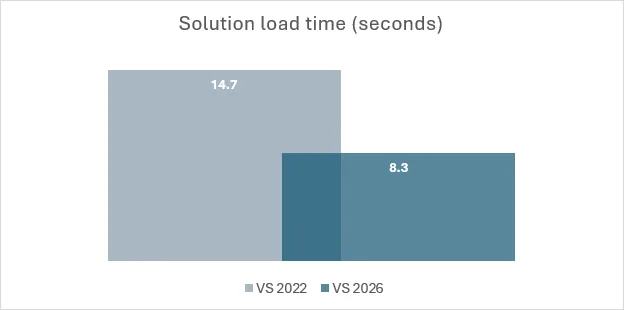
Visual Studio January Update — Enhanced Editor Experience

$
0
0

Summary of VS January updates

Productivity Improvements

This month, we are bringing you a series of small yet long requested and popular features to let you better control and customize your editor.

  • Fast scrolling: Hold down the Alt key while scrolling the mouse wheel to move quickly when reviewing code or reading documentation. You can adjust the fast-scrolling speed in Tools > Options > Text Editor > Advanced > Touchpad and mouse wheel scrolling sensitivity.
  • Middle click scroll: Press down on your scroll wheel and move the mouse to quickly scroll through your document, making it easier to explore large files. This feature is off by default in 18.3 Insiders 2 and needs to be enabled via Tools > Options > Text Editor > Advanced > Middle click to scroll.
  • HTML-rich copy paste: Visual Studio now supports HTML clipboard format when cutting or copying code from the editor. You can paste colorized code into web versions of Office apps, Azure DevOps work items, or other HTML-based controls. This feature is available in the latest Insiders and will be shipped in the Release channel soon.
  • Syntactic line compression: Lines without letters or numbers are compressed by 25%, letting you see more code at once. Regular lines stay the same height. Enable this feature in Tools > Options > Text Editor > Advanced by checking Compress blank lines and Compress lines that do not have any alphanumeric characters.
  • Slimmer left margin: We’ve heard you that you would like to see a slimmer left margin to have more horizontal space for your code! To save an extra column, we moved the Quick Actions icon (lightbulb or screwdriver) from the margin into the editor, where it appears inline with your code when fixes or refactoring are available. To try out the experience now, go to Tools > Options > Text Editor > Advanced and check Show Quick Actions icon inside the editor. We also have more customized margin controls coming, so stay tuned!

Colorized Code Completions

Code completions are now colorized with syntax highlighting to help you quickly parse suggested code between variables, functions, and other elements! To try out this experience, go to Tools > Options > Text Editor > Code Completions and check “Use colorized text for code completions.

To differentiate suggestions from actual code, colorized completions use lower opacity and italic styling. If you want to further customize the look, go to Tools > Options > Environment > Fonts and Colors and select “Code Completions” from the Display items list. From there, you can customize the font, size, foreground/background colors, and styles (bold, italicized…).

Click to Accept Code Completions Partially

Have you ever wanted to accept a code completion partially with a single click? With this new feature, you can click directly inside a suggestion to accept it up to the cursor position. As you hover over the suggestion, each segment highlights to show exactly what will be accepted.

Using mouse clicks to partially accept a suggestion

This feature gives you more control over how much of a completion you want to accept. If you prefer using the keyboard, you can still press Ctrl + Right Arrow to accept one word at a time, or Ctrl + Down Arrow to accept one line at a time.

Streamlined Markdown Preview Controls

Visual Studio Markdown editor now gives you faster, clearer access to preview options:

  • Switch between preview modes: Split Preview shows the editor and preview side by side, Open Preview shows only the preview, and Edit Markdown shows just the editor. The preview-only mode helps you focus on rendered content, especially for large images or complex Mermaid diagrams.
  • When previewing a Mermaid diagram, use the zoom controls in the top-left corner to zoom in or out for better readability.
  • When Copilot Chat generates markdown content, click the Preview button at the top right corner of the chat window to see a rendered view. You can then edit and save the content directly. No need to copy and paste manually.


To try all this latest goodness, please update your Visual Studio regularly and join us in the Insiders Channel if you haven’t yet! (Note: All features shared in this blog post are available in Visual Studio 2026 only.) Please give them a try and let us know any feedback you have or the next thing you would like to see!

The post Visual Studio January Update — Enhanced Editor Experience appeared first on Visual Studio Blog.
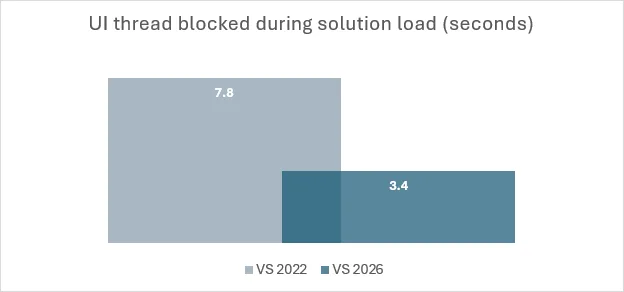
Performance improvements to MEF-based editor productivity extensions

$
0
0

If you use editor productivity extensions for Visual Studio 2026, there’s good news—they can now load faster! Extension developers with existing MEF-based editor productivity extensions should read this blog to learn about recent changes and how they might be affected. 

We introduced VisualStudio.Extensibility to simplify the creation of Visual Studio extensions for developers. Previously, handling threads in VSSDK-based extensions was often difficult, requiring knowledge of thread affinity and even the ins and outs of COM just to avoid freezing Visual Studio. The new extensibility model abstracts these technical details away seamlessly. 

Despite this advancement, we recognize most Visual Studio extensions still use VSSDK, so we’re striving to make targeted improvements there as well – especially regarding performance. For Visual Studio 2026, we’ve added the ability to load MEF-based editor extensions on a background thread, which significantly speeds up startup times for users. A major highlight of Visual Studio 2026 is its improved performance, and the proposed change we’re making to MEF is just one of many enhancements planned to make it even faster. We hope you’ll be pleased with the results. 

What changed? 

Visual Studio editor components use the Managed Extensibility Framework (MEF), which requires that objects be constructed in a free-threaded manner. Despite official MEF guidelines, we’ve often loaded components on the UI thread, resulting in many extensions relying on this behavior and limiting our ability to enhance startup performance. 

With Visual Studio 2026, we’re shifting to a free-threaded model, loading MEF components on background threads. This means extensions with UI thread dependencies might fail to load. We’ve been rigorously testing this approach in recent Visual Studio 2022 updates, and we are aware that some extensions that expect to load on the UI thread will fail to load with this optimization. To support extension developers through this transition, we’ve provided a setting and an analyzer that allows you to experiment with background loading and detect if your extension could be impacted by this change before we push it out more broadly. This initiative reflects our commitment to reducing disruptive changes and help extenders adapt when updates are necessary for the overall improvement of the product. 

Does it impact my extension? 

To help extension developers better detect if this change impacts you, we created an analyzer to identify potential issues. We hope that this will give you the opportunity to bring your extension in compliance with MEF rules, so that your extension can also get a startup performance boost like the rest of Visual Studio 2026. 

The example below shows the analyzer running and reporting access to the Microsoft.VisualStudio.Shell.ThreadHelper  and DTE2.StatusBar require UI thread. 

Picture1 image 

 To use the analyzer, add a reference to the latest version of the Microsoft.VisualStudio.SDK.Analyzers package: 

<PackageReference Include="Microsoft.VisualStudio.SDK.Analyzers" Version="17.7.98" PrivateAssets="all" />

To validate your extension can adapt to this change, enable the Preview Feature flag “Initialize editor parts asynchronously during solution load”. 

Picture2 image

When debugging, you may set a breakpoint in MEF part constructors and evaluate System.Threading.Thread.CurrentThread.ManagedThreadId. If it’s different than 1, then your code executes on the background thread.  

Picture3 image

Call to action 

Loading MEF parts on a background thread is essential for improving Visual Studio’s performance, and we have gradually enabled this change in Visual Studio 2026. We recognize that code changes can be inconvenient, so we’ve made it straightforward to spot and resolve any issues. To see examples of removing UI thread affinity, please see our documentation or a sample PR on how we made this change ourselves.  

We want to hear from you! 

Thank you for sharing your issues and suggestions with us, and we hope you’ll keep providing feedback about what you like and what we can improve in Visual Studio. For those new and experienced to extending Visual Studio, we invite you to visit our documentation to learn more, or watch the video series on Visual Studio Toolbox where Visual Studio engineers take you through how to build extensions using our samples on GitHub. Feel free to share feedback with us viaDeveloper Community: report any bugs or issues viareport a problemandshare your suggestionsfor new features or improvements to existing ones. If you want a closer engagement with other partners in the ecosystem, please visit our GitHub repo to report issues as well. 

Stay connected with the Visual Studio team by following us on YouTubeTwitterLinkedInTwitch and on Microsoft Learn

The post Performance improvements to MEF-based editor productivity extensions appeared first on Visual Studio Blog.
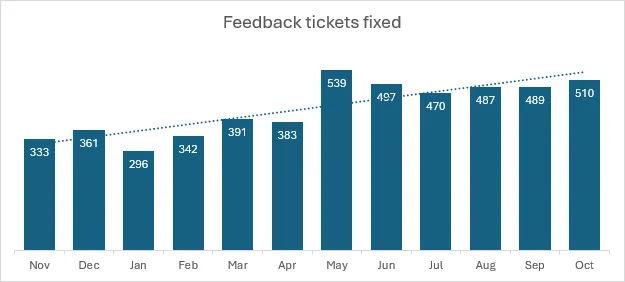
Viewing all 1144 articles
Browse latest View live


<script src="https://jsc.adskeeper.com/r/s/rssing.com.1596347.js" async> </script>